Sidebar navigation
Learn how the Auxx.ai sidebar is organized and how to customize it for your workflow.
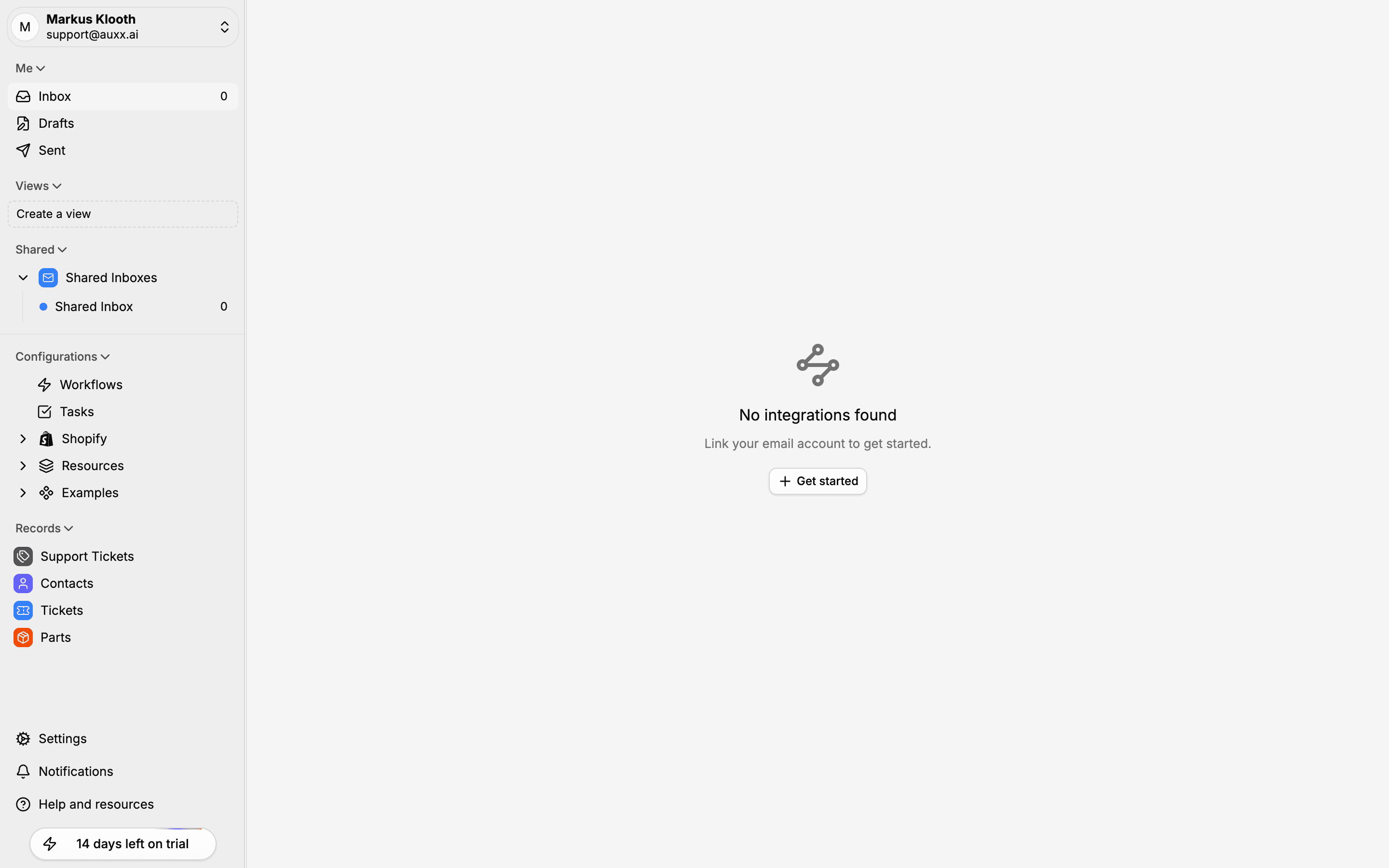
The sidebar is the main way to navigate Auxx.ai. It's always visible on the left side of the screen and organizes your workspace into collapsible sections.
Sidebar sections
The sidebar is divided into the following groups:
Me
Your personal mail views:
- Inbox — Messages assigned to you, with an unread count
- Drafts — Replies you've saved but haven't sent
- Sent — Messages you've sent
Views
Custom saved views that filter your inbox by specific criteria like tags, status, or assignee. Click Create a view to set up a new one.
Shared Inboxes
Team-visible mailboxes that pull in messages from connected integrations (Gmail, Outlook, etc.). Each shared inbox shows its own unread count. Shared inboxes are configured in Settings > Inboxes.
Configurations
Quick access to automation and task management:
- Workflows — Automation rules for routing, tagging, and auto-responding
- Tasks — Organization-wide task list
Shopify
If you have a Shopify store connected, this section provides quick access to Shopify-related data. Expand it to see available options.
Resources and Examples
Expandable sections for additional content and reference material.
Records
Structured data views for your organization. Default records include:
- Support Tickets — Trackable support requests
- Contacts — Customer profiles
- Tickets — Alternative ticket views
If you've configured custom entities (e.g., Parts, Products), they also appear here.
Bottom bar
- Settings — Opens the full settings panel
- Notifications — Alerts and updates
- Help and resources — Documentation and support links
- Trial badge — Days remaining on your trial (if applicable)
Customizing the sidebar
Collapse and expand sections
Click any section header to collapse or expand it. Your collapse state is saved automatically and persists across sessions.
Toggle the sidebar
Click the Toggle Sidebar button at the top of the sidebar to collapse it entirely, giving more space to the main content area. Click again to restore it.
Reorder and visibility
Use the Options menu (hover over any section or item to reveal it) to access additional actions:
- Reorder items within a section
- Show or hide specific inboxes or records
- Customize which sections appear in the sidebar
These preferences are saved per-user, so each team member can personalize their own sidebar layout.
User menu
Click your name and avatar at the bottom-left of the sidebar to open the user menu.
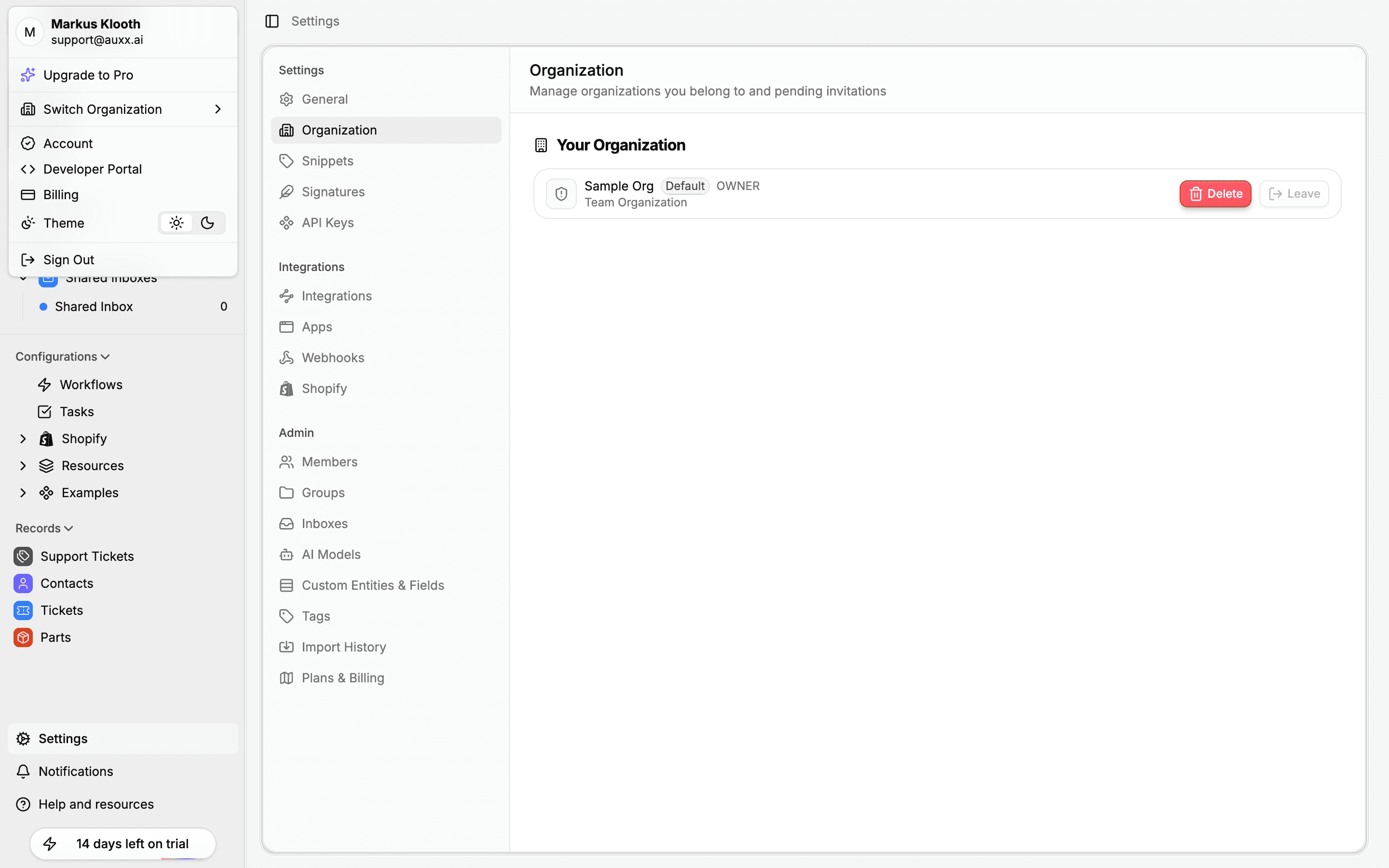
From the user menu you can:
| Action | Description |
|---|---|
| Upgrade to Pro | Navigate to plan upgrade |
| Switch Organization | Switch between workspaces you belong to |
| Account | Go to your account settings |
| Developer Portal | Access the developer tools |
| Billing | Manage subscription and payment |
| Theme | Toggle between light and dark mode |
| Sign Out | Log out of your account |