Workspace
Groups
Create and manage groups to organize team members and control access in Auxx.ai.
Groups let you organize team members into logical units — by department, role, shift, or any other criteria. Use groups to control visibility of shared inboxes, route conversations, and manage permissions.
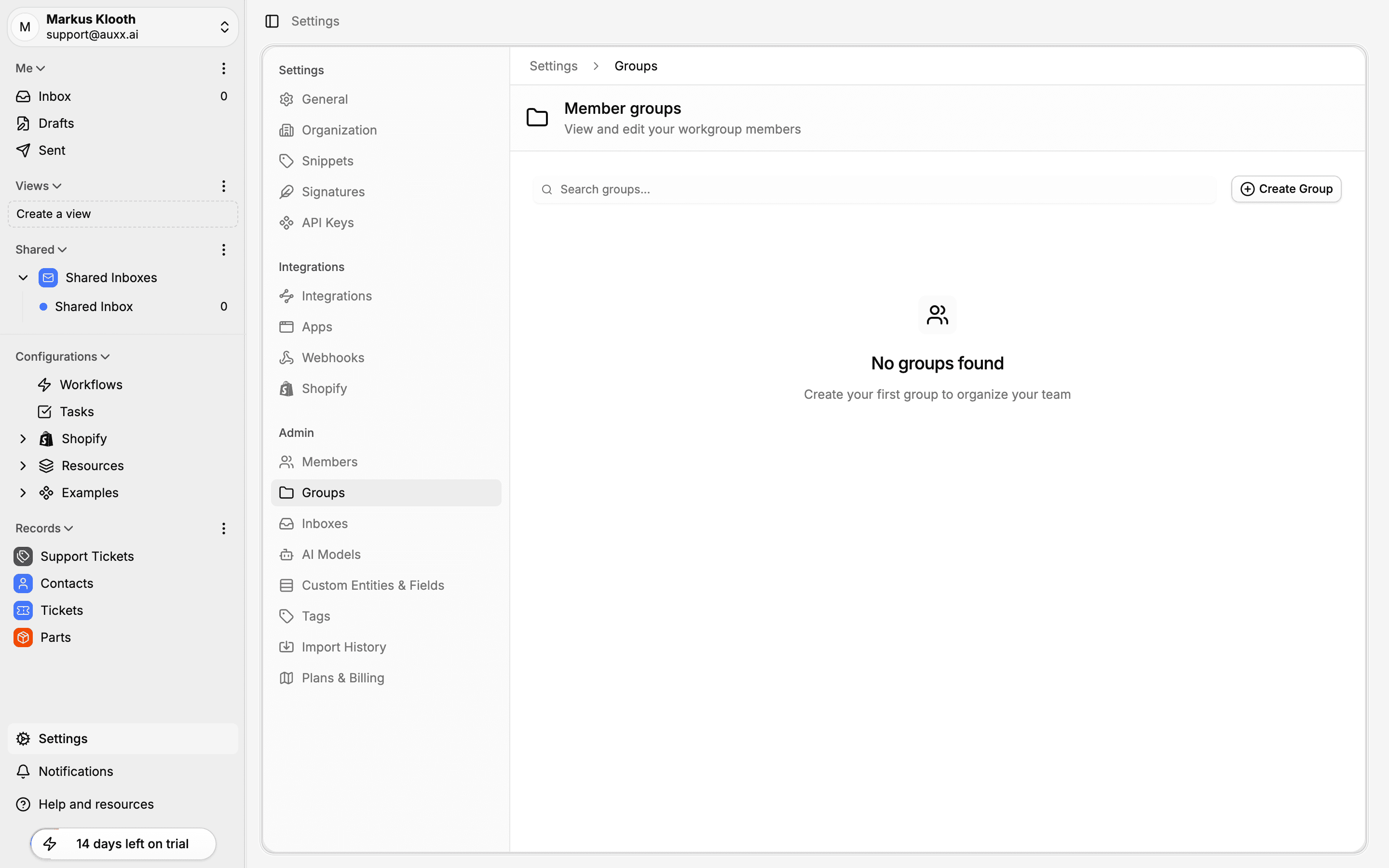
Create a group
- Go to Settings > Groups.
- Click Create Group.
- Fill in the group details:
| Field | Description |
|---|---|
| Icon | Emoji icon for the group (defaults to 👥) |
| Name | Group name (required, max 100 characters) |
| Description | Optional description of the group's purpose |
| Visibility | Public (visible to all members) or Private (visible only to group members) |
| Member type | Any (Users & Records) or Users Only |
- Click Create Group.
Add members
After creating a group, click on it to open the edit view. From there:
- Use the member search to find users.
- Select users to add them to the group.
- Members appear in the group's member list.
Group permissions
Groups have a permissions system that controls who can manage the group:
| Permission | What it allows |
|---|---|
| View | See the group and its members |
| Edit | Add or remove members |
| Admin | Manage permissions and delete the group |
Organization owners and admins can always manage all groups.
Using groups
Groups are useful across several features:
- Shared inbox visibility — When creating a shared inbox, you can restrict access to specific groups instead of the entire organization.
- Conversation routing — Workflows can route conversations to a group, distributing work among its members.
- Permissions — Control who can access specific resources by granting group-level permissions.
Delete a group
- Go to Settings > Groups.
- Click on the group.
- Click Delete.
- Confirm the deletion.
Permanent action
Deleting a group removes all members from it and revokes any permissions granted through the group. This cannot be undone.