Workspace overview
Understand how workspaces work in Auxx.ai — what they contain, how to manage them, and how to switch between organizations.
A workspace in Auxx.ai is your team's shared environment. It's where your inboxes, integrations, contacts, tickets, workflows, and settings all live. When you sign up, a default workspace is created for you automatically.
In the system, workspaces are called organizations. Every piece of data — messages, contacts, Shopify connections, team members — is scoped to a single organization.
What belongs to a workspace
| Resource | Description |
|---|---|
| Inboxes | Personal and shared inboxes for email conversations |
| Integrations | Gmail, Outlook, Facebook, Instagram, OpenPhone, and chat widget connections |
| Shopify | Connected Shopify stores with synced customers, orders, and products |
| Members | Team members with roles (Owner, Admin, User) |
| Workflows | Automation rules for routing, tagging, and responding |
| Tickets | Support ticket records with status and assignment |
| Contacts | Customer profiles enriched with conversation and Shopify data |
| Tags | Labels for organizing conversations and records |
| Custom fields | Custom data types and fields for your business |
| API keys & webhooks | Developer access scoped to this workspace |
| Settings | Appearance, email domains, and other configuration |
Multiple workspaces
You can belong to more than one workspace. This is useful if you manage support for multiple businesses or need separate environments for different teams.
Switch workspaces
Click your name at the bottom-left of the sidebar to open the user menu, then select Switch Organization.
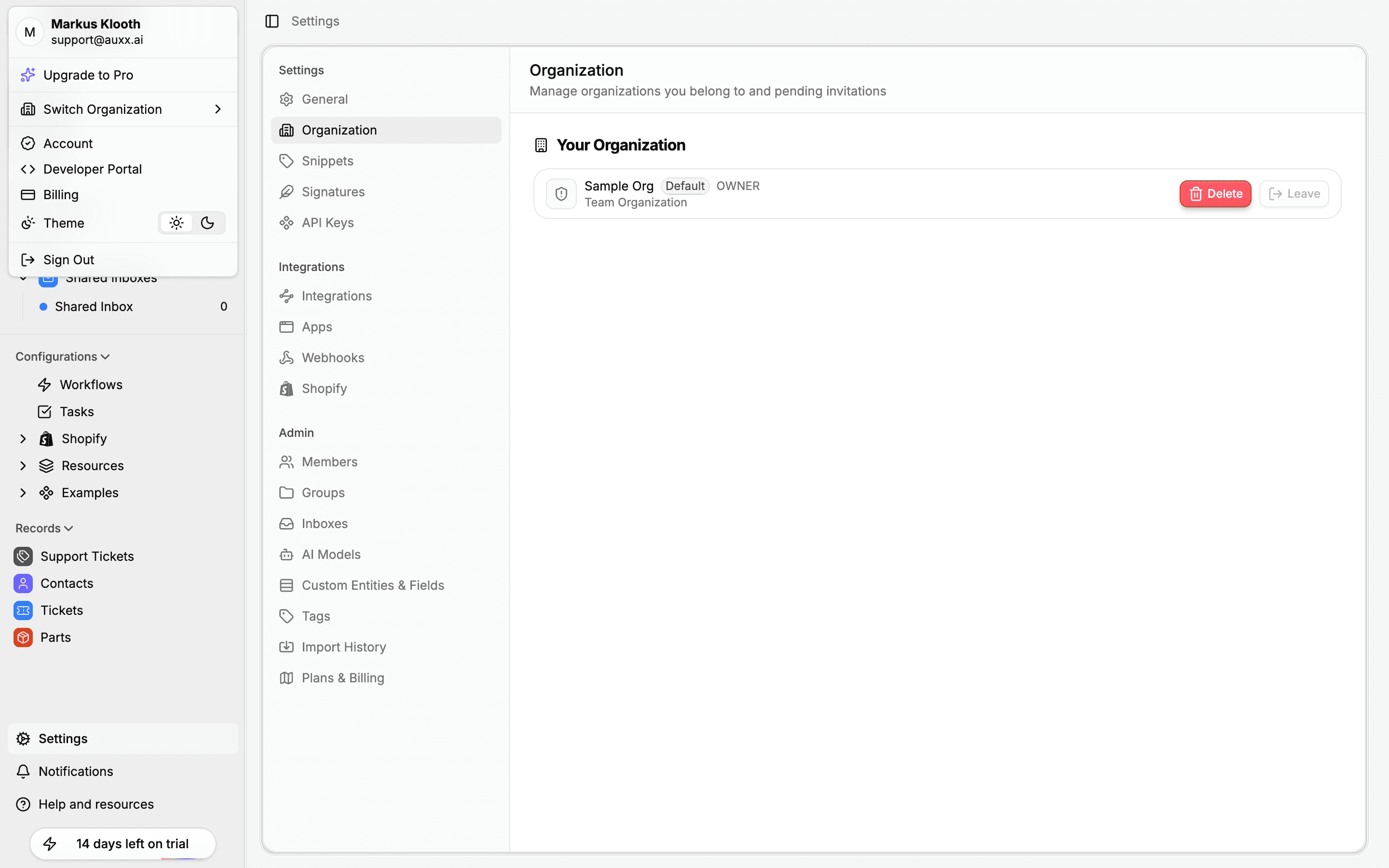
Manage your workspaces
Go to Settings > Organization to see all workspaces you belong to.
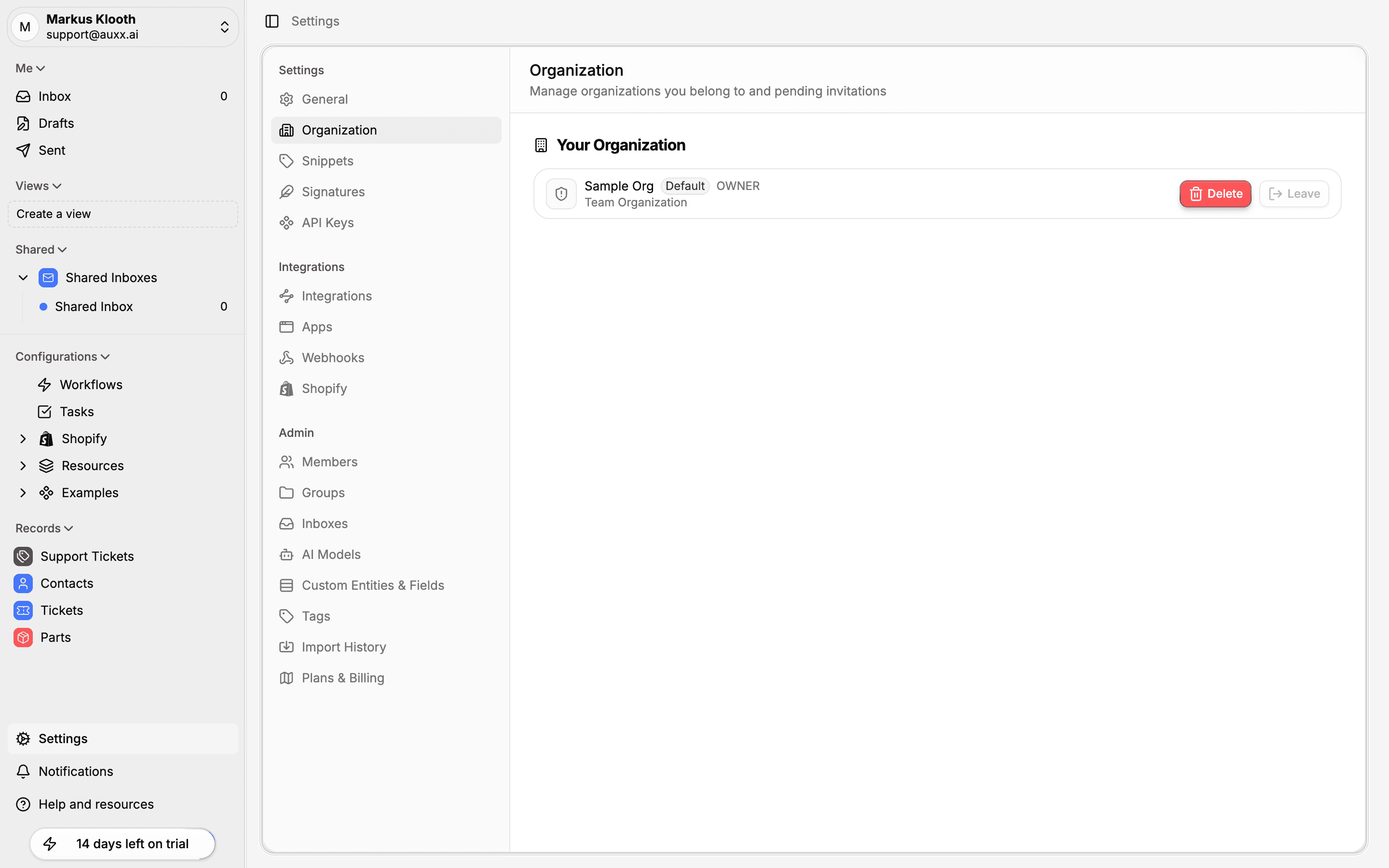
From here you can:
- Switch to a different workspace
- Leave a workspace (if you're not the sole owner)
- Delete a workspace (owners only)
Create a new workspace
Open the user menu in the sidebar and select Switch Organization, then click Add Organization. You'll be prompted to name your new workspace and set up a handle.
Workspace settings
Owners and admins can configure workspace-wide settings. These are accessible from the Settings page in the sidebar.
Appearance
Customize how the workspace looks for all members:
- Logo — Upload your organization's logo
- Primary color — Main theme accent color
- Secondary color — Secondary accent color
- Font — Choose from Inter, Roboto, Open Sans, or Montserrat
Email domains
Configure internal and partner email domains to help Auxx.ai categorize incoming messages:
- Internal domains — Your company's email domains (e.g.,
acme.com) - Partner domains — Known partner or vendor domains
Theme
Each user can set their own theme preference (light or dark mode) from the user menu in the sidebar. This is a personal setting, not workspace-wide.