Custom fields & entities
Define custom data types and fields to model your business data in Auxx.ai.
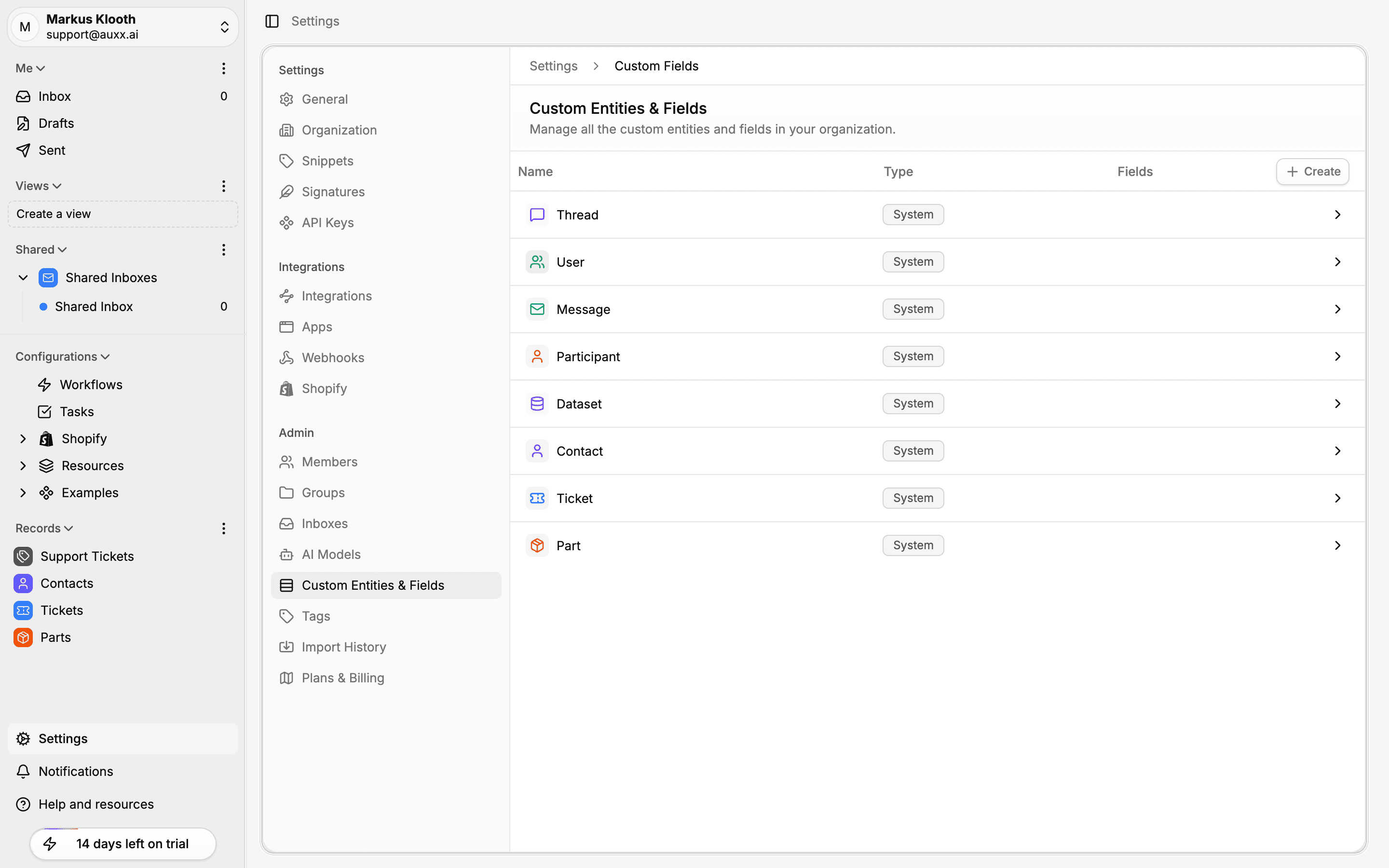
Auxx.ai comes with built-in data types (contacts, tickets, conversations) and lets you create your own. Custom entities and fields let you model any business data — products, projects, vendors, or anything else your team needs.
Concepts
System entities
Built-in data types that come with every workspace:
- Contact — Customer profiles
- Company — Business/organization records
- Conversation — Email threads and messages
- Ticket — Support ticket records
System entities cannot be deleted, but you can add custom fields to them.
Custom entities
Data types you create to model your business. Custom entities appear in the Records section of the sidebar and can be linked to other entities via relationships.
Fields
Attributes on an entity. Every entity has system fields (like timestamps) plus any custom fields you add.
Create a custom entity
- Go to Settings > Custom Entities & Fields.
- Click Create.
- Fill in the entity details:
| Field | Description |
|---|---|
| Icon | Visual icon from the icon picker |
| Plural name | The collection name (e.g., "Products") |
| Singular name | Auto-generated from plural (e.g., "Product") |
| Slug | URL-safe identifier, auto-generated. Cannot be changed after creation. |
- Click Create Entity.
After creation, you'll be prompted to add your first field.
Add fields to an entity
- Go to Settings > Custom Entities & Fields.
- Click on the entity you want to modify.
- Click the + button to add a new field.
- Choose a field type and configure it.
Available field types
| Category | Types |
|---|---|
| Basic | Text, Number, Checkbox |
| Text formats | Email, URL, Phone Number |
| Date & time | Date, Date & Time, Time |
| Selection | Single Select, Multi-Select, Tags |
| Complex | Address, Currency, File Upload, Rich Text, Relationship |
| Advanced | Calculated (formulas), Actor (assign users/groups) |
Field options
When creating a field, you can configure:
| Option | Description |
|---|---|
| Name | Field label (required) |
| Description | Optional help text |
| Required | Whether the field must have a value |
| Unique | Whether values must be unique across records |
| Default value | Pre-filled value for new records |
Some field types have additional options:
- Select fields — Define options with names and colors
- Address — Choose which components to include (street, city, state, zip, country)
- Currency — Select currency code and format
- File — Set max file size and allowed file types
- Relationship — Choose target entity and cardinality (one-to-many or many-to-many)
- Calculated — Write a formula referencing other fields
- Actor — Choose target type (users, groups, or both) and allow single or multiple
Configure display fields
Control how an entity's records appear in pickers, lists, and relationships:
- Click on the entity in Settings > Custom Entities & Fields.
- Open the entity settings.
- Set:
| Display field | Purpose |
|---|---|
| Primary display field | The main label shown in lists and pickers (must be a text-type field) |
| Secondary display field | Subtitle shown below the primary field |
| Avatar field | Image shown next to the record name |
Edit and delete
- Edit a field — Click on the field to update its name, description, or options. You cannot change a field's type after creation.
- Delete a field — Remove a field from the entity. This deletes all data stored in that field.
- Edit an entity — Update its icon, names, or display configuration.
- Delete an entity — Removes the entity and all its records permanently.