Workspace
Members & roles
Manage team members, assign roles, and control permissions in your Auxx.ai organization.
Every person in your Auxx.ai organization has a role that determines what they can access and configure. Manage members from Settings > Members.
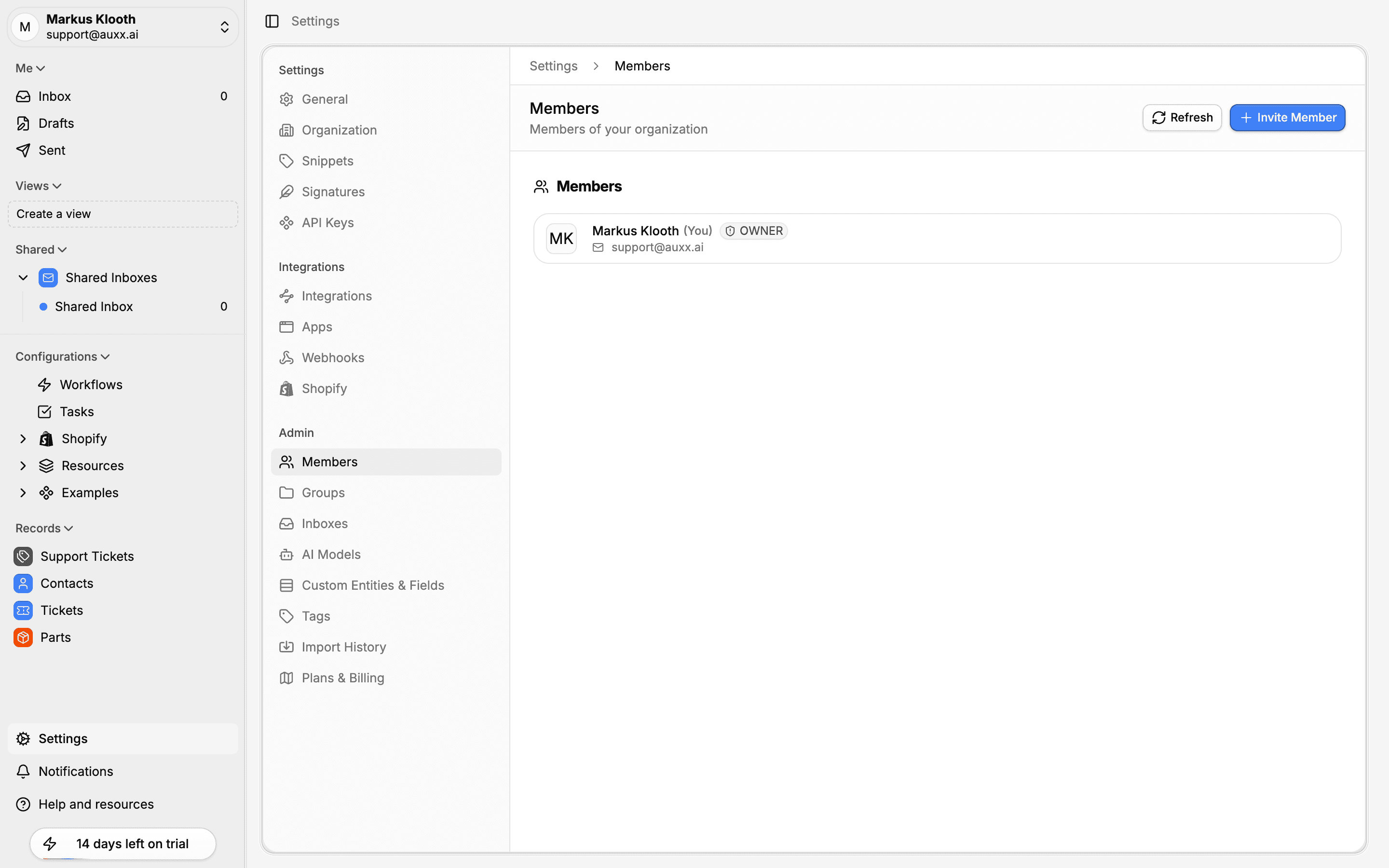
Roles
| Role | Access level |
|---|---|
| Owner | Full access to everything. Can manage all members (including Admins), delete the organization, and configure all settings. Every organization has at least one owner. |
| Admin | Can manage settings, integrations, inboxes, and invite members. Can change User roles but cannot manage other Admins or delete the organization. |
| User | Standard access. Can use the inbox, reply to messages, view contacts and tickets, and use workflows — but cannot change organization settings or manage members. |
What each role can do
| Action | Owner | Admin | User |
|---|---|---|---|
| Read and reply to messages | Yes | Yes | Yes |
| View contacts, tickets, records | Yes | Yes | Yes |
| Use workflows | Yes | Yes | Yes |
| Connect integrations | Yes | Yes | No |
| Manage shared inboxes | Yes | Yes | No |
| Invite members | Yes | Yes | No |
| Change User roles | Yes | Yes | No |
| Change Admin roles | Yes | No | No |
| Manage organization settings | Yes | Yes | No |
| Delete the organization | Yes | No | No |
Invite members
- Go to Settings > Members.
- Click Invite Member.
- Enter the person's email and select a role (Admin or User).
- Click Send Invitation.
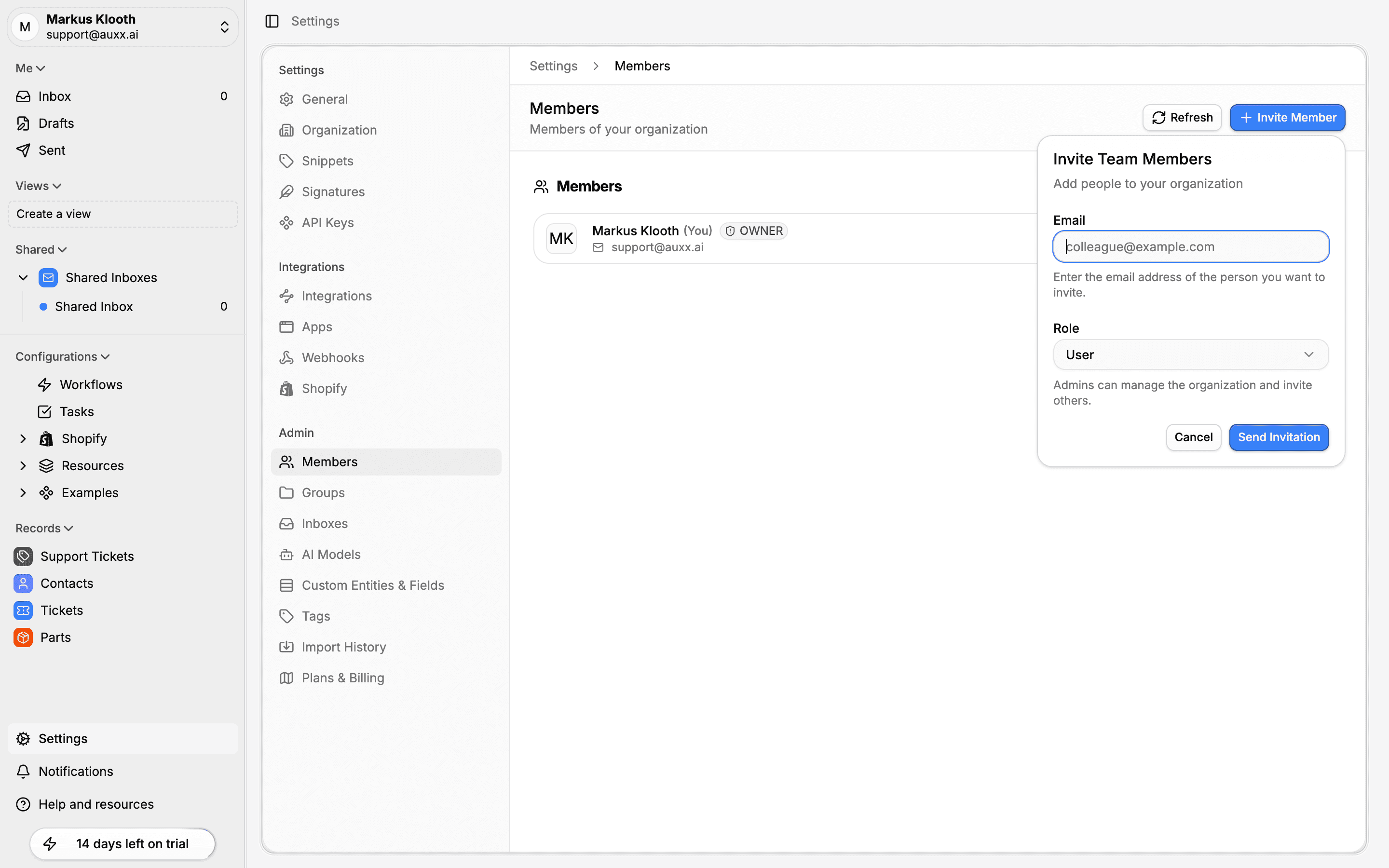
For more details on the invitation flow, see Invite your team.
Change a member's role
- Go to Settings > Members.
- Click the three-dot menu next to the member.
- Select Change role.
- Choose the new role and confirm.
Role restrictions
Admins can only change Users' roles. Only Owners can promote or demote Admins.
Remove a member
- Go to Settings > Members.
- Click the three-dot menu next to the member.
- Select Remove Member.
- Confirm the removal.
The member is removed from the organization immediately and loses access to all workspace data.
Pending invitations
Invitations that haven't been accepted appear in a separate section on the members page. Each pending invitation shows:
- The invitee's email address
- The assigned role
- When the invitation was sent
- When it expires (7 days after sending)
Use the three-dot menu on a pending invitation to:
- Resend Invitation — Send a new email and reset the 7-day expiry
- Copy Invite Link — Copy a shareable join link
- Cancel Invitation — Revoke the invitation