Invite your team
Add team members to your Auxx.ai organization and assign roles and permissions.
Auxx.ai is built for teams. Once your organization is set up, invite your team members so they can help manage support conversations, respond to customers, and collaborate on workflows.
Admin required
Only organization owners and admins can invite new members.
Roles
Every member has a role that determines what they can do:
| Role | Capabilities |
|---|---|
| Owner | Full access. Can manage members, change roles, delete the organization, and configure all settings. |
| Admin | Can manage settings, invite members, and assign User roles. Cannot manage other Admins or delete the organization. |
| User | Standard access. Can use the inbox, reply to messages, and view data — but cannot manage members or organization settings. |
Invite members
You can invite team members during onboarding or anytime from settings.
During onboarding
Step 4 of the onboarding flow lets you invite multiple people at once:
- Enter each person's email address and choose a role (Admin or User).
- Click Add another to invite additional people.
- Click Send invites & finish to send all invitations and complete onboarding.
You can also click Copy invite link to share a link instead. This step is optional — click Skip for now to finish onboarding without inviting anyone.
From settings
- Go to Settings > Members.
- Click Invite Member.
- Enter the person's email address.
- Select a role from the dropdown.
- Click Send Invitation.
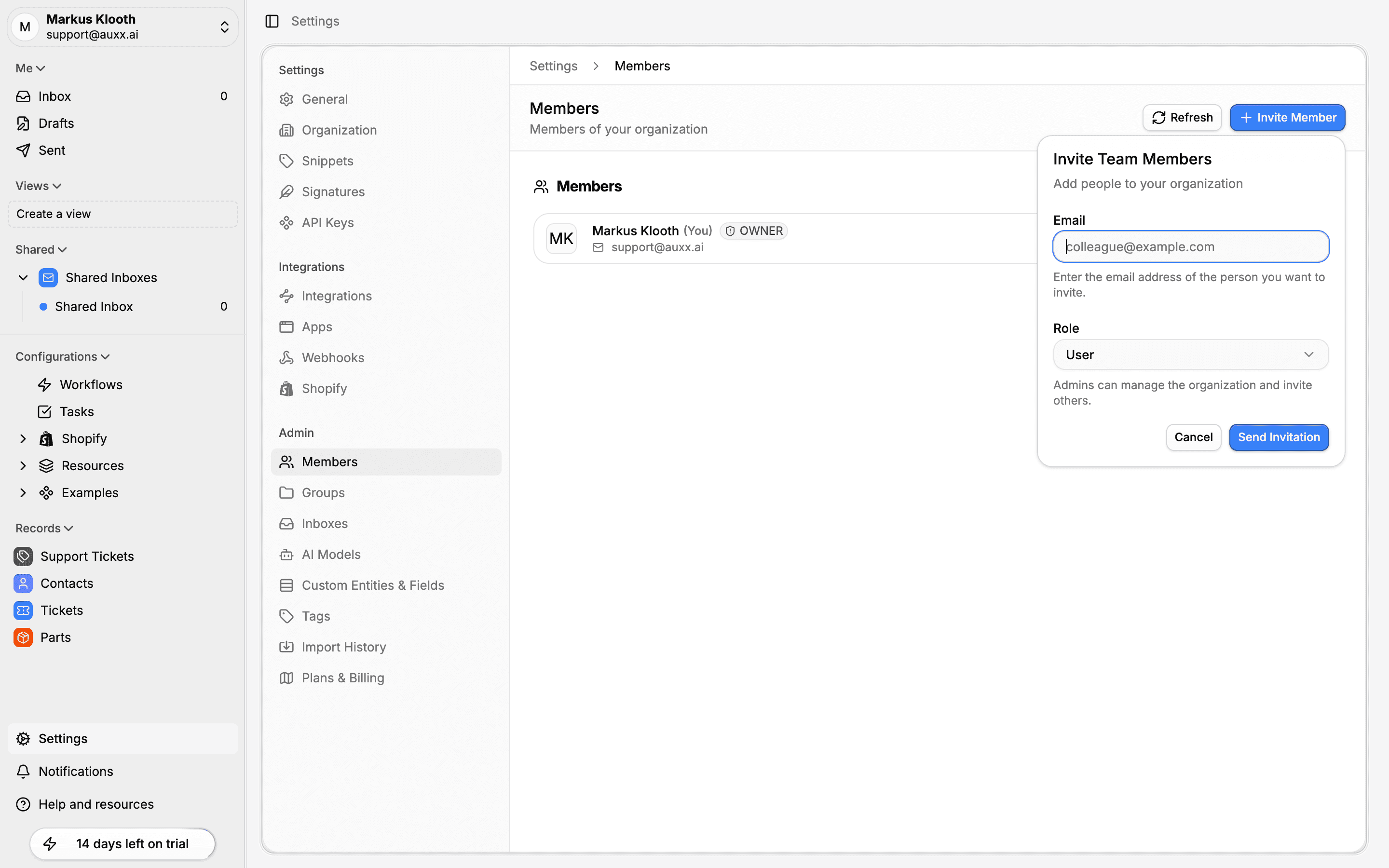
The invited person will receive an email with a link to join your organization.
What happens after inviting
- New users (no Auxx.ai account) receive an email with an Accept Invitation link that takes them to the sign-up page. After creating their account, they're automatically added to your organization.
- Existing users receive an email with a link to accept directly. After clicking, they join your organization immediately.
Invitations expire after 7 days. If someone doesn't accept in time, you can resend the invitation from the members page.
Invite link
As an alternative to email invitations, you can share a direct invite link:
- During onboarding — Click Copy invite link on step 4.
- From settings — On the members page, click the three-dot menu next to a pending invitation and select Copy Invite Link.
Anyone with the link can join your organization (they'll still need to sign in or create an account first).
Manage members
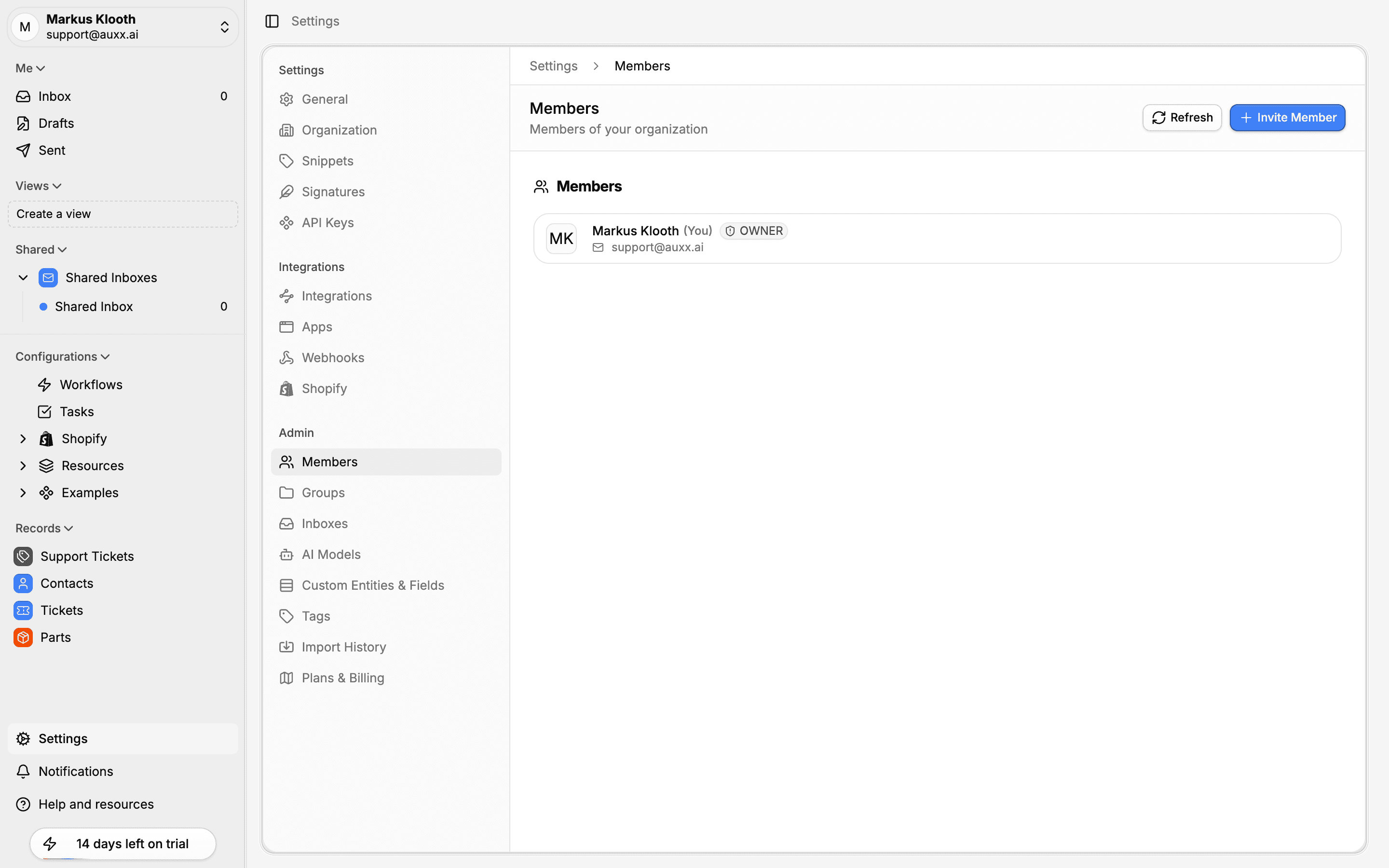
Change a member's role
- Go to Settings > Members.
- Click the three-dot menu next to the member.
- Select Change role.
- Choose the new role and confirm.
Role restrictions
Admins can only change Users' roles. Only Owners can change Admin roles or assign the Owner role.
Remove a member
- Go to Settings > Members.
- Click the three-dot menu next to the member.
- Select Remove Member.
- Confirm the removal.
This removes the person from your organization immediately.
Manage pending invitations
For invitations that haven't been accepted yet, the three-dot menu offers:
- Resend Invitation — Sends a new email and resets the 7-day expiry
- Copy Invite Link — Copies a shareable join link to your clipboard
- Cancel Invitation — Revokes the invitation so it can no longer be accepted
Plan limits
Your plan determines how many members you can have. If you've reached your limit, you'll see an upgrade banner on the members page. Upgrade your plan from Settings > Plans & Billing to add more seats.