Navigate the dashboard
Learn how to navigate the Auxx.ai dashboard, sidebar, and key areas of the application.
After signing in, you land on the Auxx.ai dashboard. The interface is organized around a sidebar on the left and a main content area on the right.
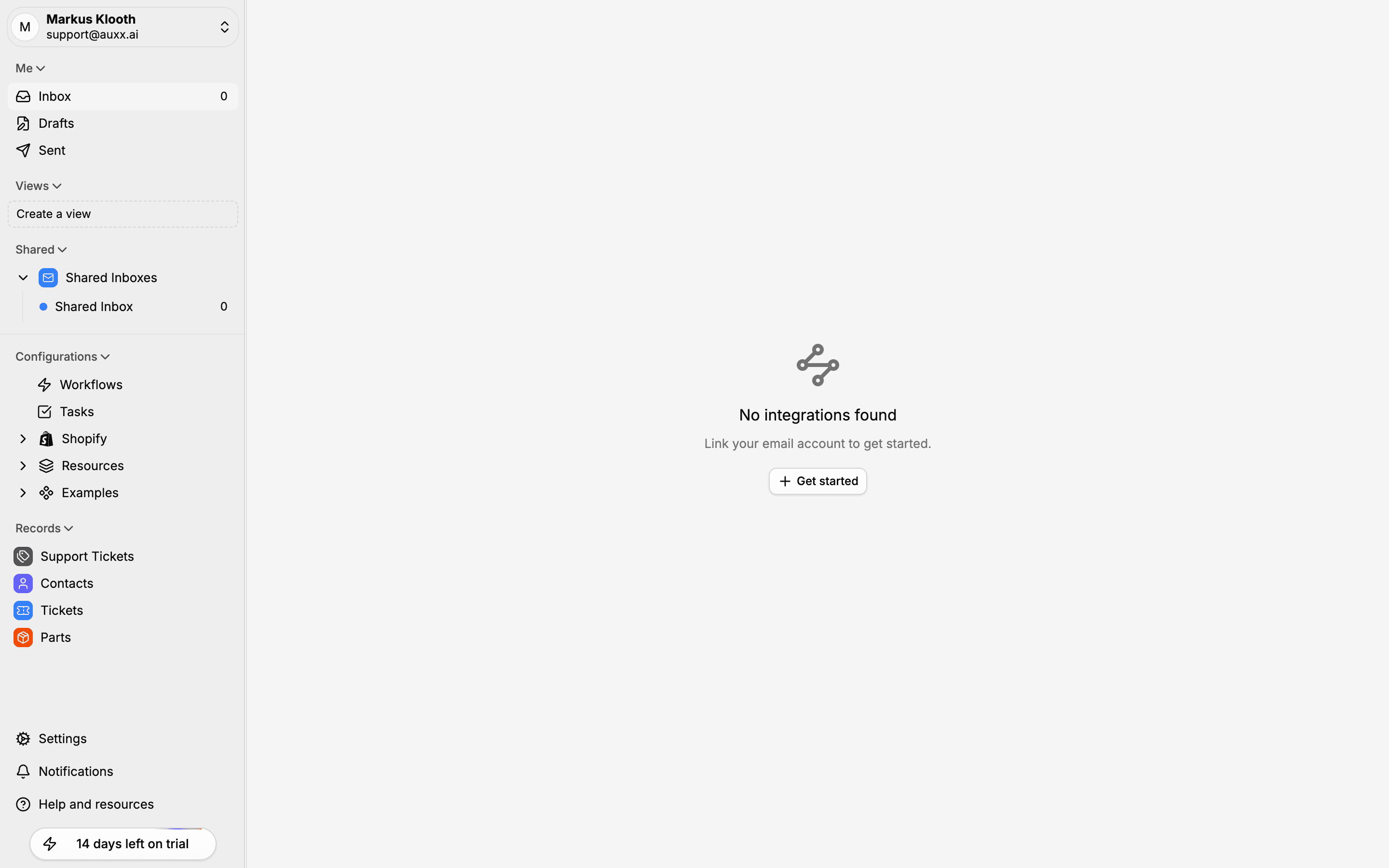
Sidebar
The sidebar is your primary navigation. It's organized into collapsible sections:
Me
Your personal mail views:
| View | What it shows |
|---|---|
| Inbox | Messages assigned to you, with an unread count badge |
| Drafts | Saved draft replies you haven't sent yet |
| Sent | Messages you've sent |
Views
Custom saved views let you filter your inbox by specific criteria — tags, status, assignee, and more. Click Create a view to set one up.
Shared Inboxes
Shared inboxes are team-visible mailboxes that pull in messages from connected integrations. Each shared inbox shows its own unread count. Click a shared inbox to see its messages.
Configurations
- Workflows — Automation rules with triggers, conditions, and actions
- Tasks — Organization-wide task list
Records
Structured data views for your organization:
- Support Tickets — Trackable support requests with status and assignment
- Contacts — Customer profiles enriched with Shopify and conversation data
- Tickets — Alternative ticket views
- Other custom entity records (e.g., Parts) appear here if configured
Bottom bar
At the bottom of the sidebar you'll find:
- Settings — Organization and account configuration
- Notifications — Bell icon for alerts and updates
- Help and resources — Documentation and support links
- Trial badge — Shows days remaining on your trial (if applicable)
Sidebar controls
- Toggle sidebar — Click the toggle button at the top to collapse or expand the sidebar
- Options menu — Hover over any section or item to reveal an Options button for additional actions (rename, reorder, etc.)
- Expandable sections — Click section headers like Shopify, Resources, or Examples to expand or collapse them
Settings
Click Settings in the sidebar to access the full configuration panel. Settings are organized into sections:
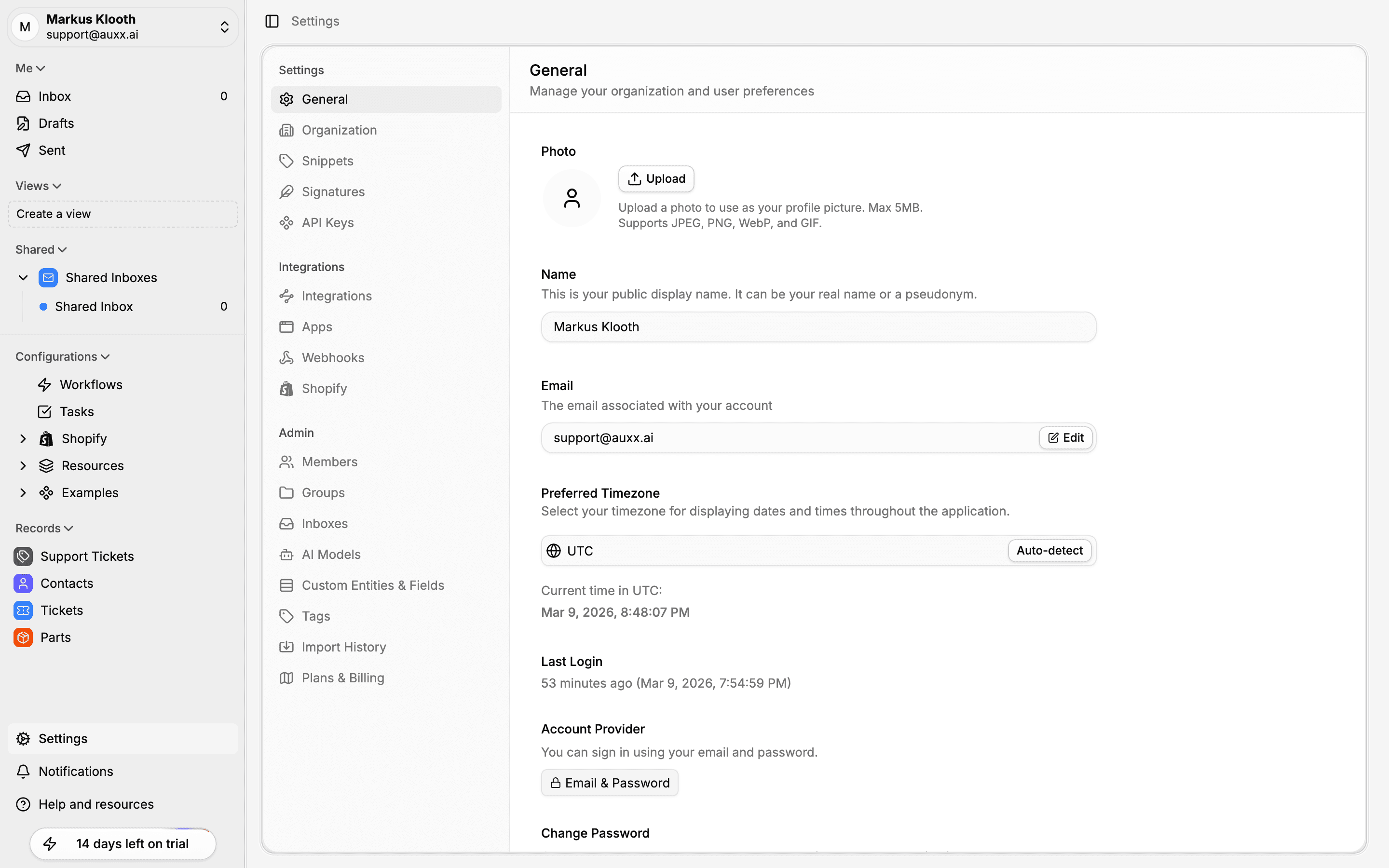
| Section | What's inside |
|---|---|
| General | Organization name, timezone, appearance |
| Organization | Organization details and handle |
| Snippets | Reusable text templates for replies |
| Signatures | Email signatures |
| API Keys | API key management |
| Integrations | Connected email and messaging providers |
| Apps | Third-party app marketplace |
| Webhooks | Webhook endpoints and events |
| Shopify | Shopify store connections and sync |
| Members | Team members and role management |
| Groups | Member groups |
| Inboxes | Shared inbox configuration |
| AI Models | AI provider and model settings |
| Custom Entities & Fields | Custom data types and fields |
| Tags | Tag management |
| Import History | Past import jobs and status |
| Plans & Billing | Subscription and payment management |
Keyboard shortcuts
Auxx.ai supports keyboard shortcuts for common actions. Press ? or check the Help and resources menu in the sidebar for a full list.