Connect your first inbox
Connect your Gmail or Outlook inbox to start receiving and responding to customer emails in Auxx.ai.
Auxx.ai works by syncing your email into a shared inbox. To get started, connect a Gmail or Outlook account. Once connected, incoming messages appear in your Auxx.ai inbox and you can reply directly from the platform.
Admin required
Only organization admins and owners can connect email accounts. If you're a member, ask your admin to set up the connection.
Where to connect
You can connect an inbox in two places:
- During onboarding — Step 3 of the setup flow prompts you to connect Google or Outlook. You can skip this and come back later.
- From settings — Go to Settings > Integrations and click New Integration, then choose Gmail or Outlook.
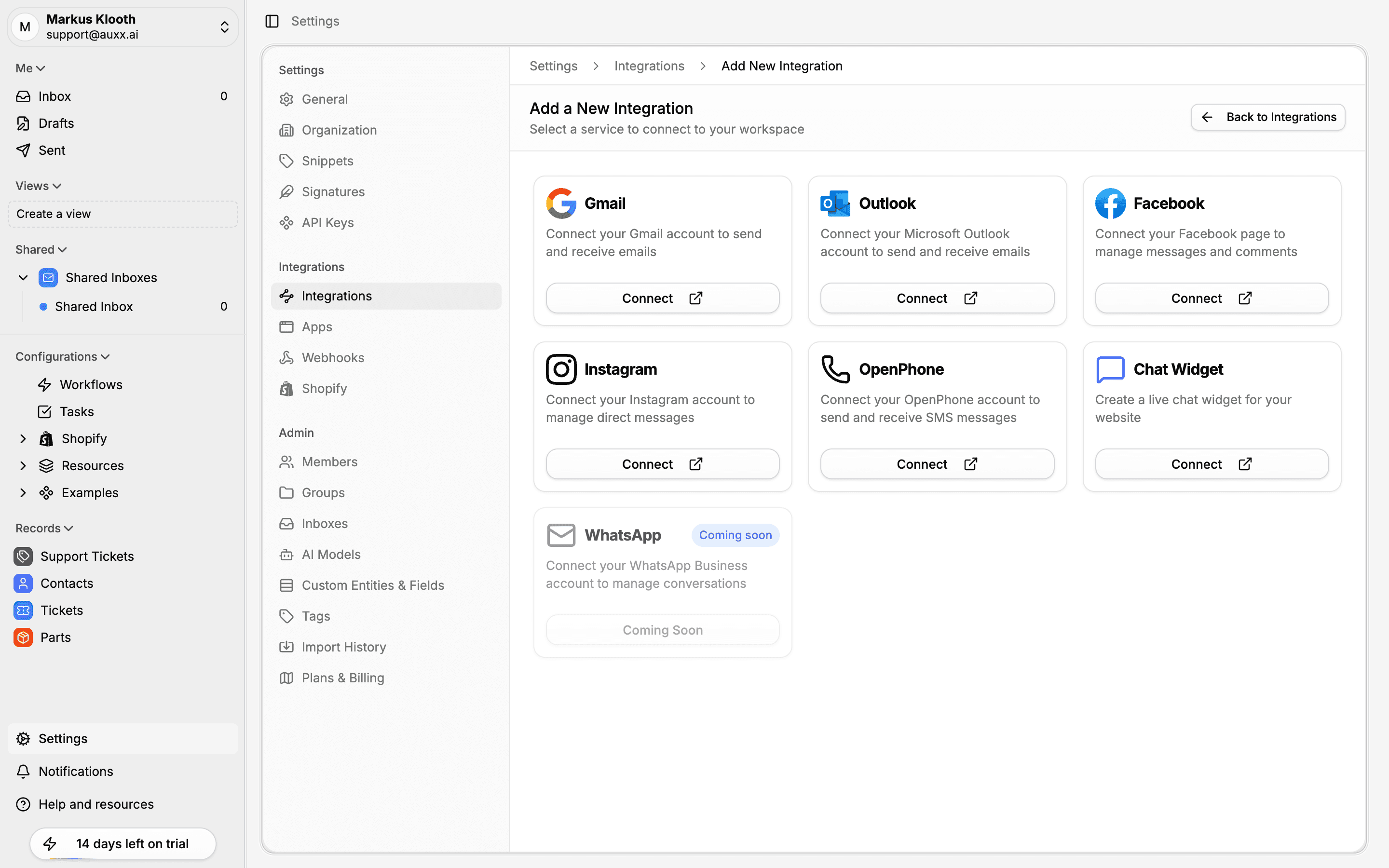
Connect Gmail
- On the Connect an inbox onboarding step, click Connect Google.
- Sign in to your Google account if prompted.
- Review the permissions Auxx.ai is requesting and click Allow.
- You'll be redirected back to the onboarding flow. A checkmark confirms the connection.
- Go to Settings > Integrations.
- Click Add Integration.
- Select Gmail.
- Sign in to your Google account if prompted.
- Review the permissions and click Allow.
- You'll be redirected to a confirmation page showing the connected email address.
For detailed setup instructions including BYOC (bring your own credentials), see the Gmail channel guide.
Gmail permissions
Auxx.ai requests the following access to your Google account:
| Permission | Why it's needed |
|---|---|
| Read emails | Sync incoming messages into your Auxx.ai inbox |
| Send emails | Send replies from Auxx.ai on your behalf |
| Manage labels | Organize synced messages with labels |
| Modify emails | Mark messages as read, archive, etc. |
Auxx.ai uses offline access so it can continue syncing messages in the background, even when you're not actively using the app.
Connect Outlook
- On the Connect an inbox onboarding step, click Connect Outlook.
- Sign in to your Microsoft account if prompted.
- Review the permissions Auxx.ai is requesting and click Accept.
- You'll be redirected back to the onboarding flow. A checkmark confirms the connection.
- Go to Settings > Integrations.
- Click Add Integration.
- Select Outlook.
- Sign in to your Microsoft account if prompted.
- Review the permissions and click Accept.
- You'll be redirected to a confirmation page showing the connected email address.
For detailed setup instructions including BYOC (bring your own credentials), see the Outlook channel guide.
Outlook permissions
| Permission | Why it's needed |
|---|---|
| Read and write emails | Sync messages and update their status |
| Send emails | Send replies from Auxx.ai on your behalf |
| Read your profile | Identify your email address and any aliases |
If your Microsoft account has email aliases configured, Auxx.ai automatically discovers them during setup.
After connecting
Once your email account is connected:
- Messages start syncing — Auxx.ai pulls in your recent messages. New messages sync automatically going forward.
- The integration appears in Settings > Integrations — You can view, configure, or disconnect it here.
- You can link it to a shared inbox — Go to Settings > Inbox, create or select an inbox, and add the integration as a source.
Integration settings
After connecting, click on the integration in Settings > Integrations to configure:
| Setting | Description |
|---|---|
| Display name | The name that appears when you send emails |
| Email signature | Signature appended to outgoing messages |
| Auto BCC | Automatically BCC an address on all outgoing emails |
| Undo send time | Grace period (0–30 seconds) to cancel a sent message |
Manual sync
If you need to pull in older messages, you can trigger a manual sync from the integration settings page. Options include:
- Last 7 days
- Last 30 days
- Last 90 days
Linking to a shared inbox
Connected email accounts can feed into one or more shared inboxes. Shared inboxes let your team collaborate on incoming messages.
- Go to Settings > Inbox.
- Click Create Inbox (or select an existing one).
- Give the inbox a name, optional description, and color.
- Choose visibility — Anyone in organization or Restricted to specific members/groups.
- On the inbox detail page, go to the Integrations tab and add your connected email account.
Messages from that email account will now appear in the shared inbox.
Re-authentication
If your email provider revokes access or your token expires, Auxx.ai will show a banner prompting you to re-authenticate. Click the banner and sign in again — your existing settings and inbox links are preserved.