Ticket settings
Configure ticket numbering format, email domains, and email templates in Auxx.ai ticket settings.
Ticket settings let you customize how tickets are numbered, configure email domains for ticket routing, and manage email templates. Access them from Tickets > Settings in the sidebar.
Ticket format
The Format tab controls how ticket numbers are generated. Every ticket gets an auto-generated number when it's created — you can customize the format to match your team's conventions.
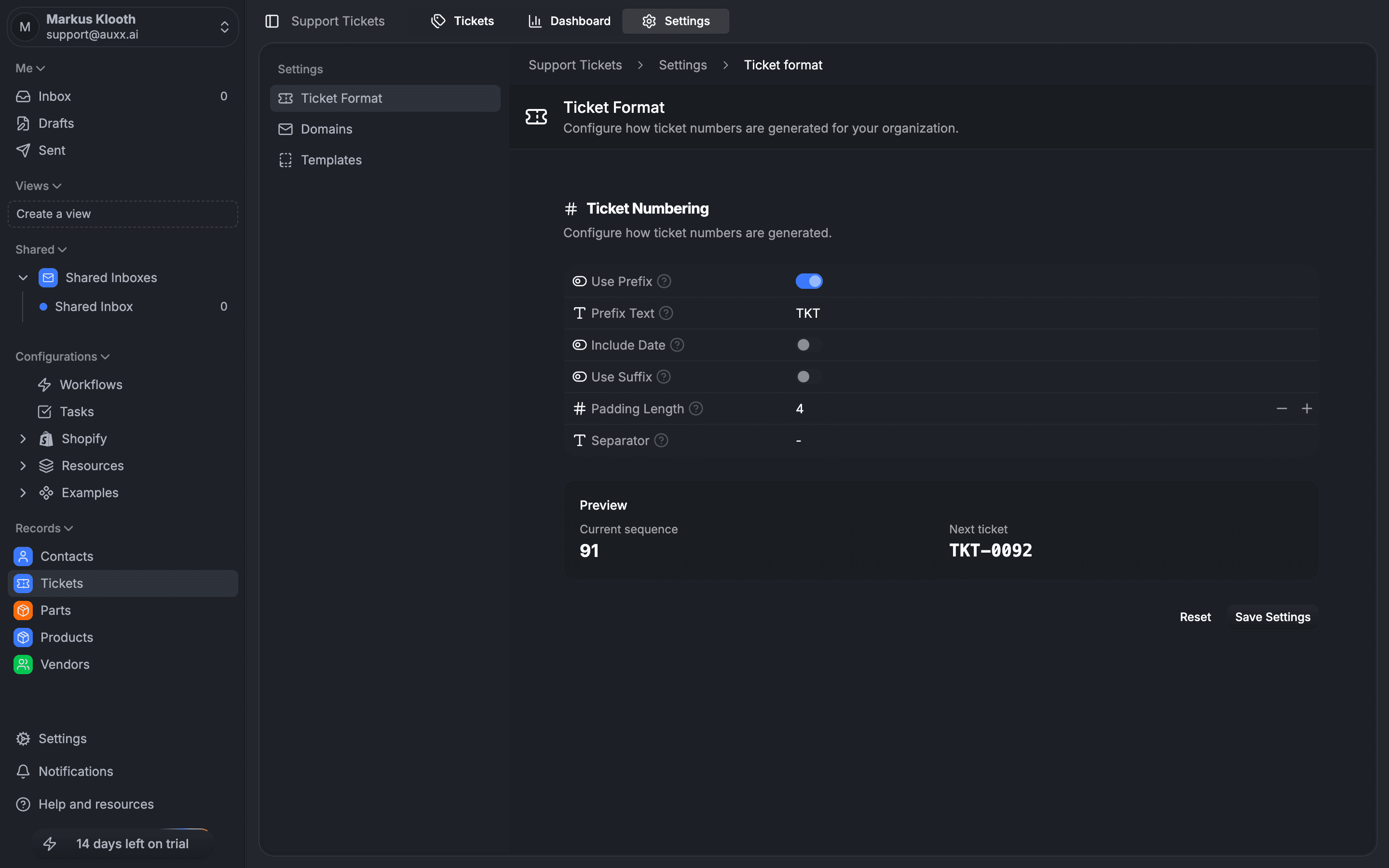
Number components
| Component | Description | Example |
|---|---|---|
| Prefix | Custom text at the start | TICKET, SUP, SUPP |
| Date | Optional date component | 2501 (YYMM), 202501 (YYYYMM) |
| Counter | Zero-padded sequential number | 0001, 0042 |
| Separator | Character between parts | -, /, . |
| Suffix | Optional text at the end | EX, US |
| Padding | Number of digits in the counter (1–10) | 4 → 0042 |
Date formats
If you include a date in the prefix, choose from these formats:
| Format | Example (Jan 2025) |
|---|---|
| YYMM | 2501 |
| YYYYMM | 202501 |
| MMYY | 0125 |
| YY | 25 |
| MM | 01 |
Example formats
| Configuration | Result |
|---|---|
| Counter only (padding: 4) | 0042 |
| Prefix "TICKET" | TICKET-0042 |
| Date YYMM | 2501-0042 |
| Prefix "SUPP" + date YYMM | SUPP-2501-0042 |
| Prefix "SUPP" + date YYMM + suffix "EX" | SUPP-2501-0042-EX |
Reset counter
You can reset the sequence counter to a specific number. This is useful when migrating from another system and you want ticket numbers to continue from where the old system left off.
Domains
The Domains tab manages email domains used for ticket routing and outbound emails.
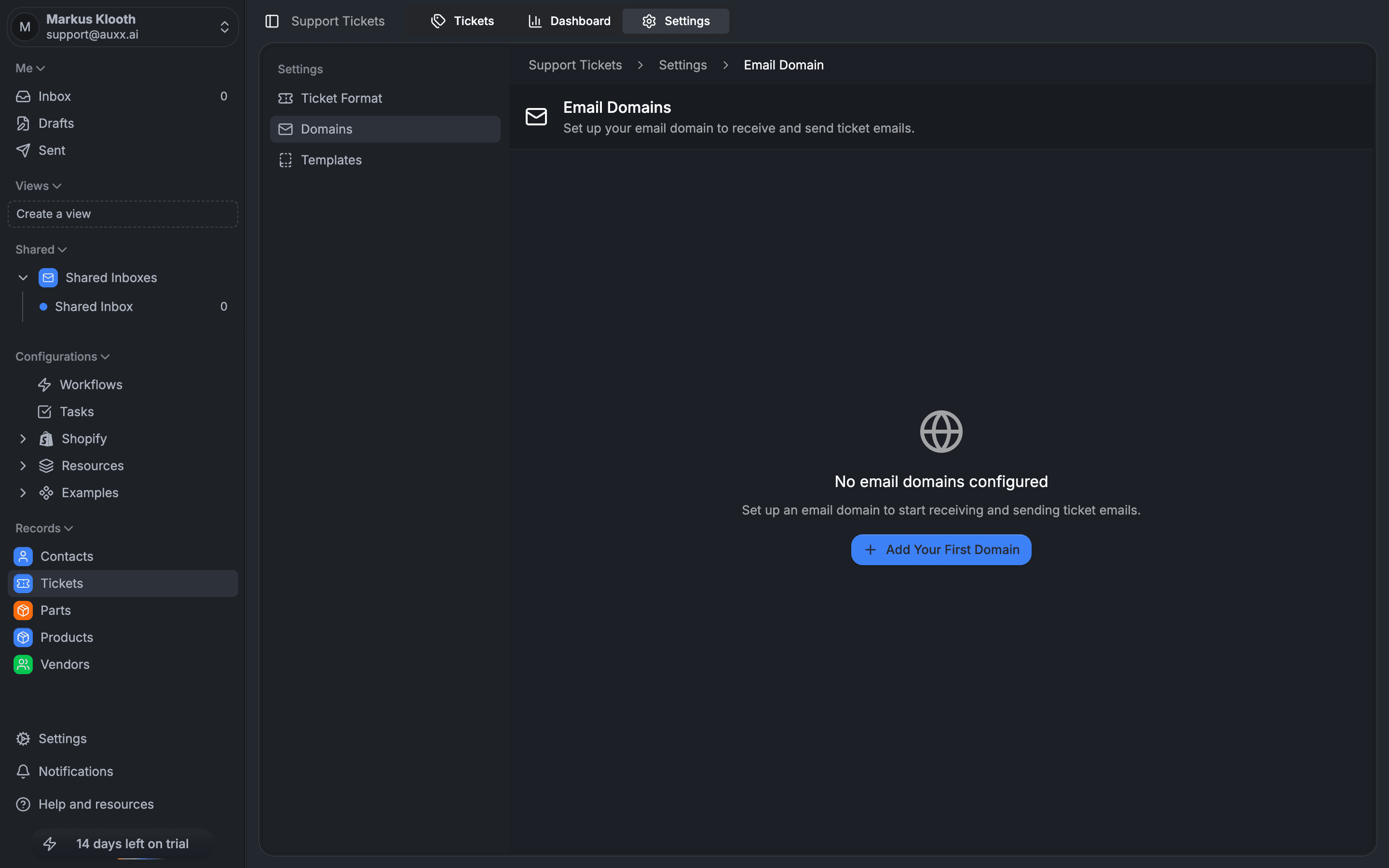
Add a domain
- Click Add Domain
- Enter your domain or subdomain
- Complete the verification process
Domain features
- Status indicators — see if a domain is active, paused, or has errors
- Test connectivity — verify the domain is properly configured
- Enable/disable — toggle domains without deleting them
- Multiple domains — configure as many domains as you need
Email templates
The Templates tab manages the email templates sent during ticket lifecycle events.
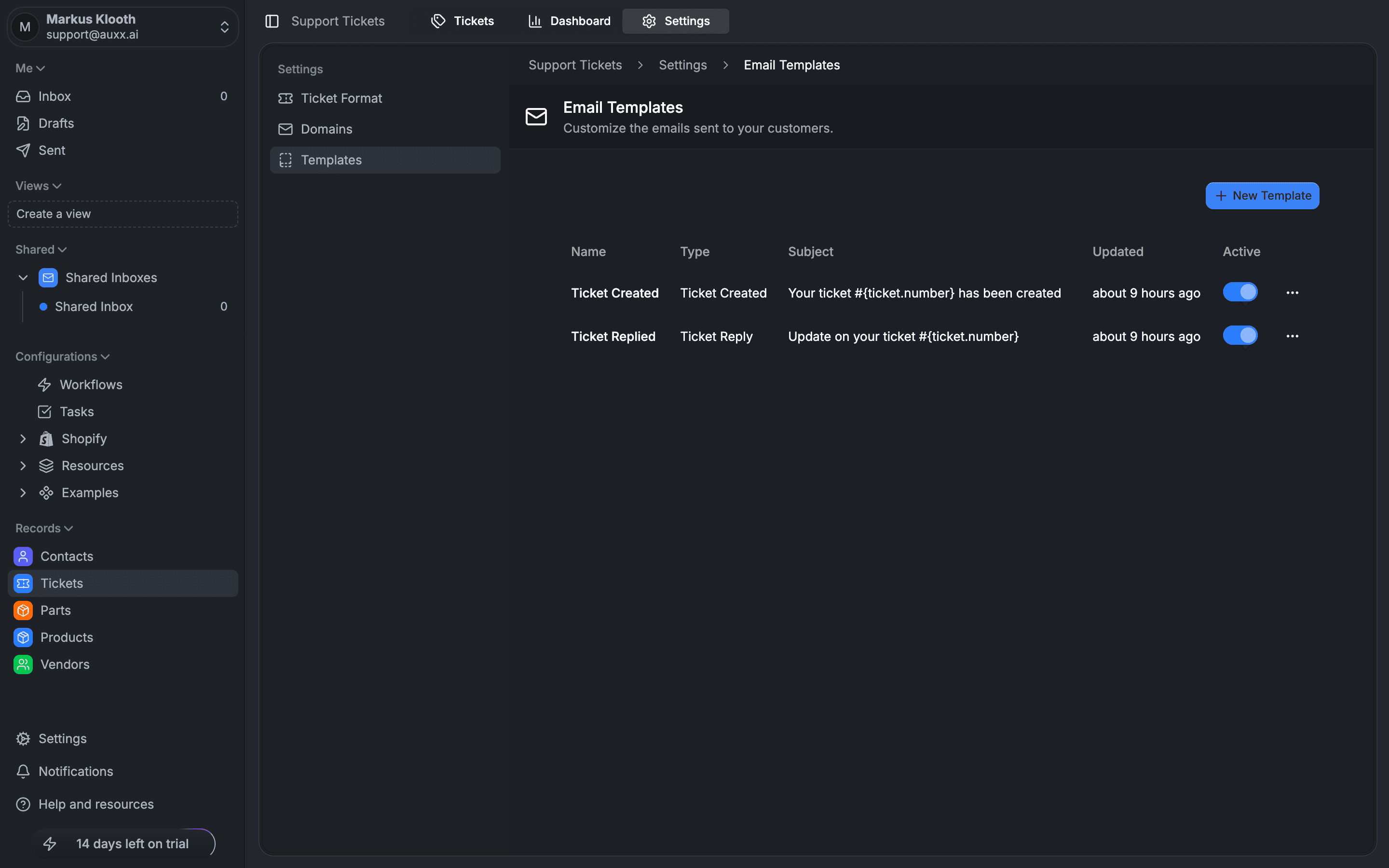
Template types
| Template | Triggered when |
|---|---|
| Ticket Created | A new ticket is created |
| Ticket Replied | An agent replies to a ticket |
| Ticket Closed | A ticket is closed |
| Ticket Reopened | A closed ticket is reopened |
| Ticket Assigned | A ticket is assigned to a team member |
| Status Changed | A ticket's status changes |
| Custom | Custom templates for specific use cases |
Template features
- HTML editor — write and format email templates with full HTML support
- Template variables — insert dynamic values using placeholders like
{{ticketNumber}},{{customerName}} - Variables reference — a popover showing all available variables and their descriptions
- Preview — see how the template will look before saving
Edit a template
- Go to Tickets > Settings > Templates
- Click on a template to open the editor
- Modify the content and use variables as needed
- Save your changes
Default templates are provided for each event type. You can customize them or create new custom templates.