Ticket details
Explore the ticket detail view in Auxx.ai — sidebar fields, conversation thread, custom fields, and activity timeline.
Click any ticket in the list to open its detail view. The detail panel shows all ticket information, the conversation thread, and related data.
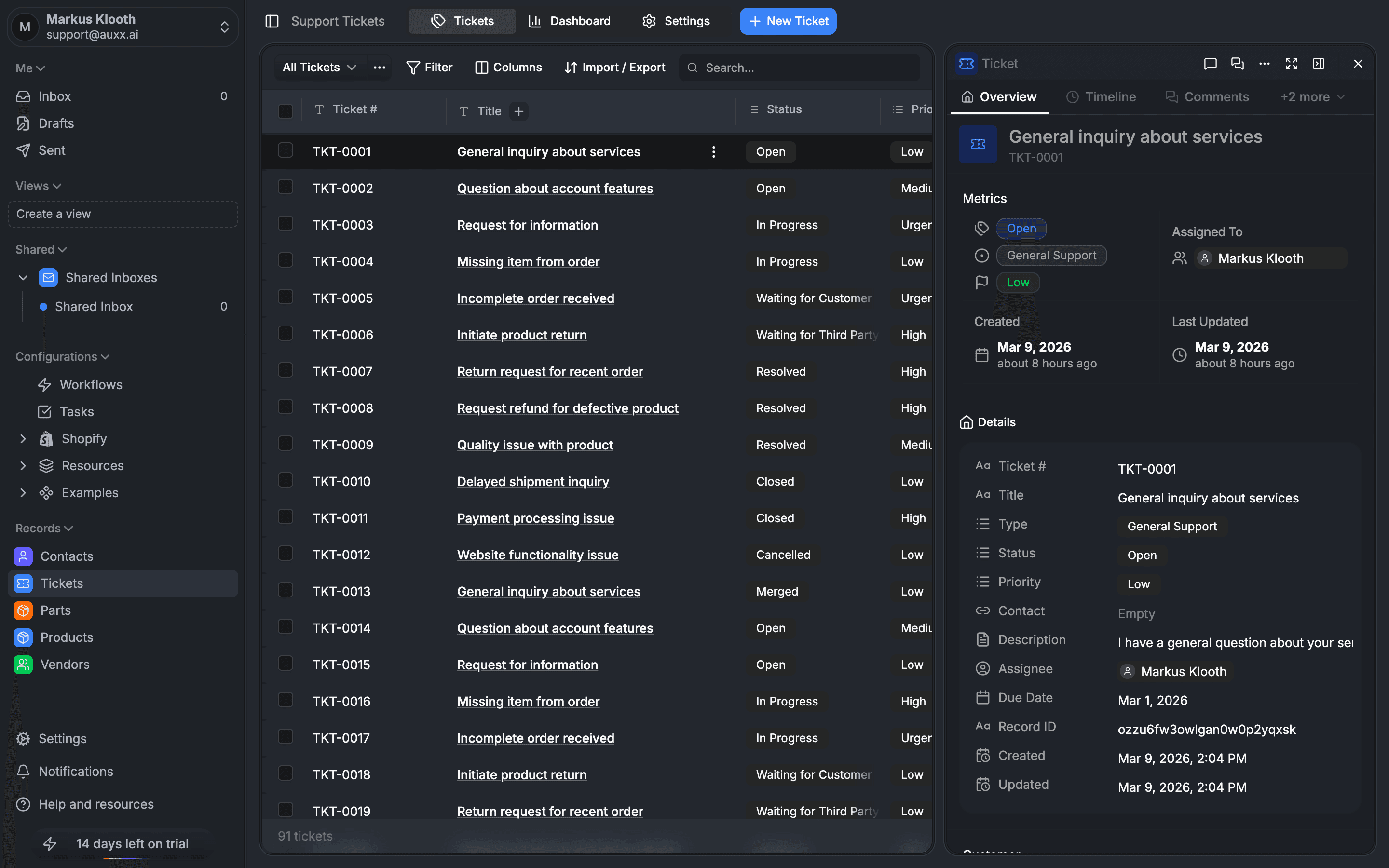
Overview
The ticket detail view displays:
- Ticket number — the auto-generated identifier (e.g.,
2501-0042) - Title — the ticket subject, editable inline
- Status badge — click to change the ticket's status
- Contact — the customer associated with this ticket
Sidebar fields
The sidebar on the ticket detail view shows key metadata:
| Field | Description |
|---|---|
| Status | Current status with click-to-change |
| Priority | Low, Medium, High, or Urgent |
| Type | The ticket type (read-only after creation) |
| Assignee | The team member responsible |
| Due date | Optional deadline |
| Contact | Associated customer |
| Created | When the ticket was created |
| Updated | When the ticket was last modified |
| Parent ticket | Link to a parent ticket (if any) |
| Child tickets | Linked child tickets (if any) |
Click any editable field to update its value directly from the detail view.
Custom fields
If you've added custom fields to the Ticket entity (via Settings > Custom Entities & Fields), they appear in the sidebar alongside the built-in fields. Custom fields are rendered based on their type — text inputs, dropdowns, date pickers, checkboxes, and more.
Conversation thread
The conversation section shows all replies on the ticket in chronological order. Each reply displays:
- Sender — team member name or customer email
- Content — the reply message (rich text supported)
- Timestamp — when the reply was sent
- Customer flag — indicates if the reply came from the customer
Reply to a ticket
Use the reply composer at the bottom of the conversation thread to write a response. You can:
- Format text with rich text controls
- Add CC recipients
- Edit or delete your own replies after sending
Activity timeline
The activity feed tracks all changes made to the ticket:
- Status changes (e.g., "Status changed from Open to In Progress")
- Assignment changes (e.g., "Assigned to Jane Smith")
- Priority changes
- Field updates
Each activity entry includes who made the change and when, giving you a complete audit trail.
Type-specific data
Depending on the ticket type, additional fields appear in the detail view:
| Type | Additional fields |
|---|---|
| Missing Item | Order ID, order date, missing items list, replacement sent flag |
| Return | Order ID, return items, return reason, return status, return label sent, tracking number |
| Refund | Order ID, refund amount, refund reason, refund status |
| Product Issue | Product ID, purchase date, issue description, product images |
| Shipping Issue | Tracking number, carrier, issue description |
| Billing | Invoice ID, billing issue, amount disputed |
| Technical | Device info, browser info, error message, steps to reproduce |
These fields are stored as structured data on the ticket and are only visible for the matching ticket type.
Related records
From the ticket detail, you can view and manage:
- Parent/child tickets — navigate the ticket hierarchy
- Linked contacts — jump to the customer's contact record
- Tasks — view or create tasks linked to this ticket