Tickets overview
Learn how tickets work in Auxx.ai — track customer support requests with statuses, priorities, assignment, and automation.
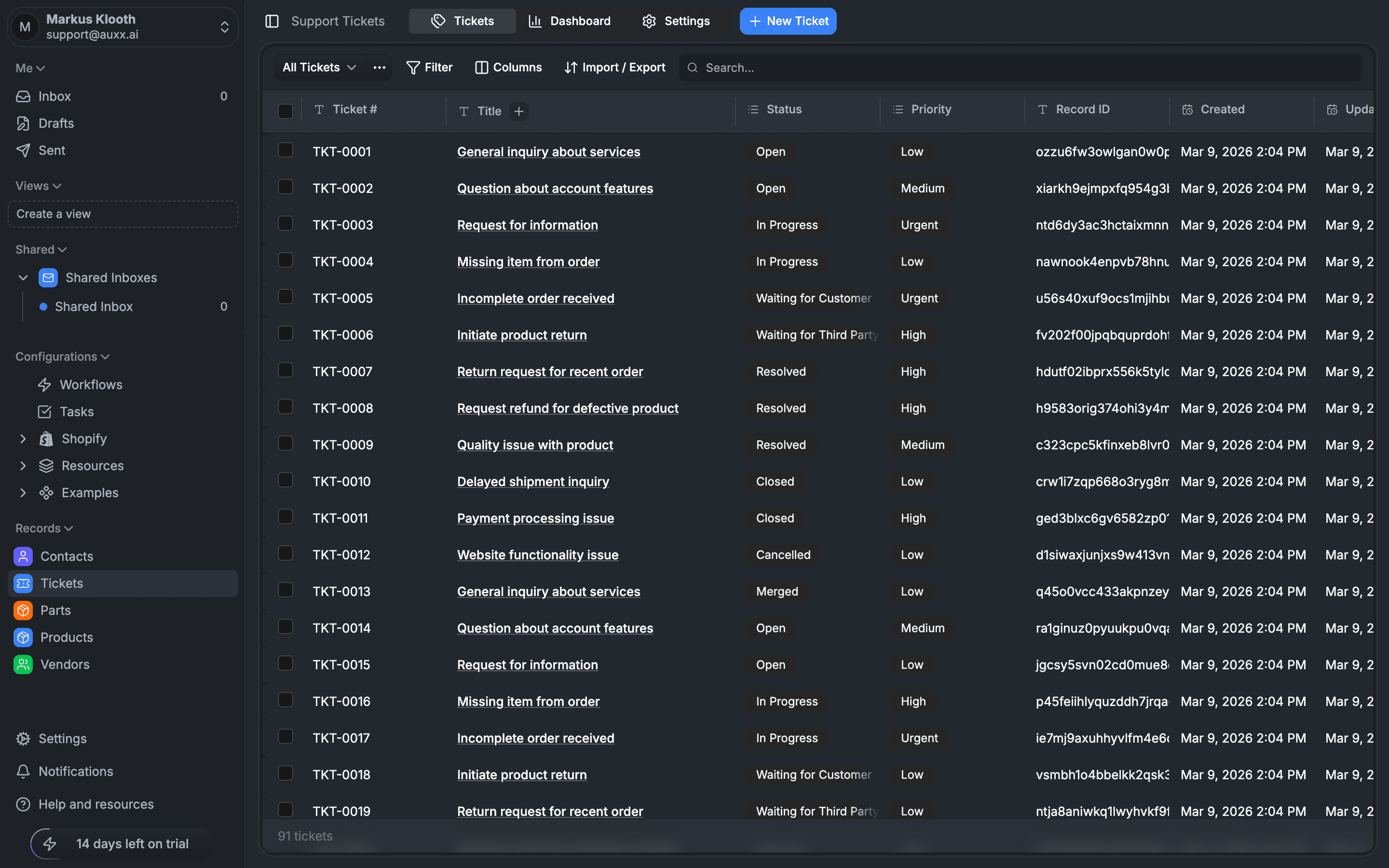
Tickets are the core unit of customer support in Auxx.ai. Each ticket represents a support request from a customer, with a status, priority, type, assignee, and full conversation history. Access tickets from Tickets in the sidebar.
What is a ticket?
A ticket tracks a customer interaction from first contact to resolution. Every ticket includes:
| Field | Description |
|---|---|
| Number | Auto-generated identifier (e.g., 2501-0042) |
| Title | Short description of the request |
| Status | Current state — Open, In Progress, Resolved, etc. |
| Priority | Urgency level — Low, Medium, High, or Urgent |
| Type | Category of the request (set at creation, cannot be changed) |
| Contact | The customer who submitted the request |
| Assignee | Team member responsible for the ticket |
| Due date | Optional deadline for resolution |
Ticket types
Every ticket has a type that categorizes the kind of support request. The type is set when the ticket is created and cannot be changed afterward.
| Type | Description |
|---|---|
| General | Default type for general inquiries |
| Missing Item | Customer reports a missing item from an order |
| Return | Return request with tracking and status |
| Refund | Refund request with amount and reason |
| Product Issue | Problem with a product (defects, damage) |
| Shipping Issue | Delivery or shipping problems |
| Billing | Invoice disputes or billing questions |
| Technical | Technical problems (includes device/browser info) |
| Other | Anything that doesn't fit the above categories |
Each type stores type-specific data. For example, a Return ticket tracks the return reason, return status, whether a return label was sent, and the return tracking number.
Ticket numbering
Ticket numbers are generated automatically when a ticket is created. You cannot set or edit them manually.
The format is configurable in ticket settings. By default, numbers use a date prefix and zero-padded counter (e.g., 2501-0042). You can add a custom prefix, suffix, change the padding length, and more.
Create a ticket
- Go to Tickets in the sidebar
- Click New Ticket in the top-right
- Fill in the required fields: title and contact
- Optionally set priority, assignee, and description
- Click Create Ticket
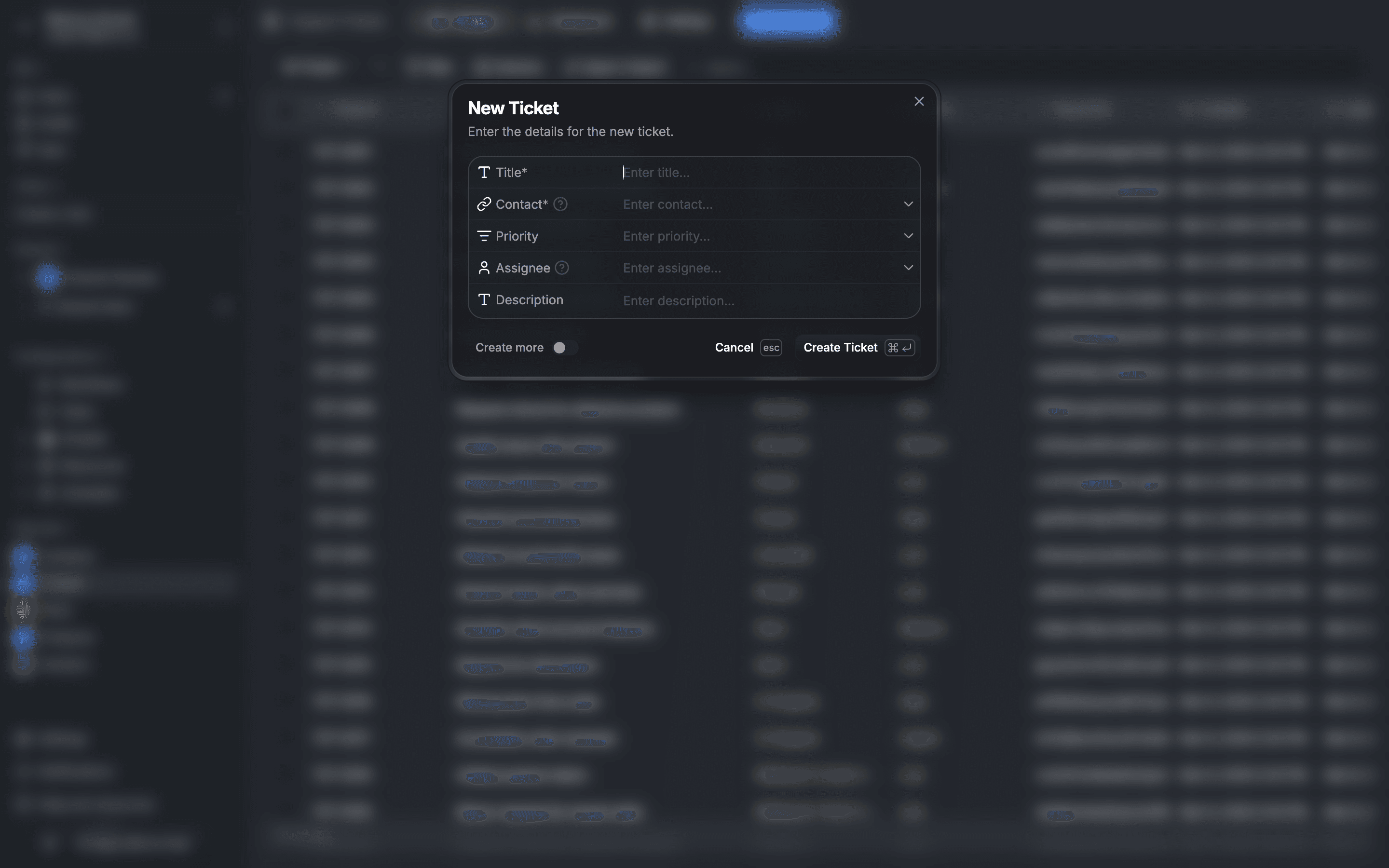
The ticket is assigned an auto-generated number and defaults to Open status with Medium priority.
Ticket replies
Tickets have a built-in conversation thread. Team members can reply to tickets, and replies are tracked with sender information, timestamps, and read status.
Each reply includes:
- Content — the reply message (supports rich text)
- Sender — the team member or customer who sent it
- CC emails — additional recipients
- Customer flag — whether the reply came from the customer
Custom fields
Tickets support custom fields beyond the built-in ones. Add custom fields to tickets from Settings > Custom Entities & Fields, then select the Ticket entity to add fields like dropdowns, text, dates, or relationships.
Dashboard
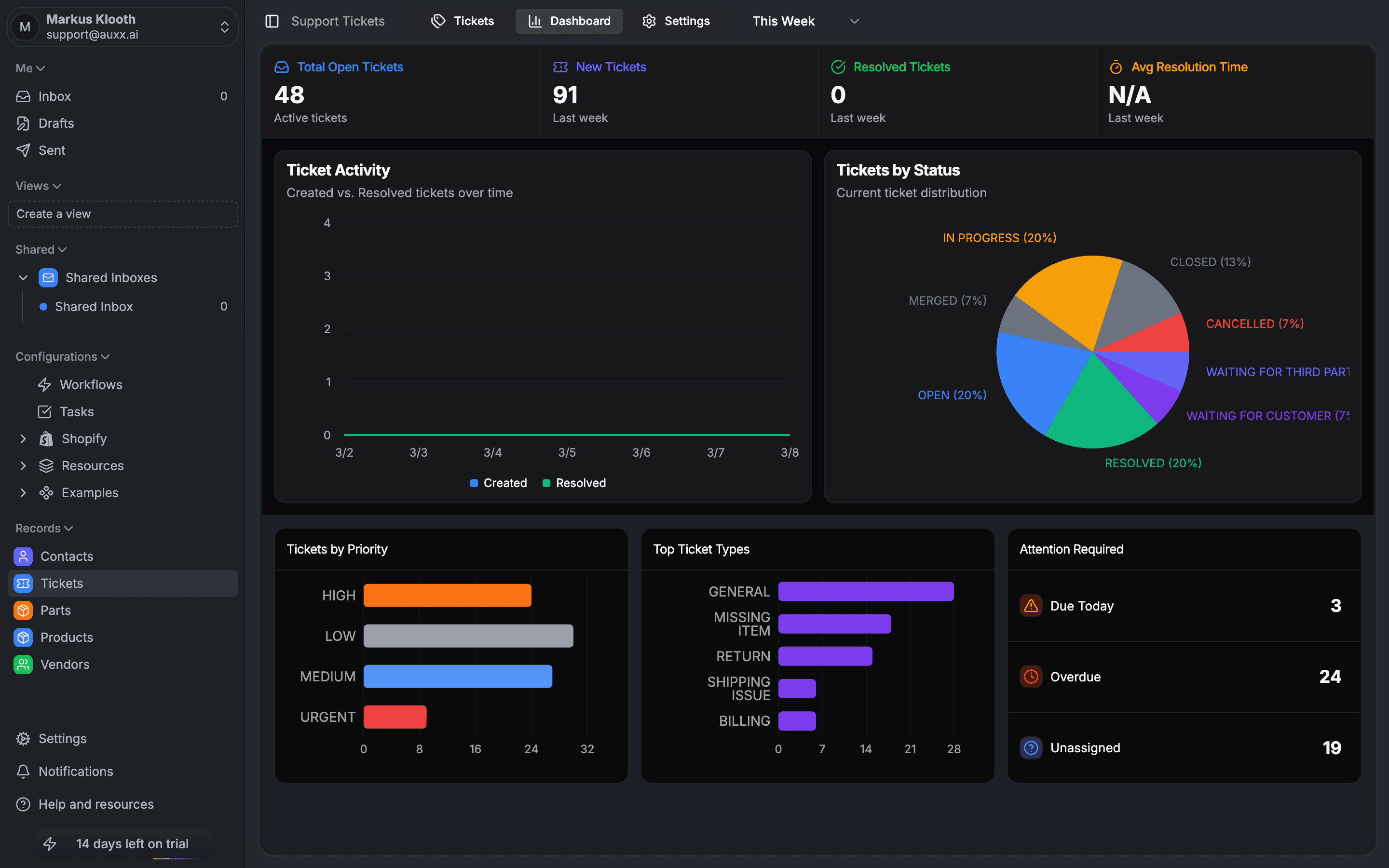
The ticket dashboard at Tickets > Dashboard gives you an at-a-glance view of your support metrics:
- Total tickets — all non-archived tickets
- New tickets — created in the selected period
- Resolved — resolved in the selected period
- Average resolution time — from creation to resolution
- Unassigned — tickets with no assignee
- Due today — tickets due today
- Overdue — tickets past their due date
The dashboard includes charts for status distribution, priority breakdown, top ticket types, and ticket activity over time. Use the period selector (day, week, month, year) to adjust the time range.
Parent-child tickets
Tickets can have parent-child relationships. Link a ticket to a parent ticket to create a hierarchy — useful for breaking down complex issues into subtasks or grouping related requests.