Custom entities overview
Define your own data types with custom fields and relationships to model your complete business domain in Auxx.ai.
Custom entities let you define your own data types — like Products, Companies, or Deals — with custom fields and relationships. They extend Auxx.ai beyond tickets and contacts so you can model your entire business domain.
Each entity has two parts:
- Entity definition — the schema (name, fields, relationships, display settings)
- Entity instances — the actual records/data created from that definition
System vs custom entities
Auxx.ai includes built-in system entities that come pre-configured:
| Entity | Description |
|---|---|
| Contact | Customer records with email, name, and interaction history |
| Ticket | Support conversations linked to contacts and inboxes |
| Thread | Email threads within tickets |
| Part | Shopify product/order data synced from your store |
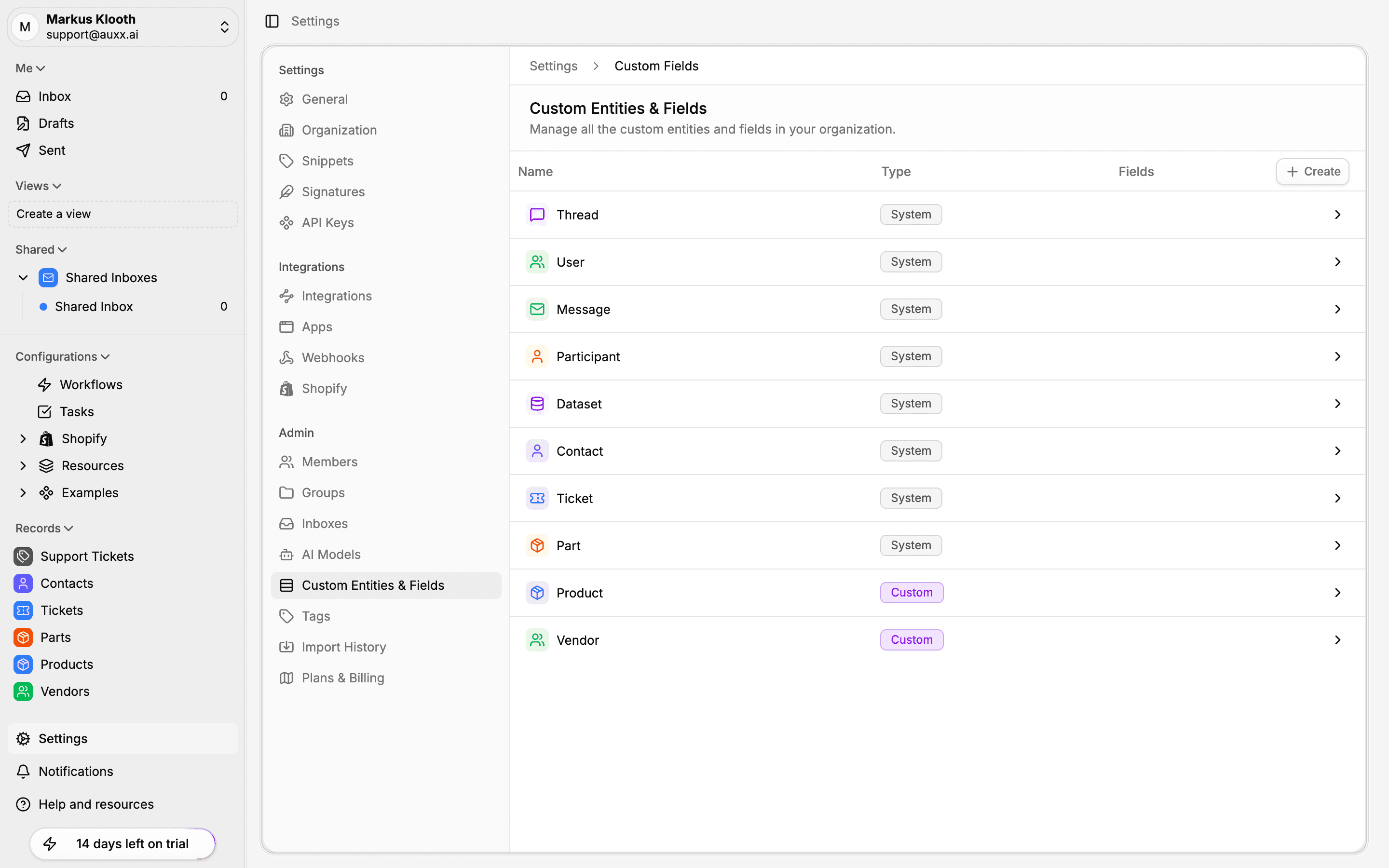
System entities have pre-defined fields that cannot be deleted, but you can add custom fields to them.
Custom entities are ones you create yourself. They are fully configurable — you control the fields, relationships, display settings, and visibility.
Where to manage entities
Go to Settings > Custom Entities & Fields to view all entities. The list shows each entity with its icon, name, and field count. System entities appear alongside custom ones.
Create a custom entity
- Go to Settings > Custom Entities & Fields
- Click Create Entity
- Fill in the entity details:
- Singular name — e.g., "Product"
- Plural name — e.g., "Products"
- API slug — URL-safe identifier, auto-generated from the name
- Icon — choose from the icon picker
- Color — pick a color for the entity
- Click Save
The new entity appears in your sidebar and is ready for you to add fields.
Entity settings
Click any entity in the settings list to open its detail page.
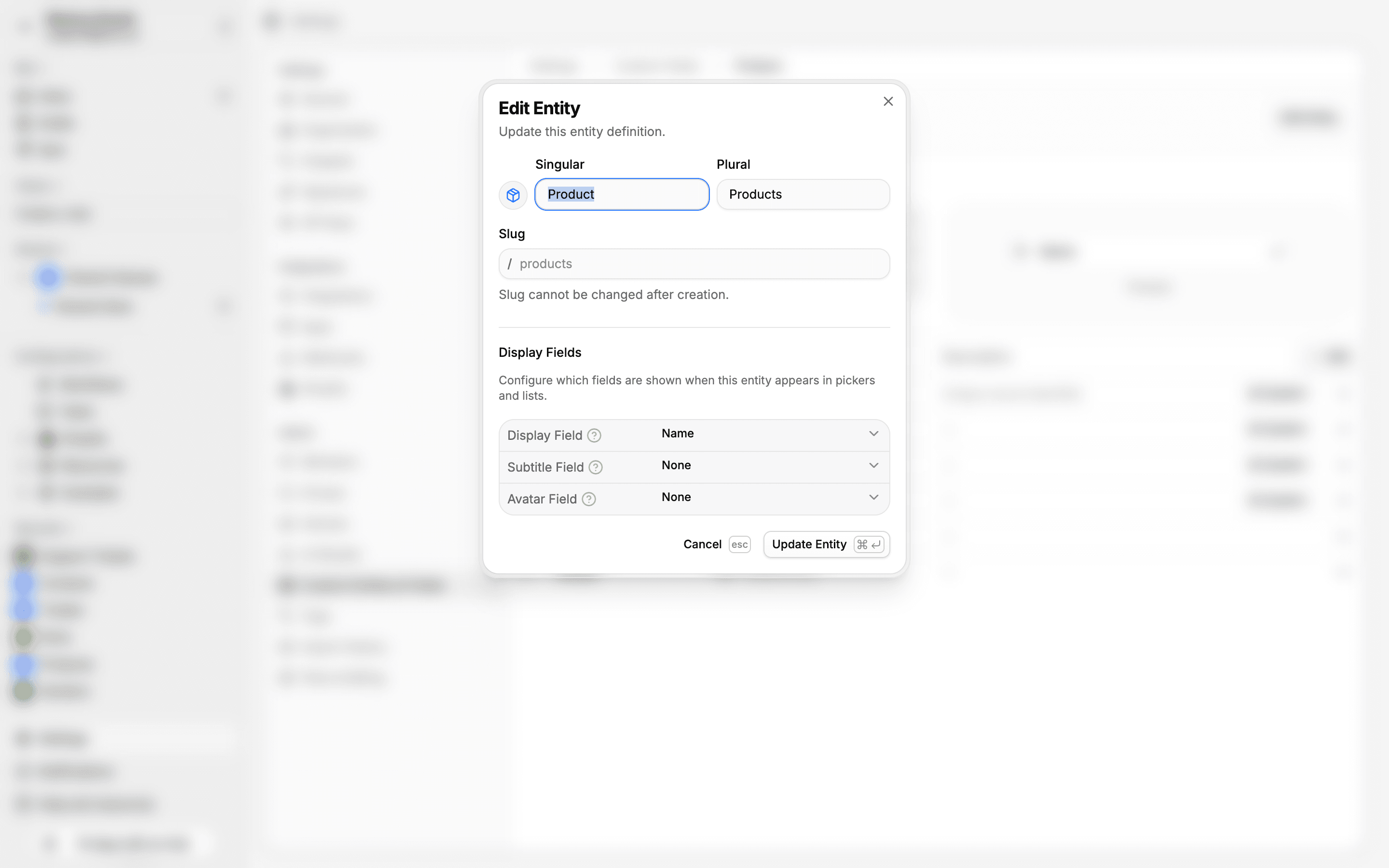
From here you can:
- Edit name — change singular/plural display names
- Change icon and color — update visual identity
- Toggle sidebar visibility — show or hide the entity in the sidebar
- Configure display fields — set primary, secondary, and avatar fields (see Display fields)
- Manage fields — add, edit, reorder, and remove custom fields
Archive and delete
To archive an entity, open its settings and choose Archive. Archived entities are hidden from the sidebar and record creation, but their data is preserved.
To permanently delete an entity, archive it first, then delete from the archived state. Deleting removes the entity definition and all its records.