Display fields
Configure primary, secondary, and avatar display fields to control how entity records appear across Auxx.ai.
Display fields control how entity records appear throughout the app — in tables, relationship columns, search results, and record pickers. Instead of showing a raw ID, Auxx.ai renders the record's display name, subtitle, and avatar.
Three display field types
| Display field | Purpose | Example |
|---|---|---|
| Primary | Main record name shown everywhere | "Acme Corp" for a Company |
| Secondary | Subtitle or additional context | "[email protected]" below the name |
| Avatar | Image or icon next to the record | Company logo |
All three are optional. If no primary display field is set, records show a generic identifier.
Configure display fields
- Go to Settings > Custom Entities & Fields
- Click an entity to open its detail page
- Open the Appearance settings section
- Select fields for primary, secondary, and avatar display
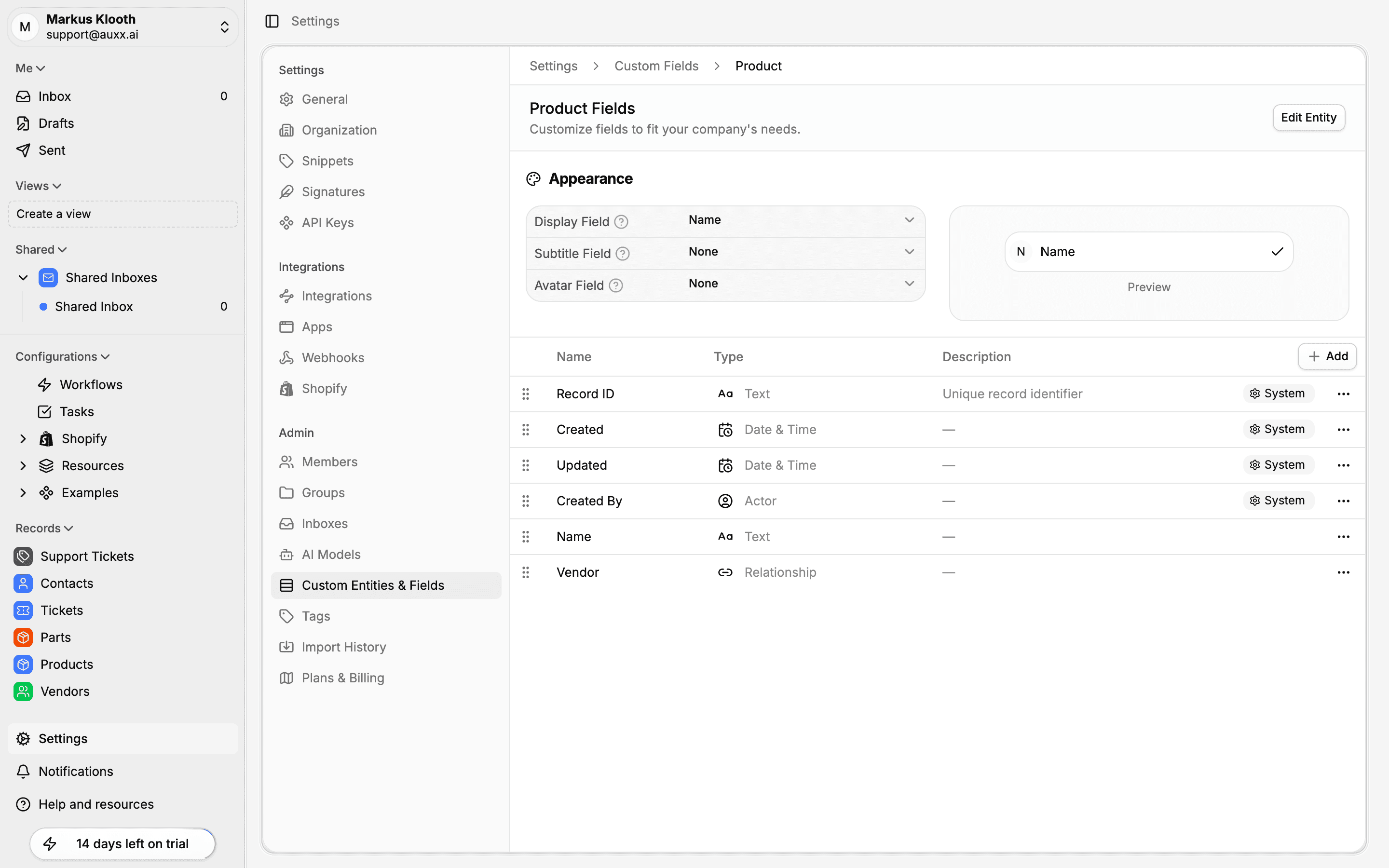
Eligible field types for primary display
Not all field types can serve as a primary or secondary display field. Only these types are allowed:
- Text
- Name
- Phone
- URL
- Number
The avatar field should be a File or URL type field that contains an image.
How display values work
For performance, Auxx.ai denormalizes display values — it caches the primary display name, secondary value, and avatar URL directly on each record. This avoids extra lookups when rendering lists and tables.
When you change an entity's display field configuration, Auxx.ai automatically recalculates the cached values across all existing records in a batch update. This happens in the background and may take a moment for entities with many records.
Where display fields appear
Display fields affect how records are rendered in:
- Record tables — the primary display name is shown as the main column
- Relationship field values — when a record is referenced through a relationship, its display name and avatar are shown
- Search results — records are identified by their primary display field
- Record pickers — dropdowns and search dialogs show display name and avatar