Relationship fields
Link records across entities with relationship fields — belongs-to, has-one, has-many, and many-to-many cardinalities.
Relationship fields link records from one entity to another. For example, a "Product" entity can have a relationship to a "Supplier" entity, connecting each product to its supplier.
Relationship types
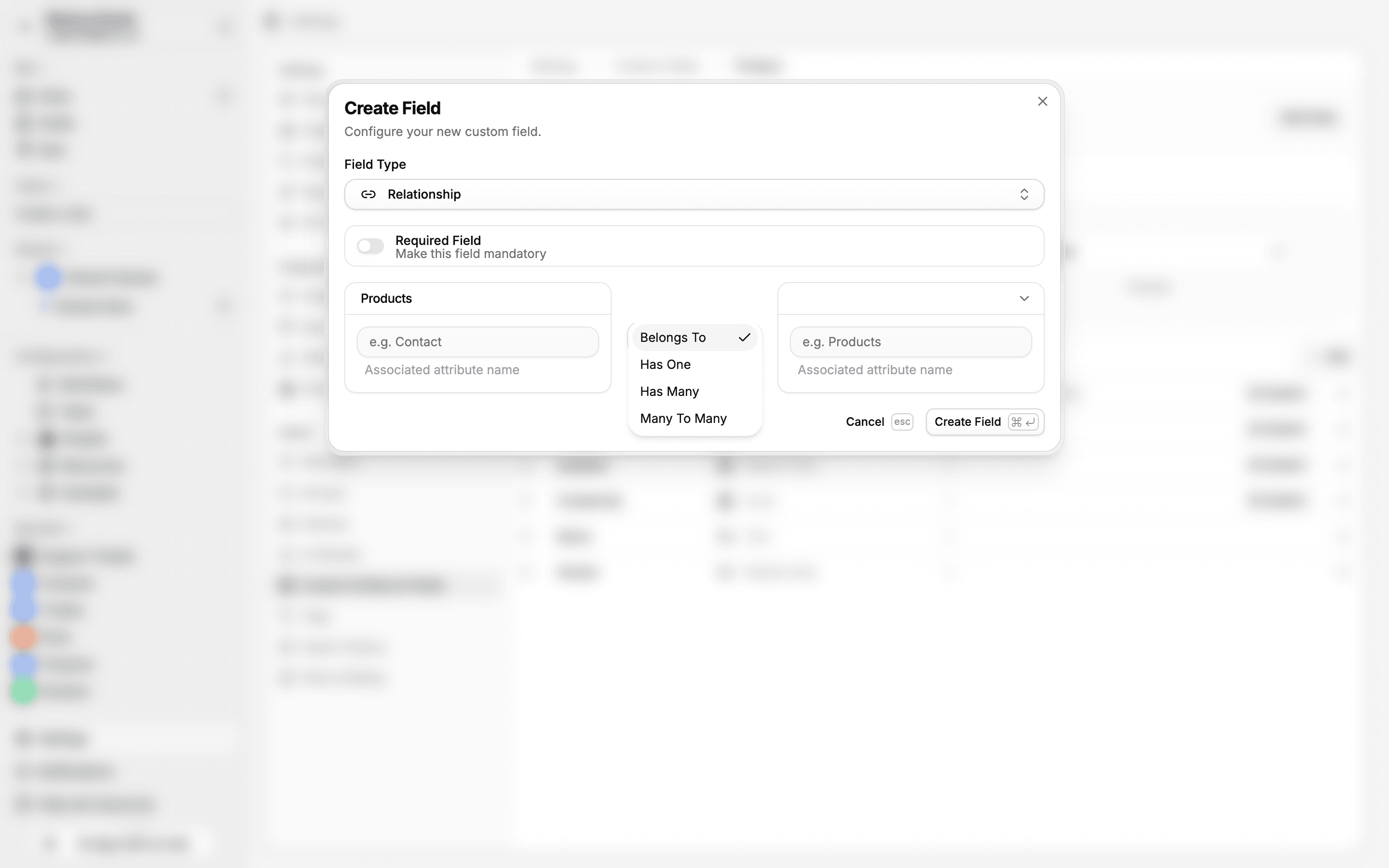
Four cardinality types are available:
| Type | Description | Example |
|---|---|---|
| Belongs to | Many-to-one — this record points to one target record | Many Products belong to one Category |
| Has one | One-to-one — this record has exactly one related record | Each Product has one Warranty |
| Has many | One-to-many — this record links to many target records | One Category has many Products |
| Many to many | Both sides can have multiple related records | Products have many Tags, Tags have many Products |
Automatic inverse fields
When you create a relationship field, Auxx.ai automatically creates the inverse field on the related entity. You don't need to set up both sides manually.
For example, if you add a "Supplier" field (has one) to the Product entity:
- Product gets a Supplier field (has one → Supplier)
- Supplier automatically gets a Products field (has many → Product)
Both fields are fully functional — you can navigate the relationship from either direction.
Self-referential relationships
An entity can relate to itself. This is useful for hierarchies like "Manager" or "Parent Category".
Self-referential relationships have additional constraint settings:
| Constraint | Description |
|---|---|
| Prevent circular references | Stops A → B → A chains from forming |
| Max depth | Limits how deep the hierarchy can go |
| On delete | What happens to children when a parent is deleted: prevent (block deletion), cascade (delete children too), or nullify (clear the reference) |
Uniqueness
Only has one relationships can be marked as unique, ensuring a one-to-one link where no two records share the same related record.
Where relationships appear
Relationship values are displayed throughout the app:
- Record tables — related record's display name shown in the column
- Record detail views — clickable links to related records
- Filters — filter records by their related records
- Record pickers — search and select related records when editing
Create a relationship field
- Open an entity in Settings > Custom Entities & Fields
- Click Add Field and choose Relationship
- Select the target entity — the entity this field will link to
- Choose the relationship type (belongs to, has one, has many, or many to many)
- Optionally configure constraints for self-referential relationships
- Click Save
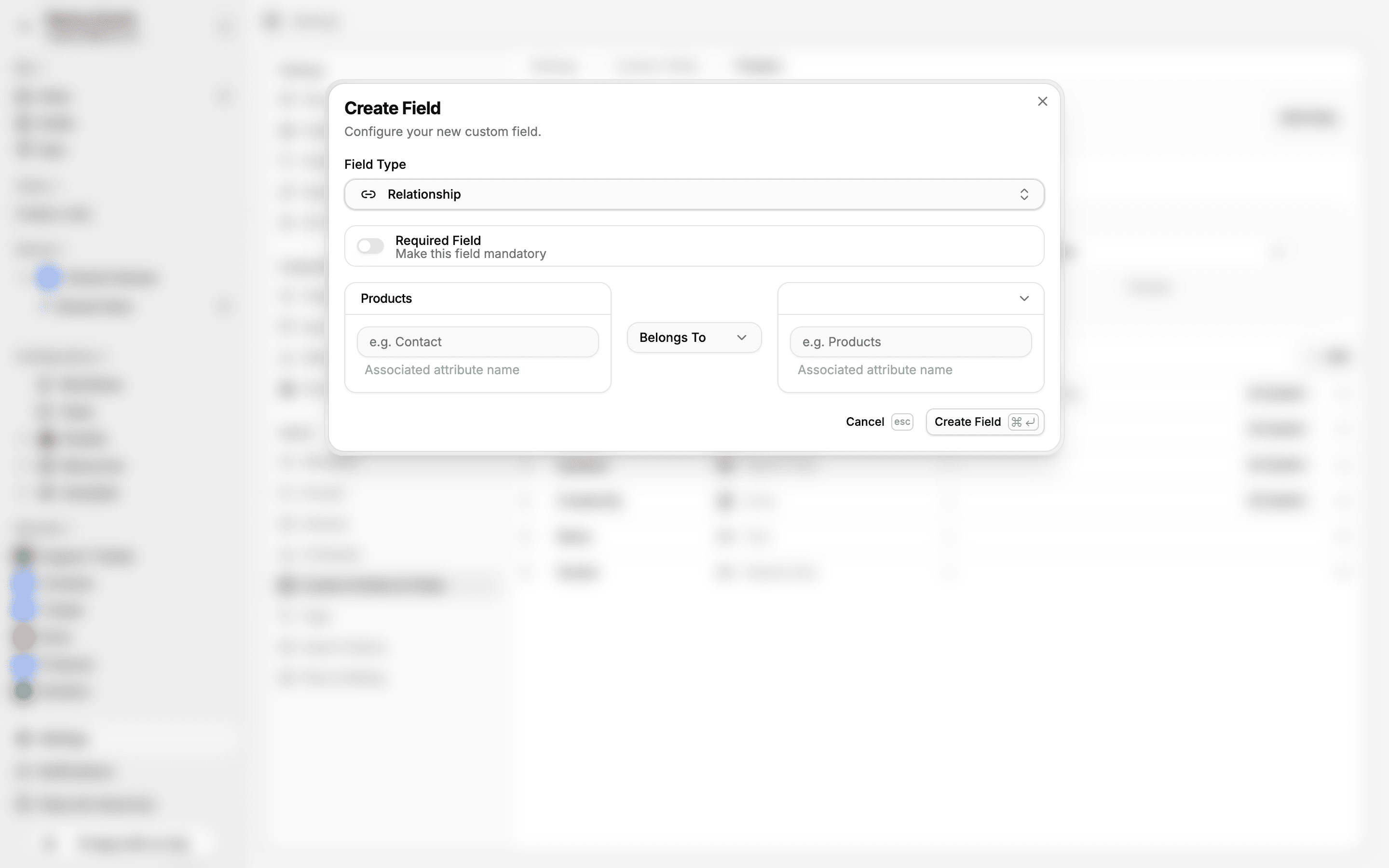
The cardinality dropdown shows all four relationship types:
The inverse field is created automatically on the target entity.