Custom fields
All field types available in Auxx.ai — text, number, select, relationship, calculated, and more — with per-type settings.
Custom fields define what data an entity stores. Each entity can have as many fields as you need, and each field has a type that determines what kind of data it holds and how it's displayed.
Where to manage fields
Go to Settings > Custom Entities & Fields, then click an entity to open its detail page. All fields for that entity are listed here. You can add new fields, edit existing ones, reorder them with drag-and-drop, and toggle their active state.
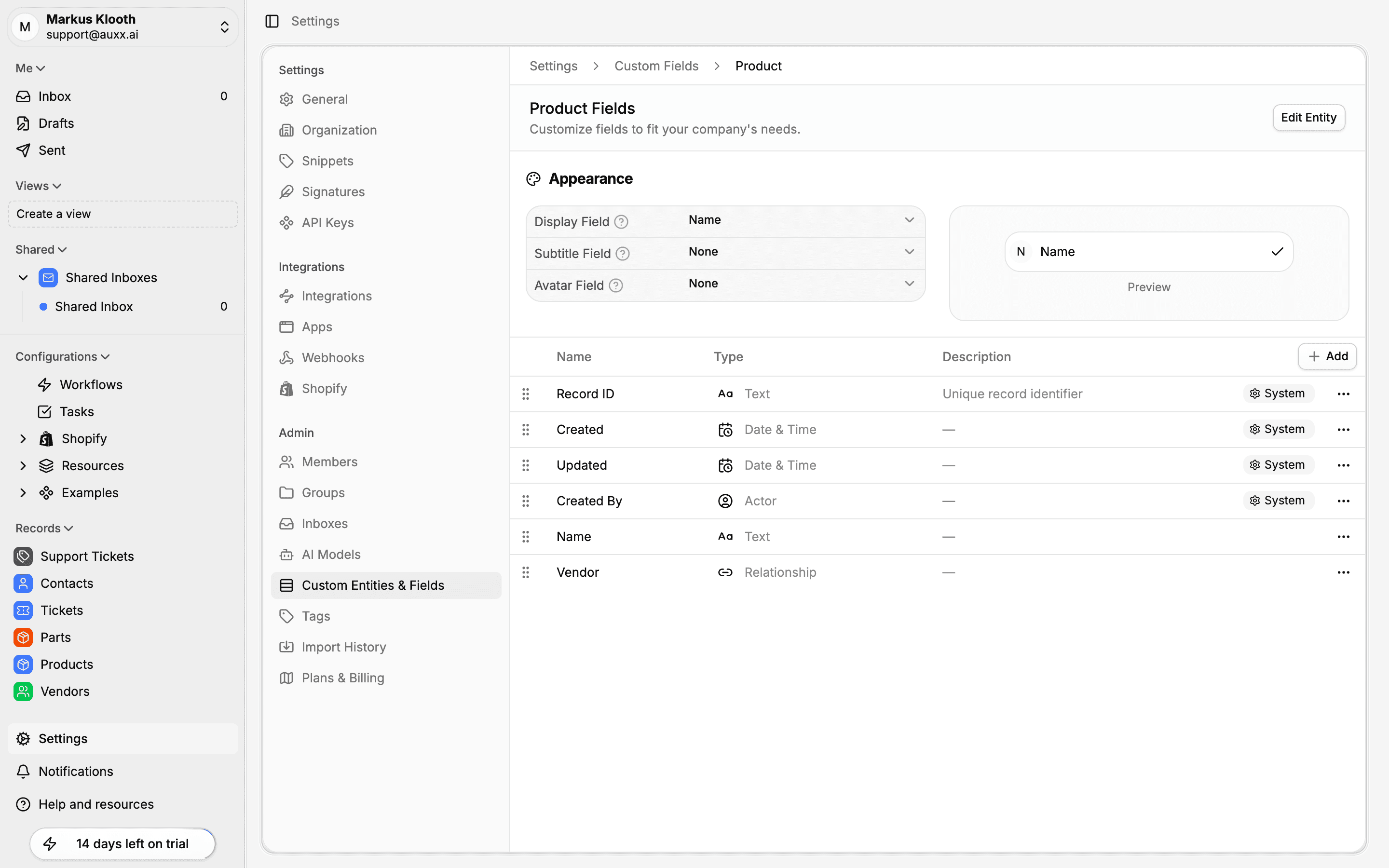
Field types
Auxx.ai supports 22 field types, organized into groups:
Basic
| Type | Description |
|---|---|
| Text | Single-line or multi-line plain text |
| Number | Numeric values with optional formatting |
| Checkbox | Boolean yes/no toggle |
Text formats
| Type | Description |
|---|---|
| Email address with validation | |
| URL | Web address with validation |
| Phone | International phone number with country code |
Date & time
| Type | Description |
|---|---|
| Date | Date picker |
| DateTime | Date and time picker |
| Time | Time-only picker |
Selection
| Type | Description |
|---|---|
| Single Select | Choose one option from a list |
| Multi Select | Choose multiple options from a list |
| Tags | Freeform keyword tags |
Complex
| Type | Description |
|---|---|
| Structured Address | Multi-part address (street, city, state, zip, country) |
| Currency | Monetary values with currency formatting |
| File | File upload/attachment |
| Rich Text | Formatted text with an editor |
| Name | Compound first and last name |
| Relationship | Link to records in another entity (see Relationship fields) |
Advanced
| Type | Description |
|---|---|
| Calculated | Formula field computed from other fields (read-only) |
| Actor | Assign users or groups to a record |
| JSON | Arbitrary JSON data |
Create a field
- Open an entity's detail page in Settings > Custom Entities & Fields
- Click Add Field
- Choose a field type
- Enter a name and optional description
- Configure type-specific settings (see below)
- Click Save
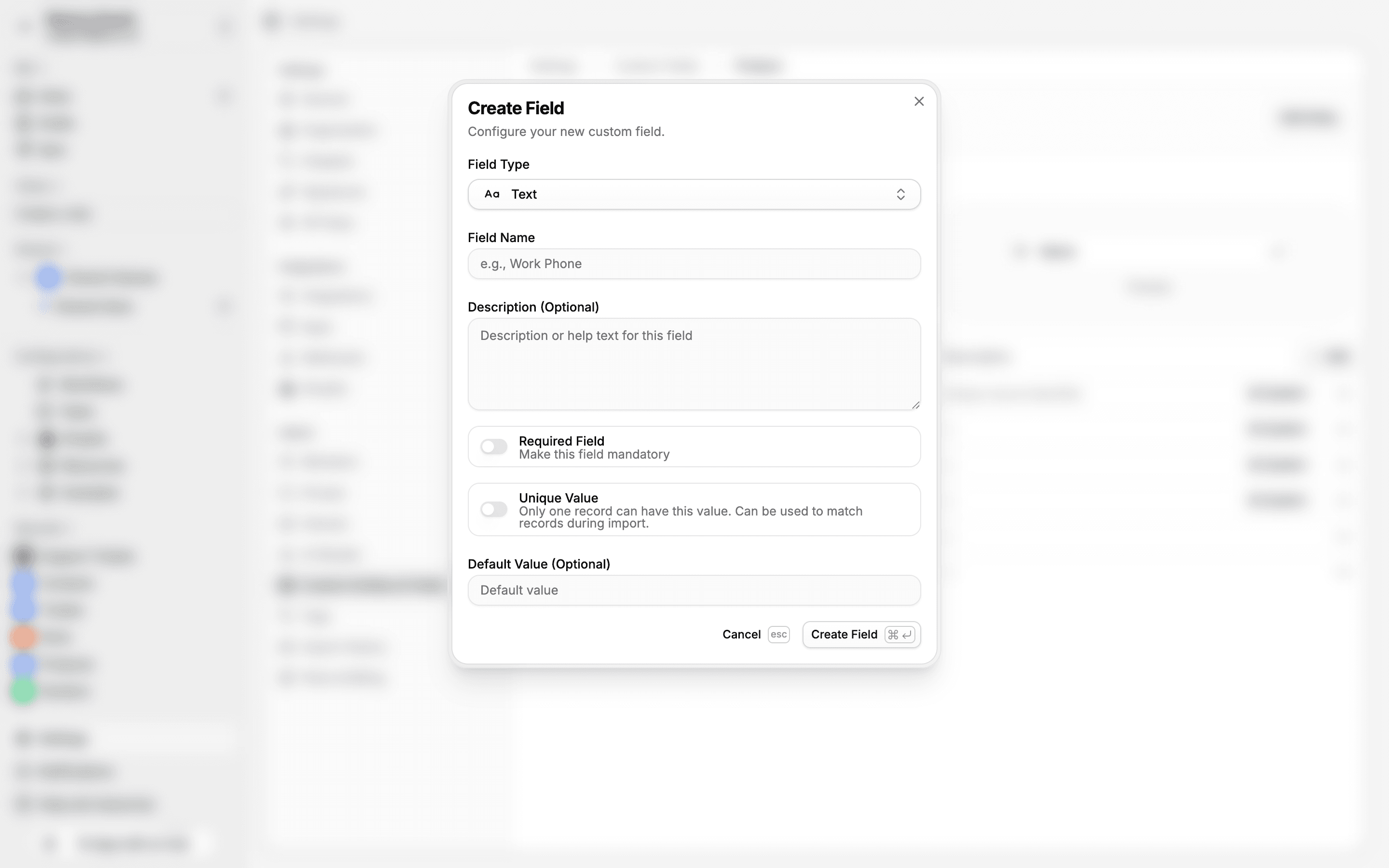
The field type picker groups all available types by category:

Common field settings
Every field has these settings:
| Setting | Description |
|---|---|
| Name | Display label for the field |
| Description | Optional helper text shown below the field |
| Required | Whether the field must have a value when creating a record |
| Unique | Whether values must be unique across all records |
| Default value | Pre-filled value for new records |
| Icon | Optional icon displayed next to the field name |
| Active | Toggle field on/off without deleting it |
Type-specific settings
Select fields (Single Select, Multi Select)
Configure the list of options. Each option has:
- Label — display text
- Value — stored value (auto-generated from label)
- Color — choose from 10 available colors
- Icon — optional icon
Currency
- Currency code — e.g., USD, EUR, GBP
- Decimal places — number of decimal digits
- Display type — show as symbol ($), name (US Dollar), or code (USD)
File
- Allow multiple — whether multiple files can be attached
- Max files — limit on number of files
- Allowed types/extensions — restrict accepted file formats
Number
- Decimals — number of decimal digits
- Grouping — thousands separator
- Display as — number, percentage, compact notation, or bytes
- Prefix/suffix — text before or after the value
Date
- Format — short, medium, long, relative, or ISO
- Time format — 12-hour or 24-hour (for DateTime fields)
Checkbox
- Style — icon only, text only, or icon with text
- True/false labels — custom text for checked/unchecked states
Phone
- Format — raw digits, national, or international
Actor
- Target — users, groups, or both
- Multiple — allow more than one assignee
- Role filtering — restrict to specific roles
Calculated
Calculated fields are read-only and computed from other fields using an expression builder. You select source fields and define a formula. The result type determines how the computed value is displayed.
Field ordering
Drag and drop fields in the entity detail page to reorder them. The order determines how fields appear in record forms and detail views.
System fields
System entities (Contact, Ticket, etc.) include built-in fields that cannot be deleted — for example, Contact has an email field and Ticket has a status field. You can add custom fields alongside system fields, but the system fields always remain.