Managing records
Create, edit, search, filter, and bulk-manage entity records in Auxx.ai.
Records are the individual data entries in an entity. A "Products" entity stores product records, a "Companies" entity stores company records, and so on. Each record contains values for the fields defined on its entity.
Records page
Navigate to a custom entity in the sidebar to open its records page.
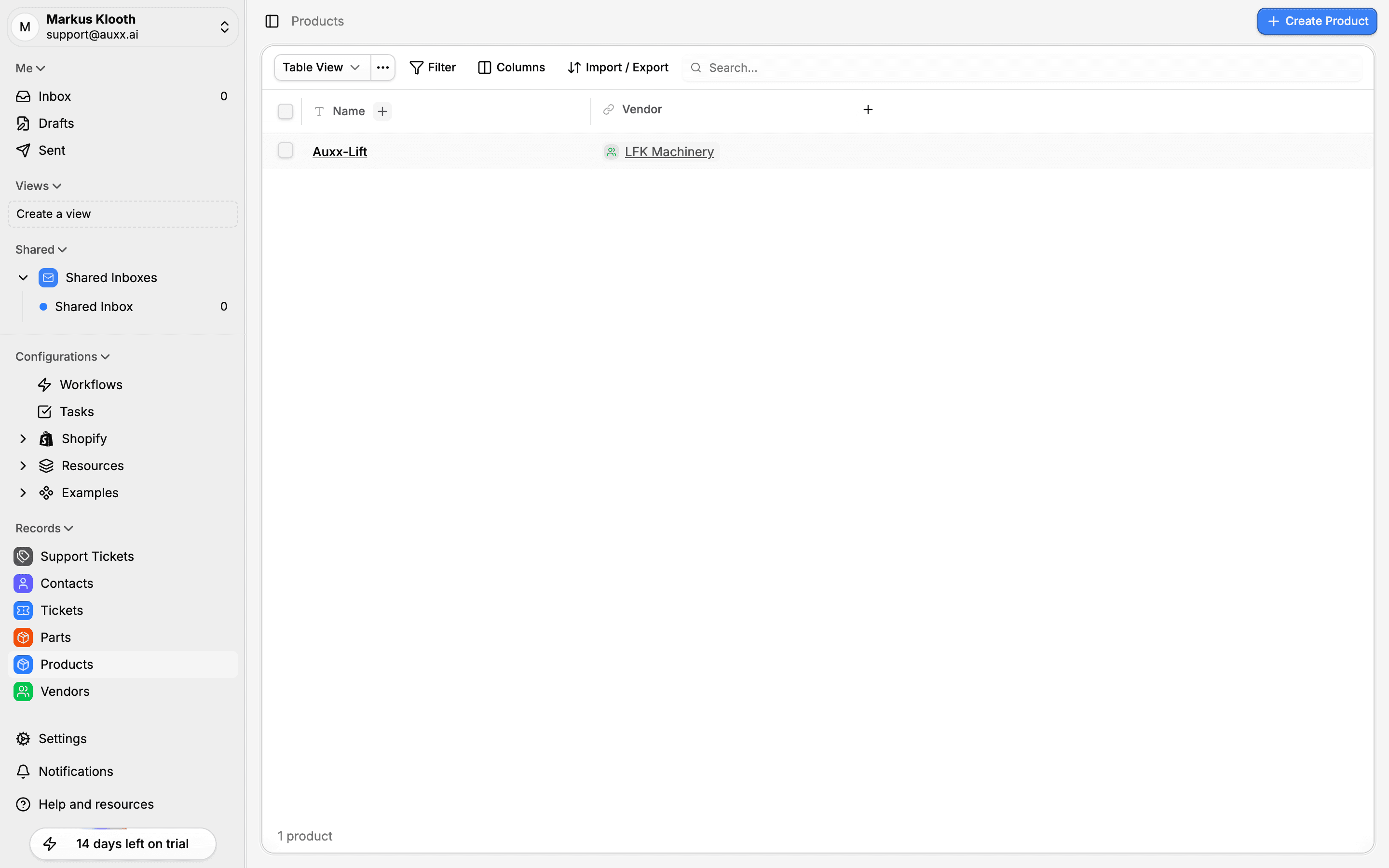
The page shows a table with:
- Sortable and filterable columns based on the entity's fields
- Column visibility controls — show or hide columns
- Search bar for full-text search across record display names
- Filter bar for building conditions with AND/OR logic
Create a record
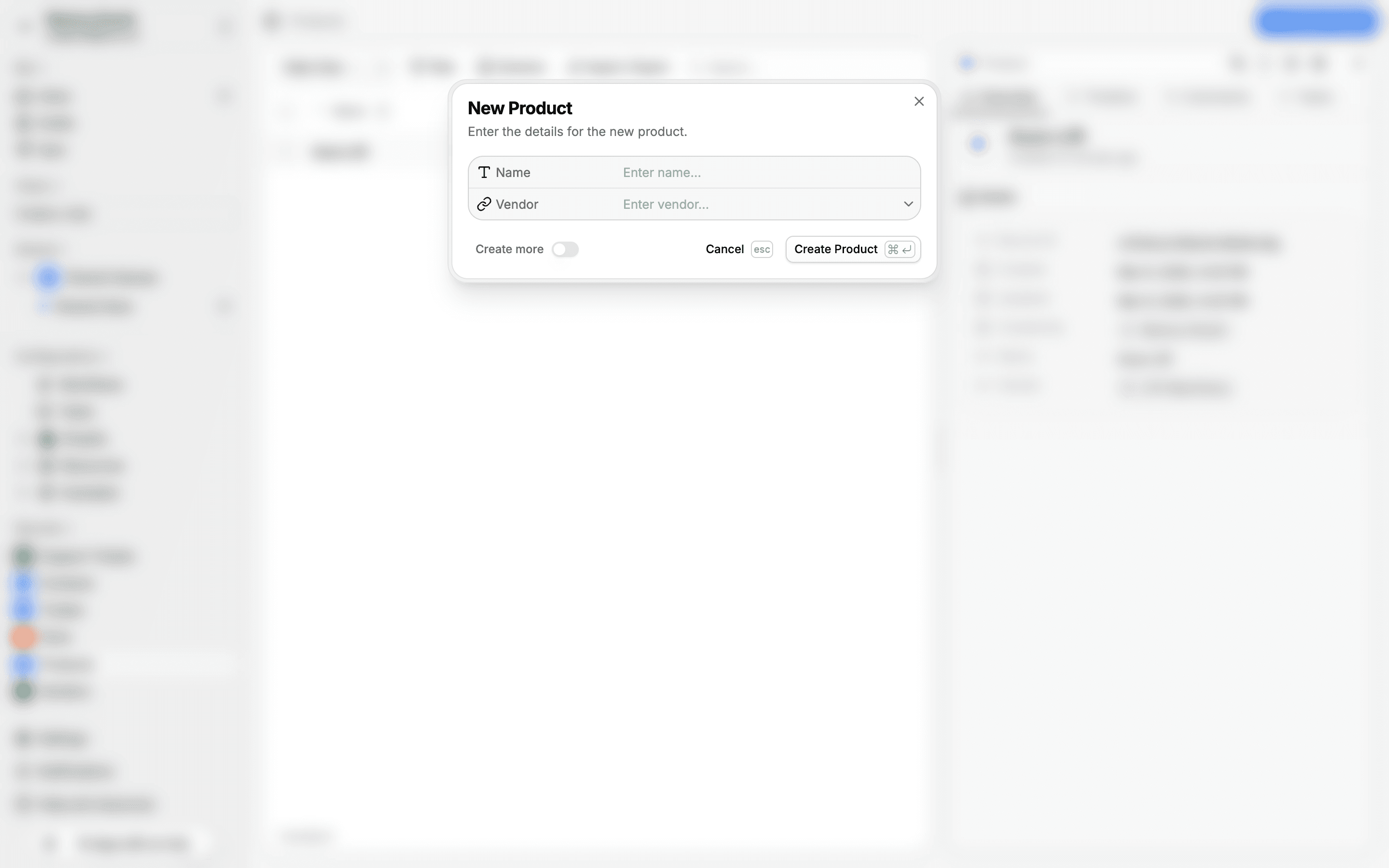
- Click Create in the top-right of the records page
- Fill in field values — required fields are marked
- For relationship fields, use the record picker to search and select related records
- Click Save
Create multiple records
Toggle Create more in the dialog to keep it open after saving. The form resets so you can quickly create records in a row.
View and edit a record
Click a record in the table to open its detail view.
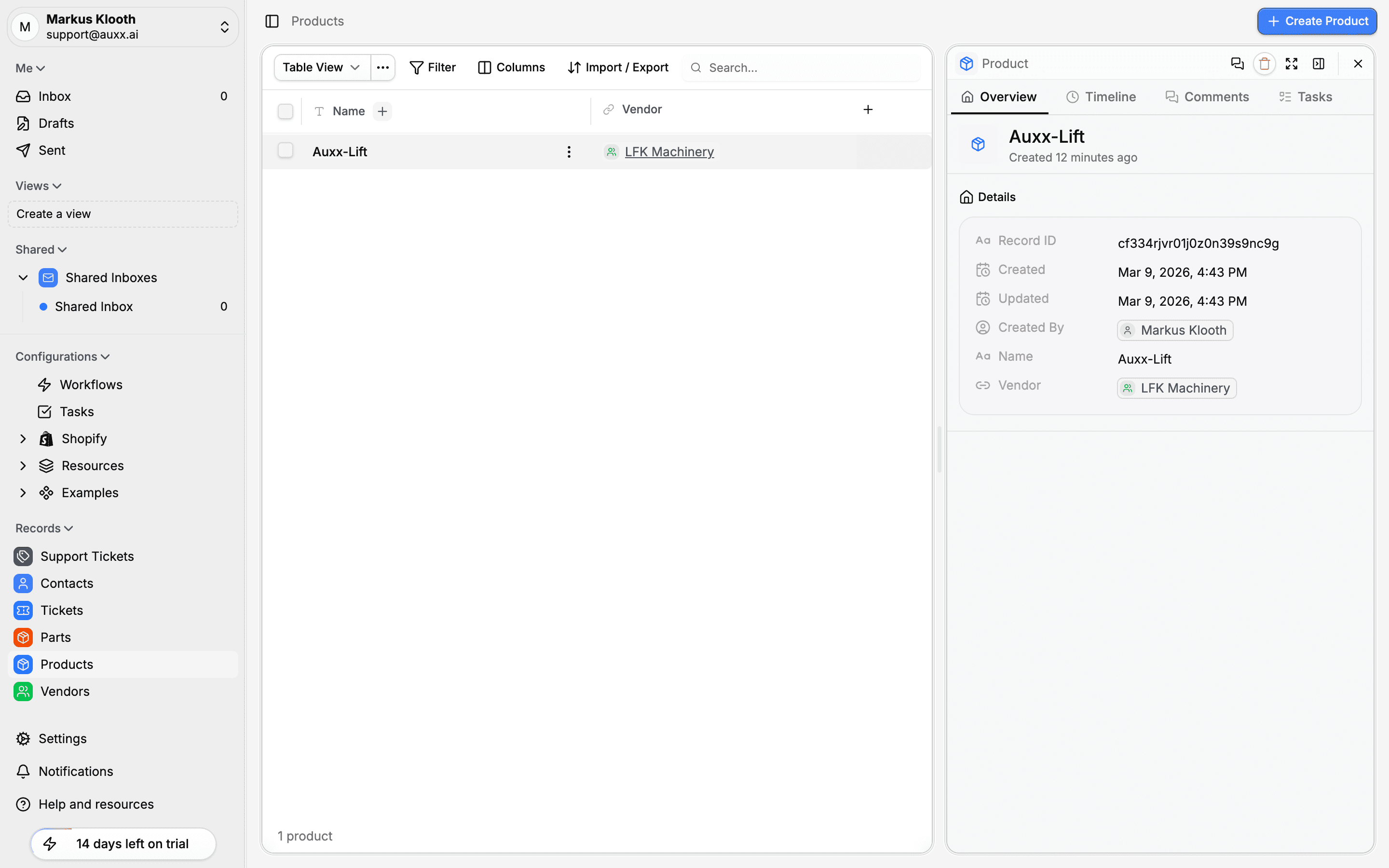
The detail view has tabs for:
| Tab | Purpose |
|---|---|
| Overview | All field values, editable inline |
| Files | Files attached to this record |
| Activity | History of changes to the record |
Edit field values directly in the overview tab. Changes are saved automatically.
Search records
Use the search bar at the top of the records page. Search matches against the record's primary display name.
Filter records
Click the filter icon to open the condition builder. Build filters using:
- Field — select any field on the entity
- Operator — depends on field type (equals, contains, greater than, etc.)
- Value — the value to match against
Combine multiple conditions with AND or OR logic. Filters persist for the current session.
Sort records
Click any sortable column header to sort by that field. Click again to reverse the direction.
Bulk operations
Select multiple records using the checkboxes in the table. Bulk actions appear at the top:
| Action | Description |
|---|---|
| Archive | Move selected records to archived state |
| Delete | Permanently remove selected records |
| Update field | Set a field value across all selected records |
Merge records
To consolidate duplicate records:
- Select two or more records
- Choose Merge from the bulk actions
- Select the target record (the one to keep)
- Review which field values to keep from each source
- Confirm the merge
Merged records combine data into the target. The source records are removed.