Account & Security
Import history
View and manage your past data imports in Auxx.ai, including status tracking and import details.
The import history page shows all CSV imports performed in your organization, so you can track their progress and review past imports.
View imports
Go to Settings > Import History to see all imports.
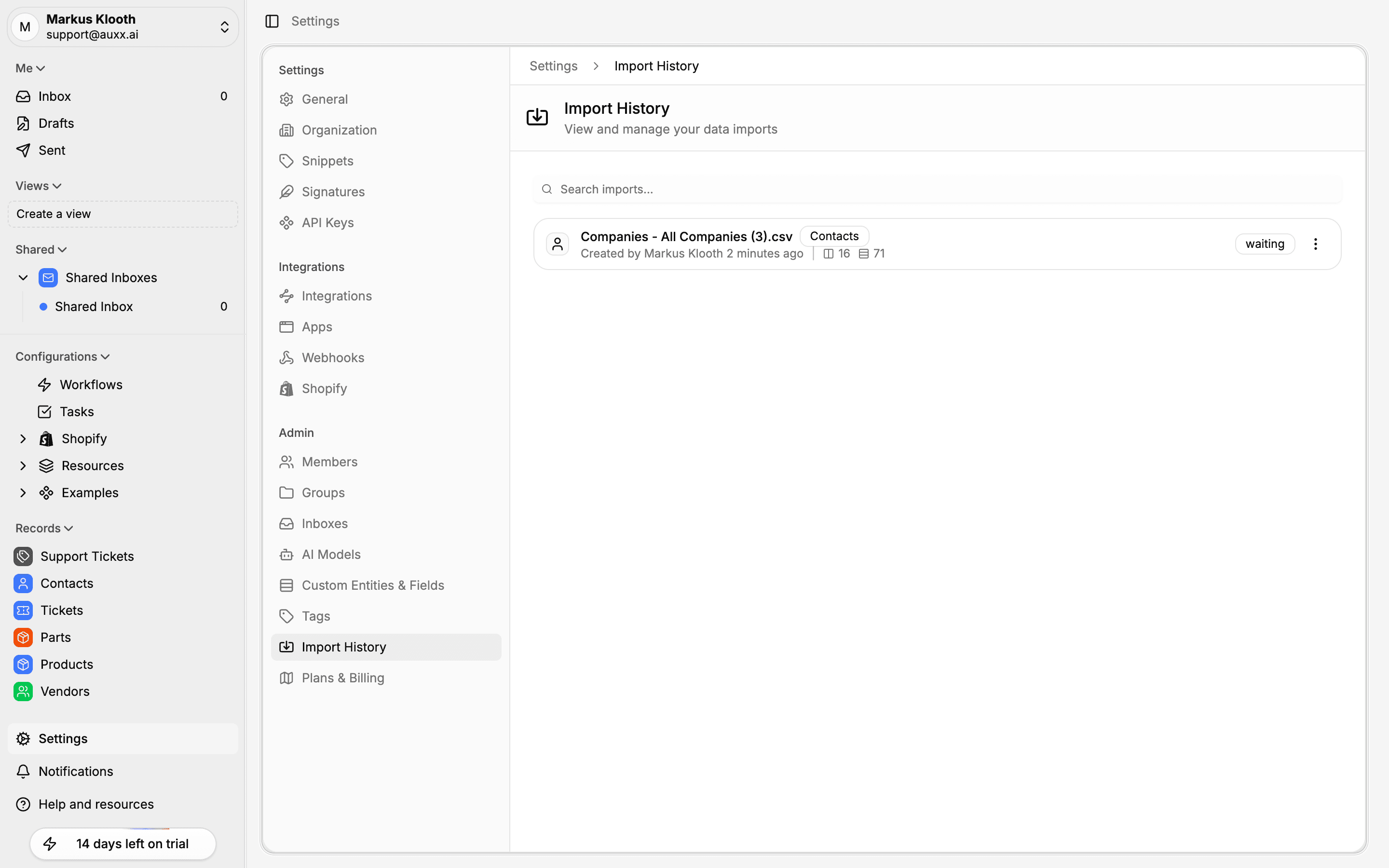
Each entry shows:
| Column | Description |
|---|---|
| Source file | The CSV filename that was uploaded |
| Entity type | The target — Contacts, Tickets, or a custom entity |
| Created by | The team member who started the import |
| Date | When the import was created (relative time) |
| Columns | Number of columns in the CSV |
| Rows | Number of rows to import |
| Status | Current import status |
Use the search bar to filter imports by filename or entity type.
Import statuses
| Status | Description |
|---|---|
| Uploading | The CSV file is being uploaded |
| Waiting | Upload complete, waiting for column mapping |
| Planning | Generating an import plan with row previews |
| Ready | Plan generated, ready to execute |
| Executing | Import is running — creating or updating records |
| Completed | Import finished successfully |
| Failed | Import encountered an error |
| Canceled | Import was canceled before completion |
Delete an import
To remove an import record:
- Click the actions menu on the import entry
- Select Delete
- Confirm the deletion
Deleting removes the import job record. Records that were already created by a completed import are not affected.
The import process
When you import data into Auxx.ai (from a custom entity, contacts, or other record pages), the process follows these steps:
- Upload — Select and upload a CSV file
- Map columns — Match CSV columns to entity fields. Auxx.ai auto-maps columns where possible.
- Resolve values — For relationship and select fields, choose whether to match existing records, create new ones, or skip
- Review plan — Preview the rows that will be created or updated, and check for any errors
- Execute — Run the import to create or update records
You can monitor each step's progress from the import history page.