Two-factor authentication
Secure your Auxx.ai account with two-factor authentication using a TOTP authenticator app.
Two-factor authentication (2FA) adds an extra layer of security by requiring a time-based code from an authenticator app in addition to your password when signing in.
Requirements
- You must have a password set on your account before enabling 2FA. If you signed up with Google or GitHub only, add a password first in Account settings.
- An authenticator app such as Google Authenticator, Authy, 1Password, or Microsoft Authenticator.
Enable 2FA
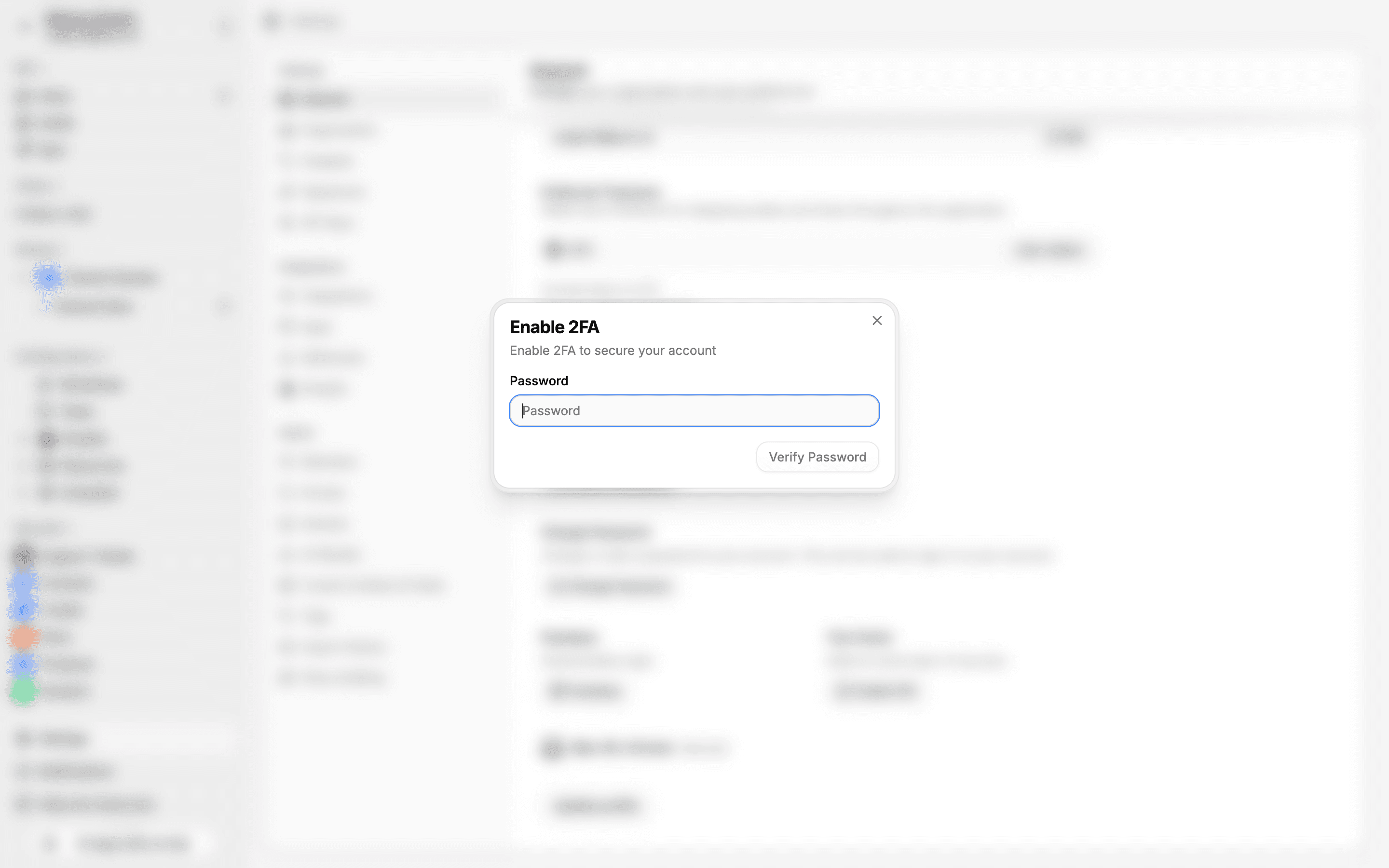
- Go to Settings > General
- In the security section, click Enable Two-Factor Authentication
- Enter your current password to confirm
- Scan the QR code with your authenticator app — or click Copy URI to add the entry manually
- Enter the 6-digit code from your authenticator app
- Click Verify
Once enabled, you'll need to enter a 6-digit code from your authenticator app each time you sign in with email and password.
Disable 2FA
- Go to Settings > General
- In the security section, click Disable Two-Factor Authentication
- Enter your current password to confirm
Backup your codes
If you lose access to your authenticator app, you won't be able to sign in with email and password. Make sure to save a backup of your authenticator entry or use an app that supports cloud sync.
How it works
Auxx.ai uses the standard TOTP (Time-based One-Time Password) protocol. Your authenticator app generates a new 6-digit code every 30 seconds based on a shared secret. The code is verified on the server when you sign in.