Plans, Billing & Payment
Cancellation
Learn how to cancel your Auxx.ai subscription, what happens to your data, and how to reactivate.
You can cancel your Auxx.ai subscription at any time. Your workspace remains active until the end of your current billing period.
Cancel your subscription
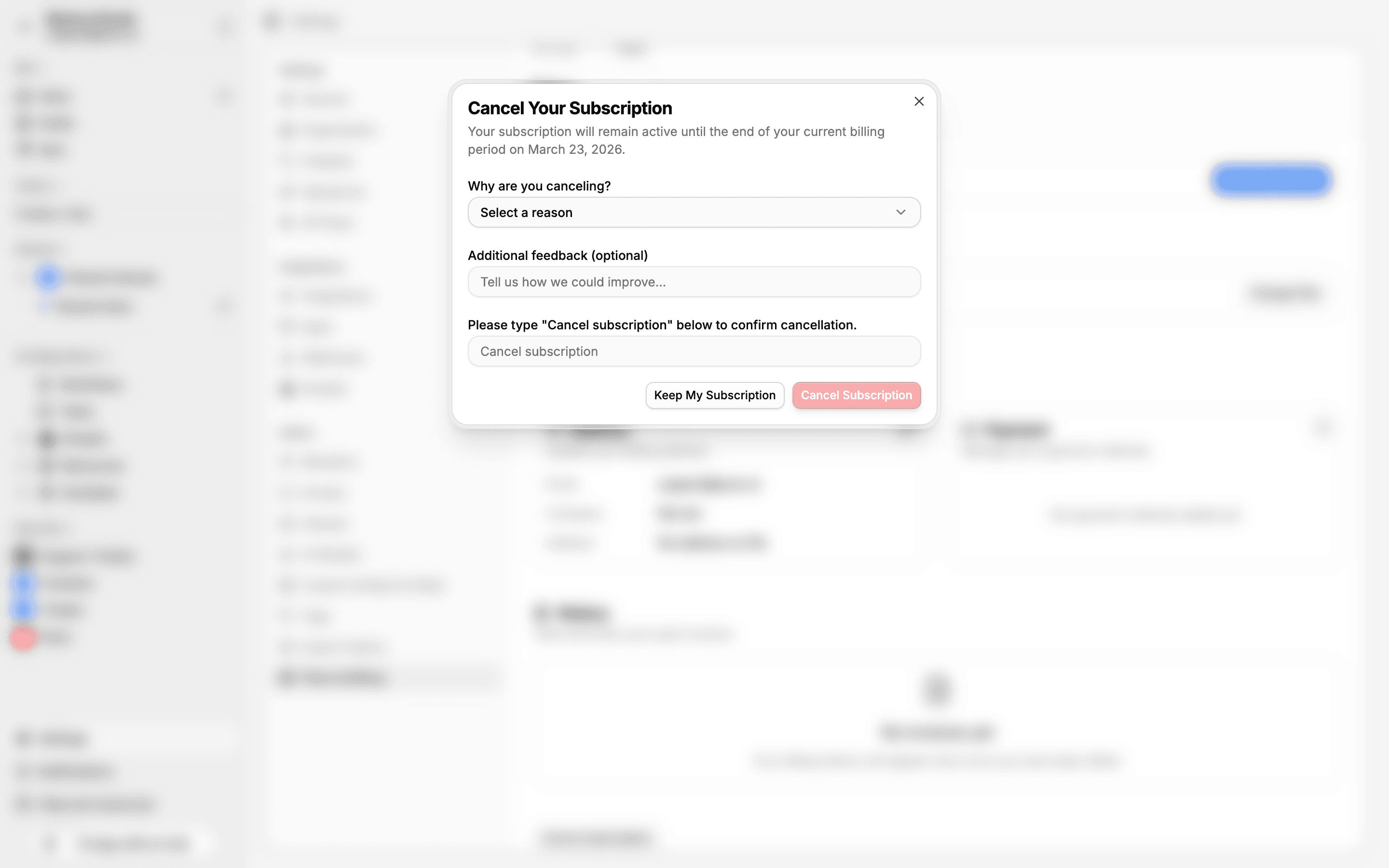
- Go to Settings > Plans
- Click Cancel Subscription
- Select a reason for canceling:
- Too expensive
- Missing features I need
- Switching to another service
- Just needed it temporarily
- Other reason
- Optionally add feedback
- Type Cancel subscription to confirm
- Click Confirm Cancellation
What happens after cancellation
- Immediate: Your subscription is marked for cancellation, but you keep full access to all paid features until the end of your billing period.
- End of billing period: Your workspace is downgraded to the Free plan. Feature limits from the Free plan are enforced — excess team members are deactivated and usage quotas are reduced.
- Data retention: Your data (tickets, contacts, conversations, integrations) is retained. If your workspace remains inactive beyond the retention period, it may be scheduled for deletion. You'll receive notification emails before any data is removed.
Reactivate your subscription
Changed your mind? You can restore your subscription before the billing period ends:
- Go to Settings > Plans
- Click Restore Subscription
This cancels the scheduled downgrade and your subscription continues as before with no interruption.
Reactivate after expiration
If your billing period has already ended and your workspace was downgraded, you can reactivate by upgrading to a paid plan:
- Go to Settings > Plans
- Select a plan and complete checkout
Your existing data and settings are preserved — you'll pick up right where you left off.