Payment methods
Add, update, or remove payment methods for your Auxx.ai subscription, and manage your billing address.
Auxx.ai uses Stripe to process payments. You can manage your payment methods and billing details from Settings > Plans.
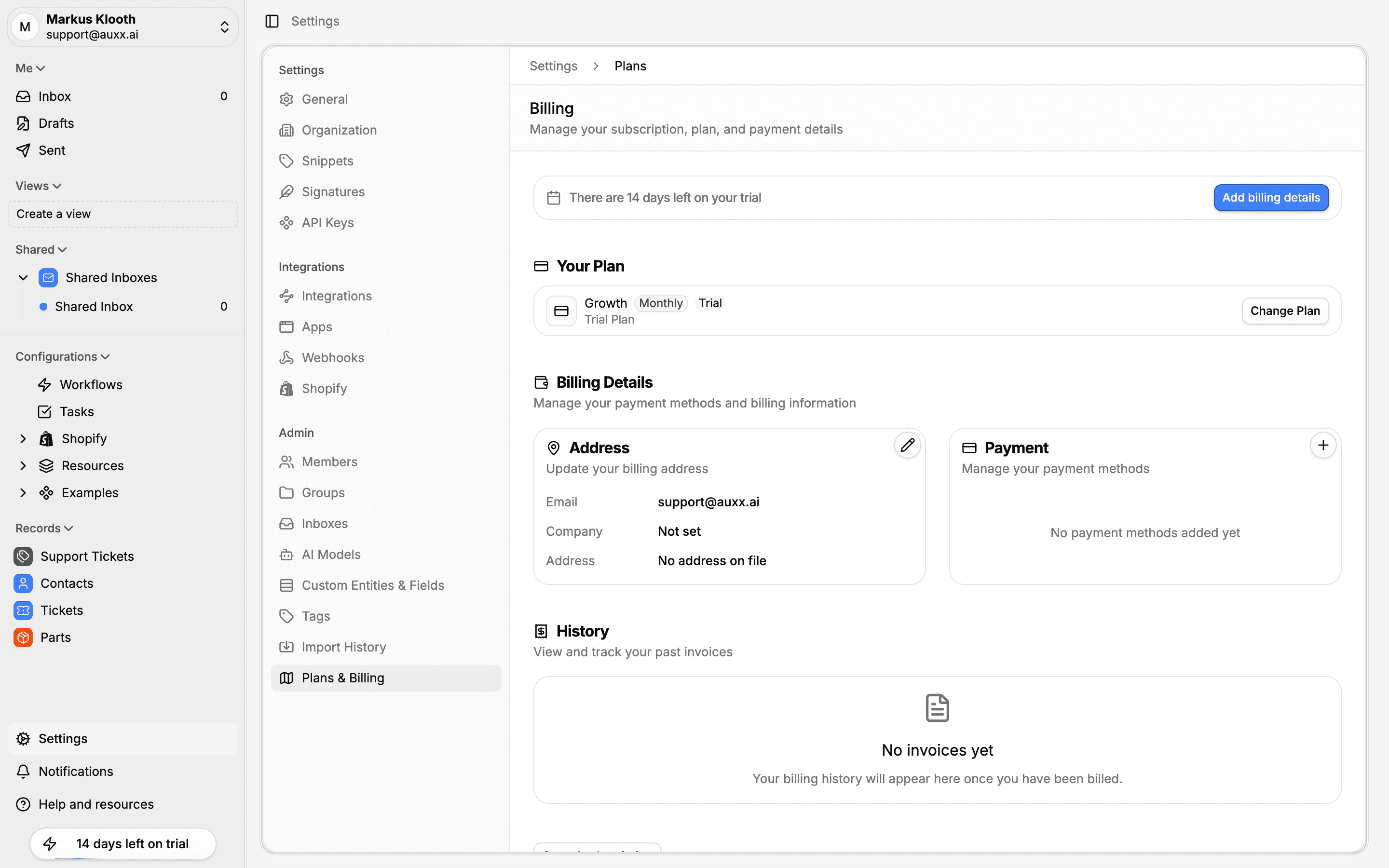
Add a payment method
- Go to Settings > Plans
- Scroll to the Payment Methods section
- Click Add Payment Method
- Enter your card details in the Stripe form
- Click Save
The new card is added to your account. If it's your first payment method, it's automatically set as the default.
Set a default payment method
Your default payment method is used for all subscription charges and renewals.
- Go to Settings > Plans
- In the Payment Methods section, find the card you want to use
- Click the menu on the card and select Set as default
Remove a payment method
- Go to Settings > Plans
- In the Payment Methods section, find the card you want to remove
- Click the menu on the card and select Delete
- Confirm the removal
You cannot remove your only payment method while you have an active paid subscription.
Update billing address
Your billing address appears on invoices and is used for tax calculations.
- Go to Settings > Plans
- Scroll to the Billing Details section
- Update your company name, email, or address fields
- Click Save
The billing address supports full international addresses including street, city, state/province, postal code, and country.
Billing portal
For advanced billing management, you can access the Stripe billing portal directly. Click Manage Billing in the Plans settings page to open the portal, where you can:
- View and update all payment methods
- Download invoices
- Update billing information