Plans, Billing & Payment
Invoices & receipts
View, download, and understand your Auxx.ai invoices and billing history.
Auxx.ai generates an invoice for every payment. You can view your full billing history and download PDF receipts from Settings > Plans.
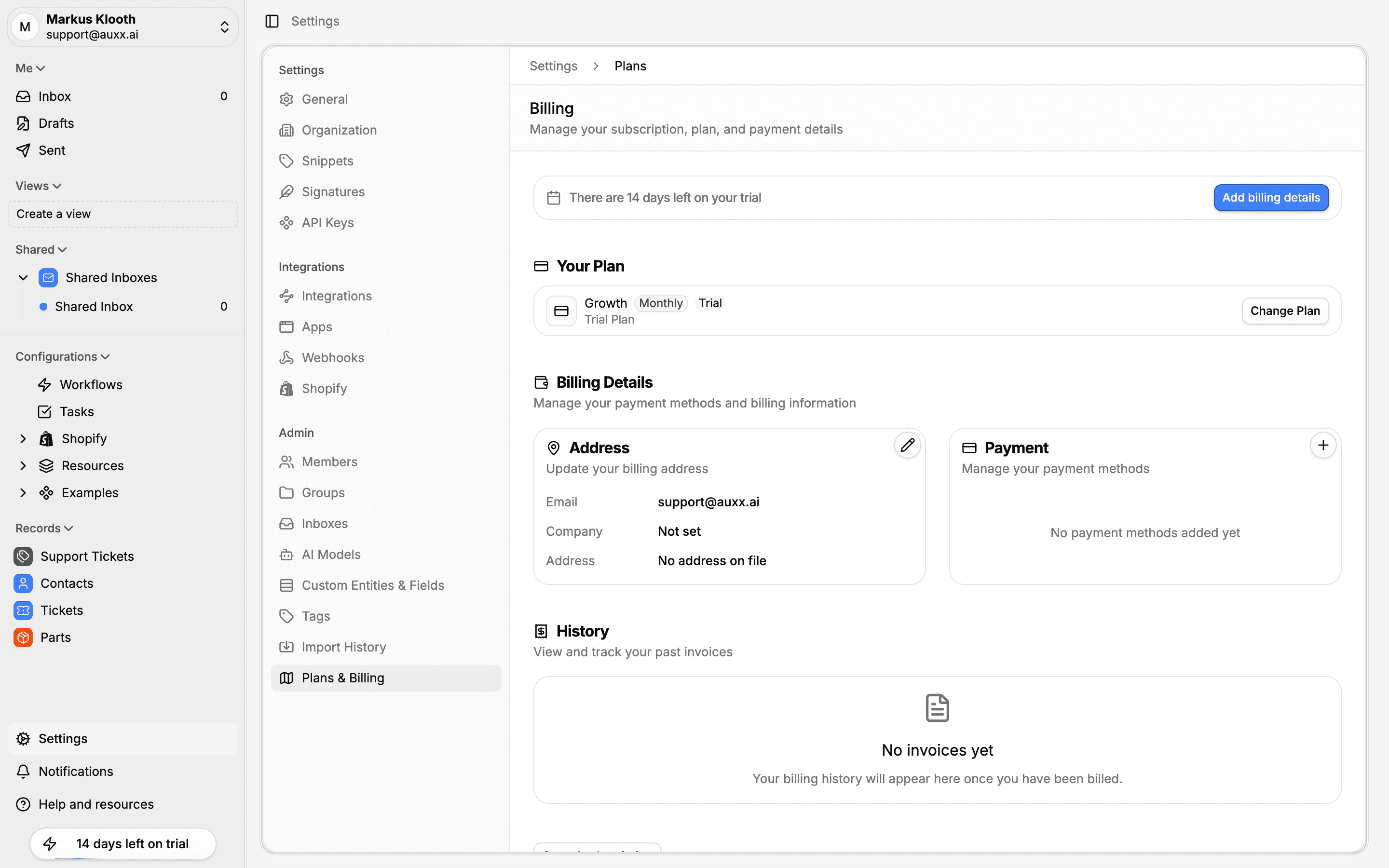
View invoices
- Go to Settings > Plans
- Scroll to the Invoices section
Invoices are listed newest first with the following details:
| Column | Description |
|---|---|
| Invoice # | Unique invoice reference number |
| Date | When the invoice was generated |
| Amount | Total charged (in your billing currency) |
| Status | Current payment status |
| Download | Link to download the PDF |
The list loads more invoices as you scroll.
Invoice statuses
| Status | Meaning |
|---|---|
| Paid | Payment was successfully processed |
| Upcoming | Invoice is generated but not yet due |
| Pending | Payment is due but hasn't been collected yet |
| Failed | Payment attempt was unsuccessful |
| Void | Invoice was canceled and no payment is expected |
If an invoice shows Failed, check that your default payment method is valid. Go to Payment Methods to update your card, and the next automatic retry should succeed.
Download a PDF
Click the download button next to any invoice to save a PDF receipt. The PDF includes your billing address, line items, taxes, and payment details.