Tasks overview
Create and manage tasks in Auxx.ai — track to-dos with smart deadlines, priorities, and team assignment.
Tasks are to-do items for your team. Create them from the global Tasks page or directly from a contact, ticket, or any other record. Tasks support deadlines, priorities, assignees, and links to related records.
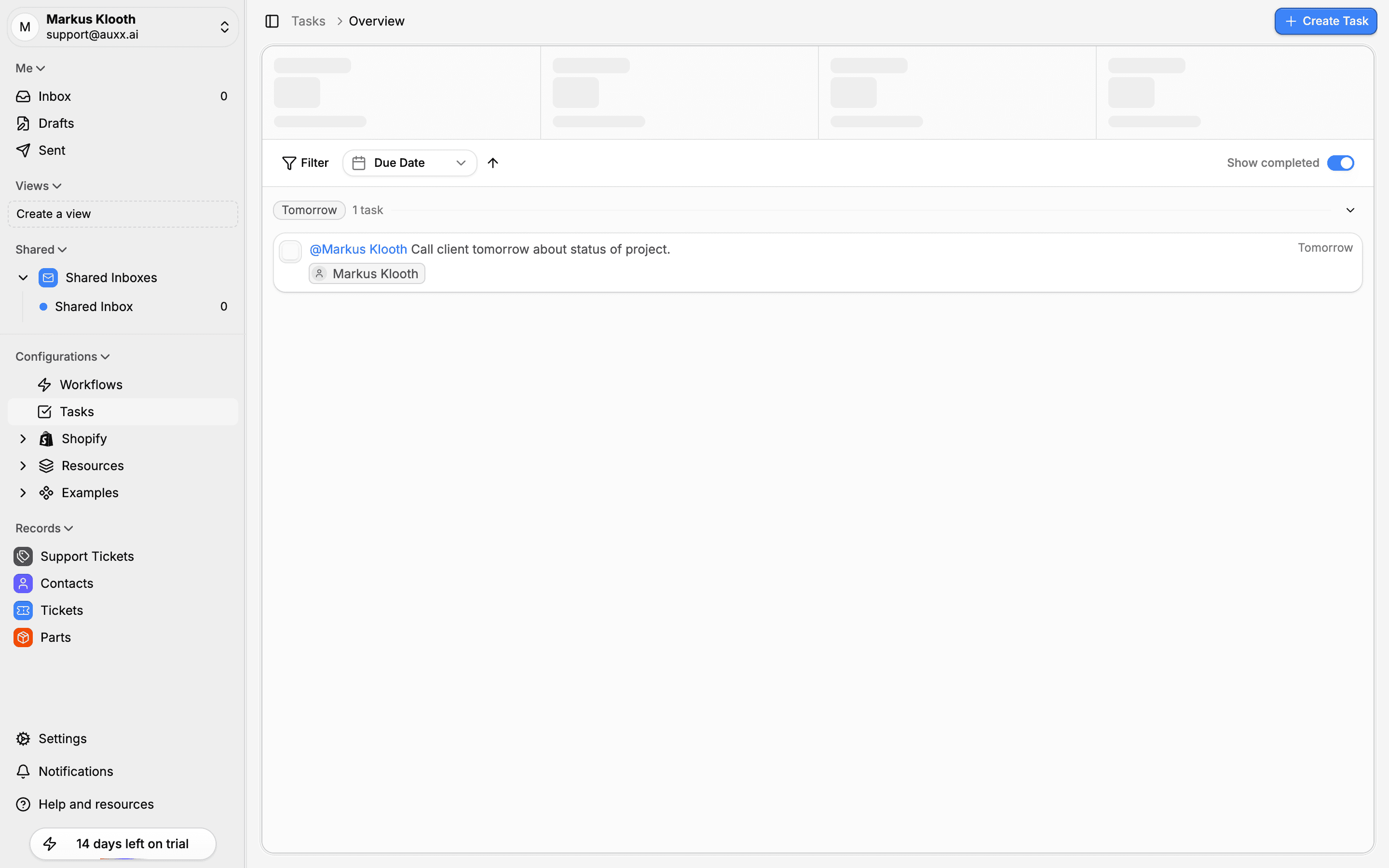
Access tasks from Configurations > Tasks in the sidebar.
Create a task
- Click Create Task in the top-right
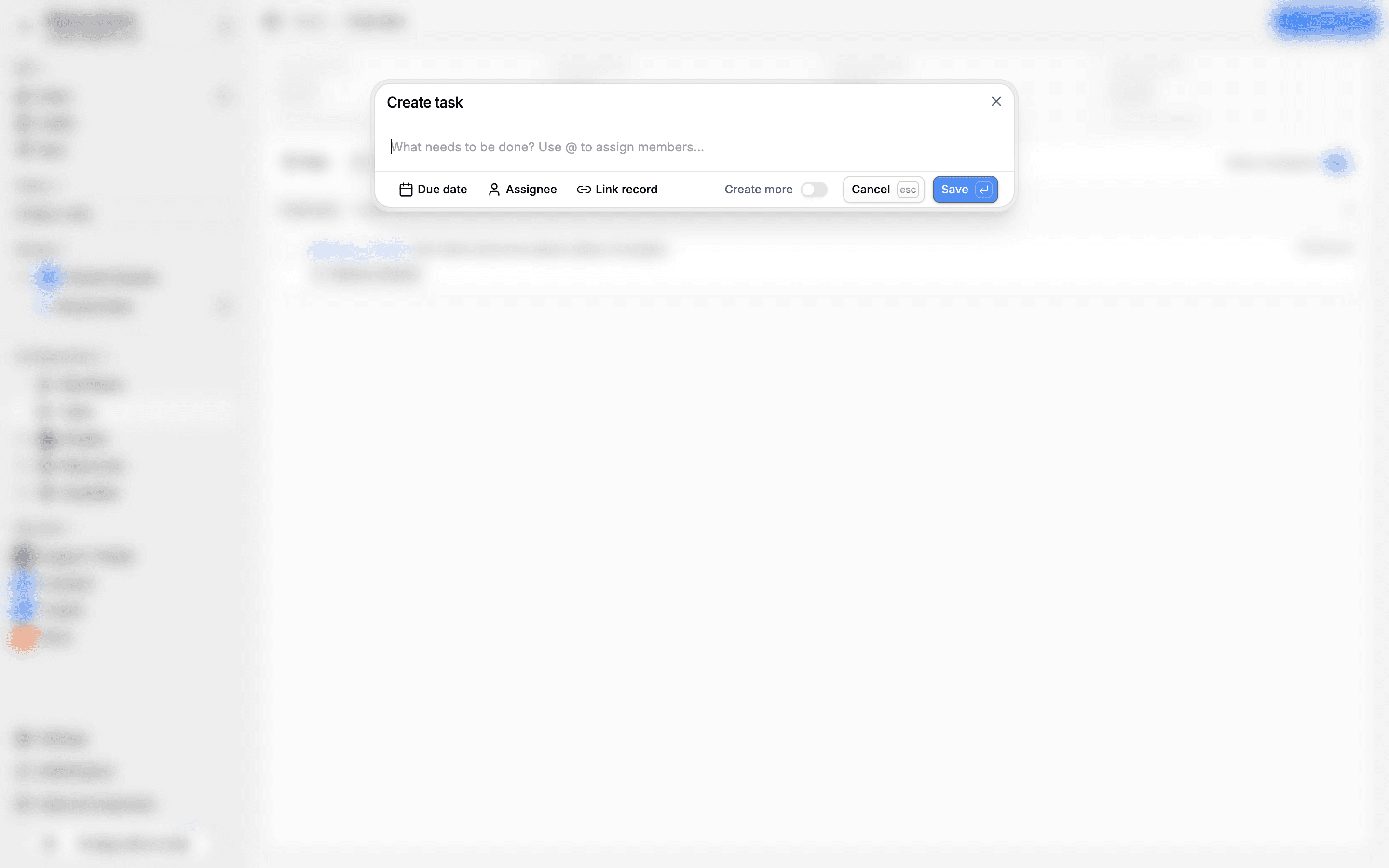
- Type a title describing what needs to be done
- Optionally set a due date, assignee, or linked record
- Click Save
Smart date detection
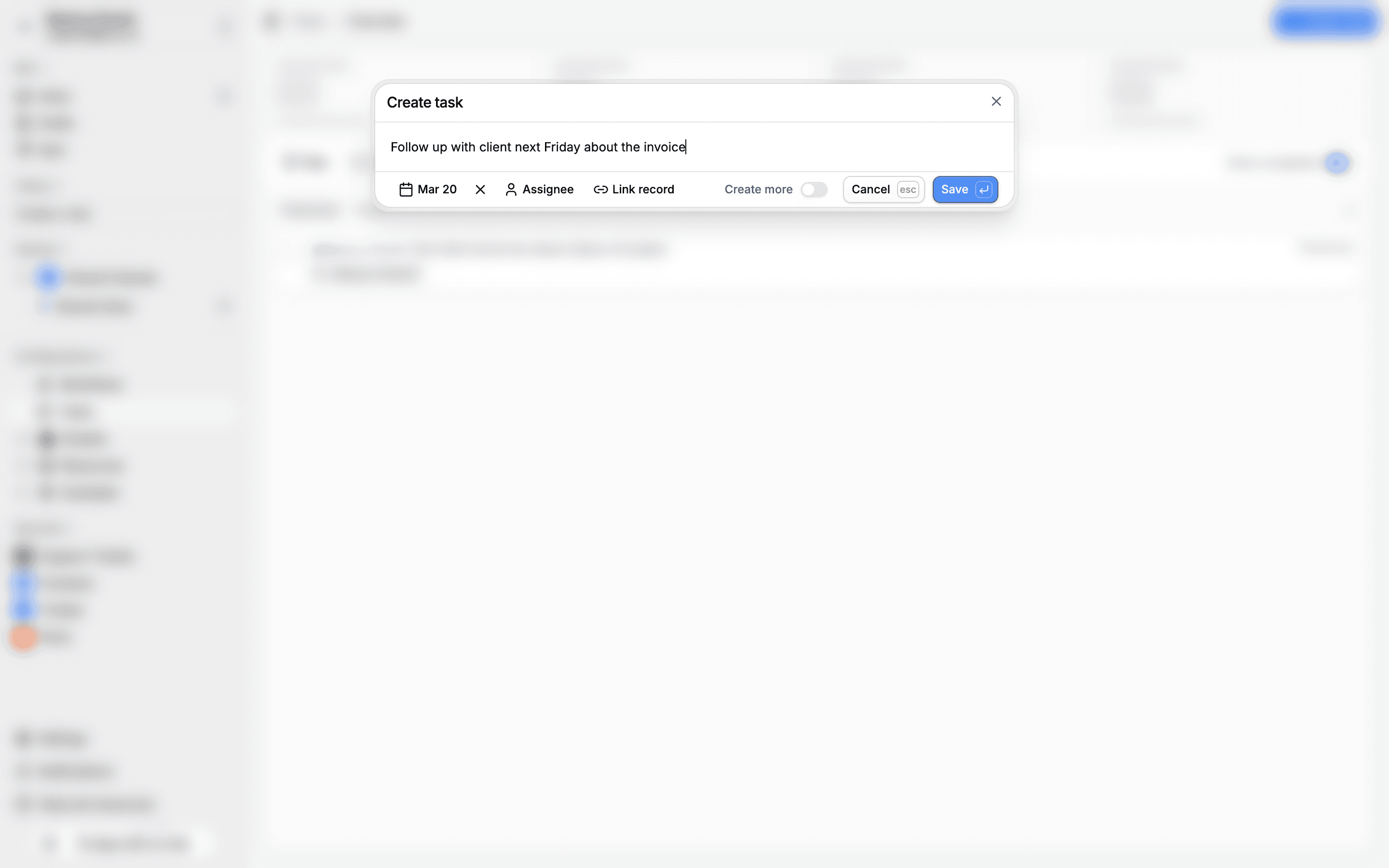
Auxx.ai automatically detects dates in your task title and sets the deadline for you. Type naturally — the parser picks up relative and named dates from your text.
Supported date expressions:
| Expression | Example |
|---|---|
| Relative days | "tomorrow", "today", "in 3 days", "in two weeks" |
| Named weekdays | "next Friday", "this Monday", "by Wednesday" |
| Periods | "next week", "next month", "end of week", "end of month" |
| Informal | "asap", "soon", "later" |
| Written numbers | "in three days", "in two weeks" |
The detected date appears as a chip next to the Due date button. Click the X on the chip to clear it, or click the date to change it manually with the date picker. Once you manually set a date, auto-detection is disabled for that task.
Assign with @mentions
Type @ in the task title to mention a team member. Mentioned members are automatically added as assignees.
Create multiple tasks
Toggle Create more in the dialog to keep it open after saving. The form resets so you can quickly create tasks in a row.
Task statuses
Tasks have three states:
| Status | Description |
|---|---|
| Open | Active task, not yet completed |
| Completed | Marked as done (checkbox checked) |
| Archived | Hidden from default views |
Click the checkbox next to a task to toggle between open and completed. Completed tasks show a strikethrough on the title.
Priority levels
Tasks can have a priority of Low, Medium, or High, or no priority at all. Set the priority when creating or editing a task.
Tasks on records
You can create and view tasks directly from any record — contacts, tickets, or custom entities. Open a record's detail view and go to the Tasks tab.
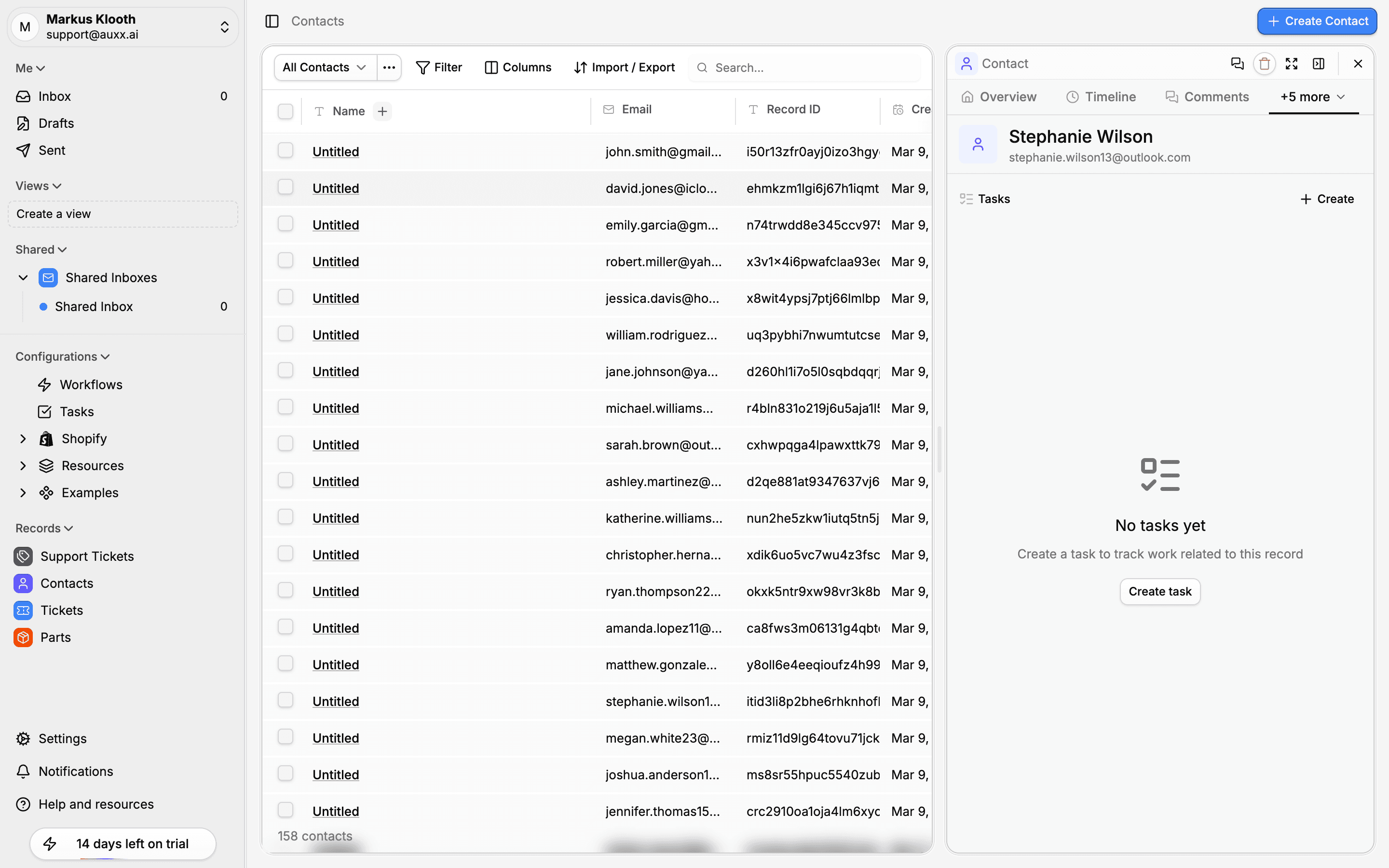
Tasks created from a record are automatically linked to it. They also appear in the global Tasks page with the linked record shown as a badge.
Edit a task
Click any task in the list to open the edit dialog. You can change the title, description, deadline, priority, assignees, and linked records.
Delete a task
Open the task and delete it from the dialog. Deleted tasks are permanently removed.