Uploading files
Upload files to Auxx.ai using drag-and-drop or the file picker, with real-time progress tracking.
You can upload files to your workspace from the Files page or directly within tickets and contacts.
Upload from the Files page
- Go to Resources > Files in the sidebar
- Click Upload Files in the top-right
- Drag and drop files into the upload area, or click Select Files to pick from your computer
- Files upload immediately with progress tracking
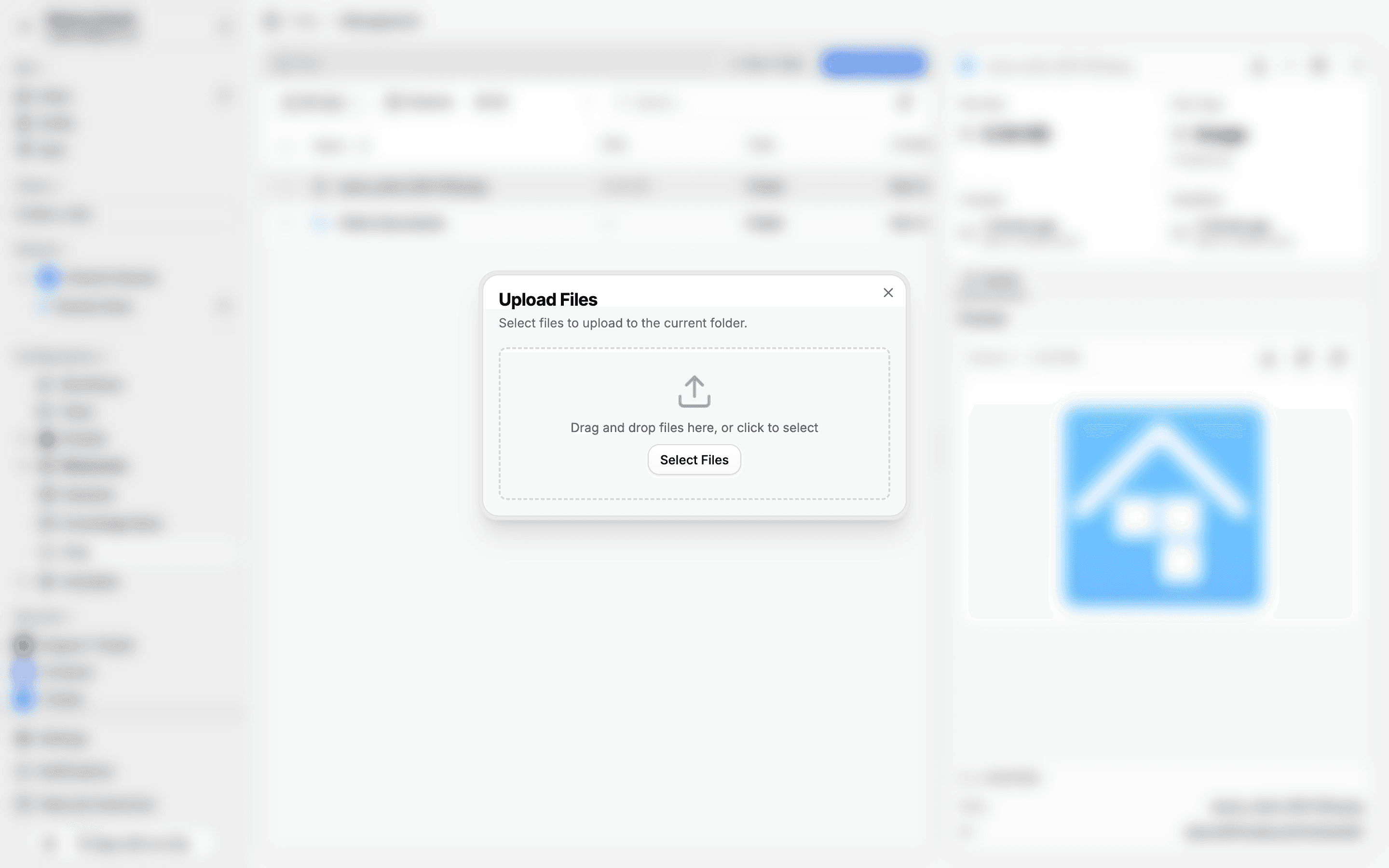
You can also drag and drop files directly onto the file table without opening the dialog.
Upload to a folder
Navigate into the target folder first, then upload. Files are placed in whichever folder you're currently viewing.
Upload within tickets and contacts
When composing a reply or editing a record, you can attach files directly. These files are linked to the entity and also appear in the file manager.
Upload progress
Each file goes through these stages:
| Status | Description |
|---|---|
| Pending | File is queued for upload |
| Uploading | Transfer in progress |
| Processing | Server is processing the file (generating thumbnails, extracting metadata) |
| Completed | File is ready to use |
| Failed | Upload encountered an error |
Progress is tracked in real time. For large files, Auxx.ai automatically uses multipart uploads to handle the transfer reliably.
Supported file types
| Category | Formats |
|---|---|
| Images | JPG, PNG, WebP, GIF, SVG, BMP, ICO |
| Documents | PDF, DOC, DOCX, XLS, XLSX, PPT, PPTX, CSV, TXT, MD, RTF, ODT |
| Data | JSON, XML, YAML, HTML |
| Video | MP4, MOV, WebM, AVI, MKV |
| Audio | MP3, M4A, WAV, OGG, FLAC |
Duplicate detection
Auxx.ai calculates a checksum for each uploaded file. If you upload a file with the same content as an existing one, it may be flagged as a duplicate.