Files overview
Manage files and folders in Auxx.ai — upload, organize, search, and access files across your workspace.
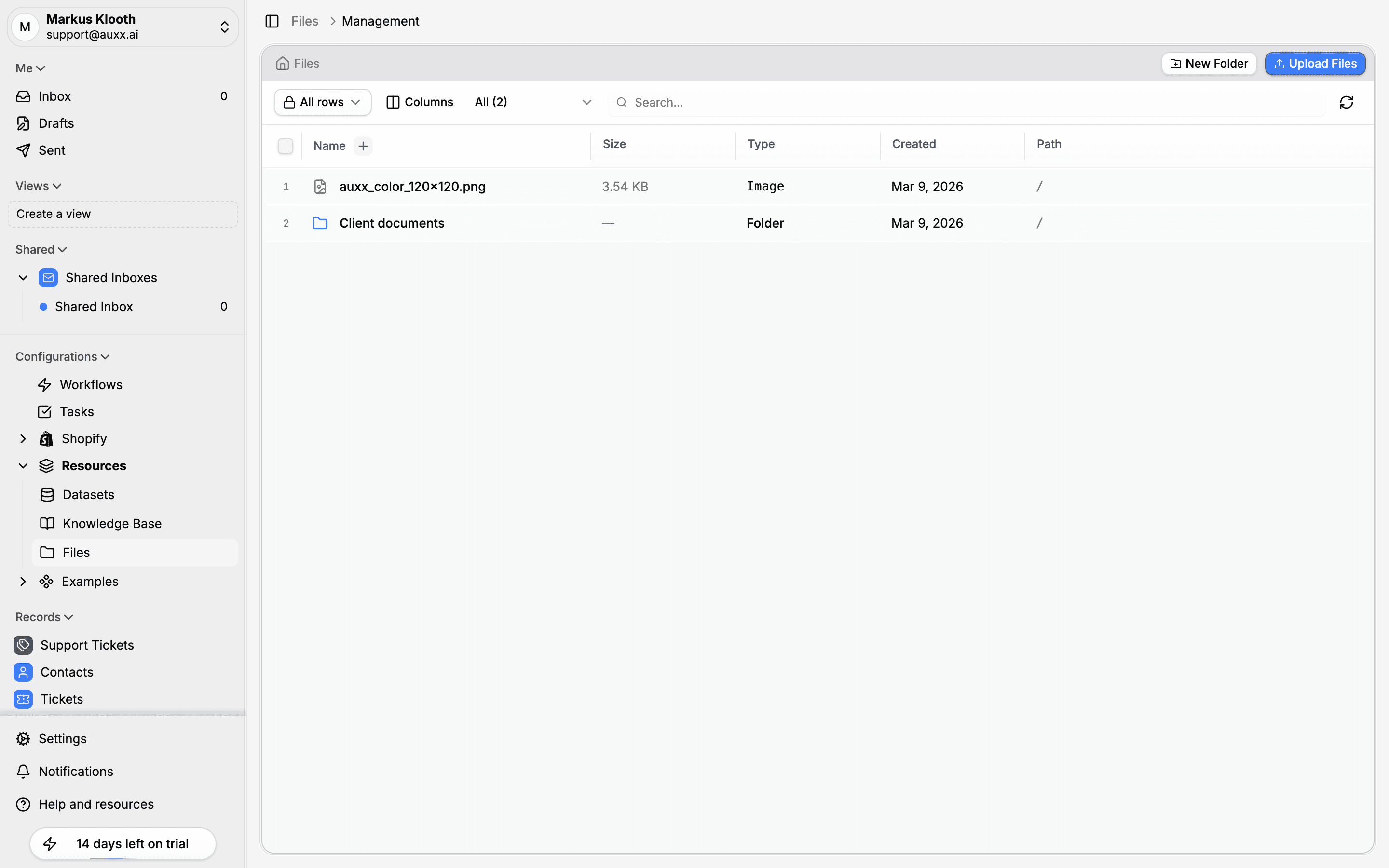
The Files page is your workspace's central file manager. Upload documents, images, and other files, organize them into folders, and access them from anywhere in Auxx.ai.
Files are accessible from the sidebar under Resources > Files.
What you can store
Auxx.ai supports a wide range of file types:
| Category | Formats |
|---|---|
| Images | JPG, PNG, WebP, GIF, SVG, BMP, ICO |
| Documents | PDF, DOC, DOCX, XLS, XLSX, PPT, PPTX, CSV, TXT, MD, RTF, ODT |
| Data | JSON, XML, YAML, HTML |
| Video | MP4, MOV, WebM, AVI, MKV |
| Audio | MP3, M4A, WAV, OGG, FLAC |
Navigating the file manager
The file manager displays your files in a table with the following columns:
- Name — File or folder name (click to open details or navigate into a folder)
- Size — File size (folders show "—")
- Type — File category (Image, Document, Folder, etc.)
- Created — When the file was uploaded
- Path — Location in the folder hierarchy
Folders
Organize files into folders to keep things tidy. Click New Folder in the top-right to create a folder. Double-click a folder to navigate into it — breadcrumbs at the top show your current location and let you jump back.
Search and filter
Use the search bar to find files by name. You can also filter the list by type and sort by any column (click the column header).
The Columns button lets you show or hide columns. The All rows button lets you apply filters to narrow down results.
Drag and drop
Files can be reordered and moved between folders by dragging them in the table.
Bulk operations
Select multiple files using the checkboxes, then use bulk actions to delete them. A confirmation dialog appears before any destructive action.
Where files appear
Files uploaded in the file manager are available workspace-wide. They can also be attached to:
- Tickets — As conversation attachments
- Contacts — On contact records
- Custom entities — Via file-type custom fields
Files uploaded directly to a ticket or contact are also visible in the file manager.