Files
Folders
Create, rename, navigate, and delete folders to organize your files in Auxx.ai.
Folders let you organize files into a hierarchy. You can nest folders, move files between them, and navigate using breadcrumbs.
Create a folder
- Go to Resources > Files in the sidebar
- Click New Folder in the top-right
- Enter a name for the folder
- Click Create Folder
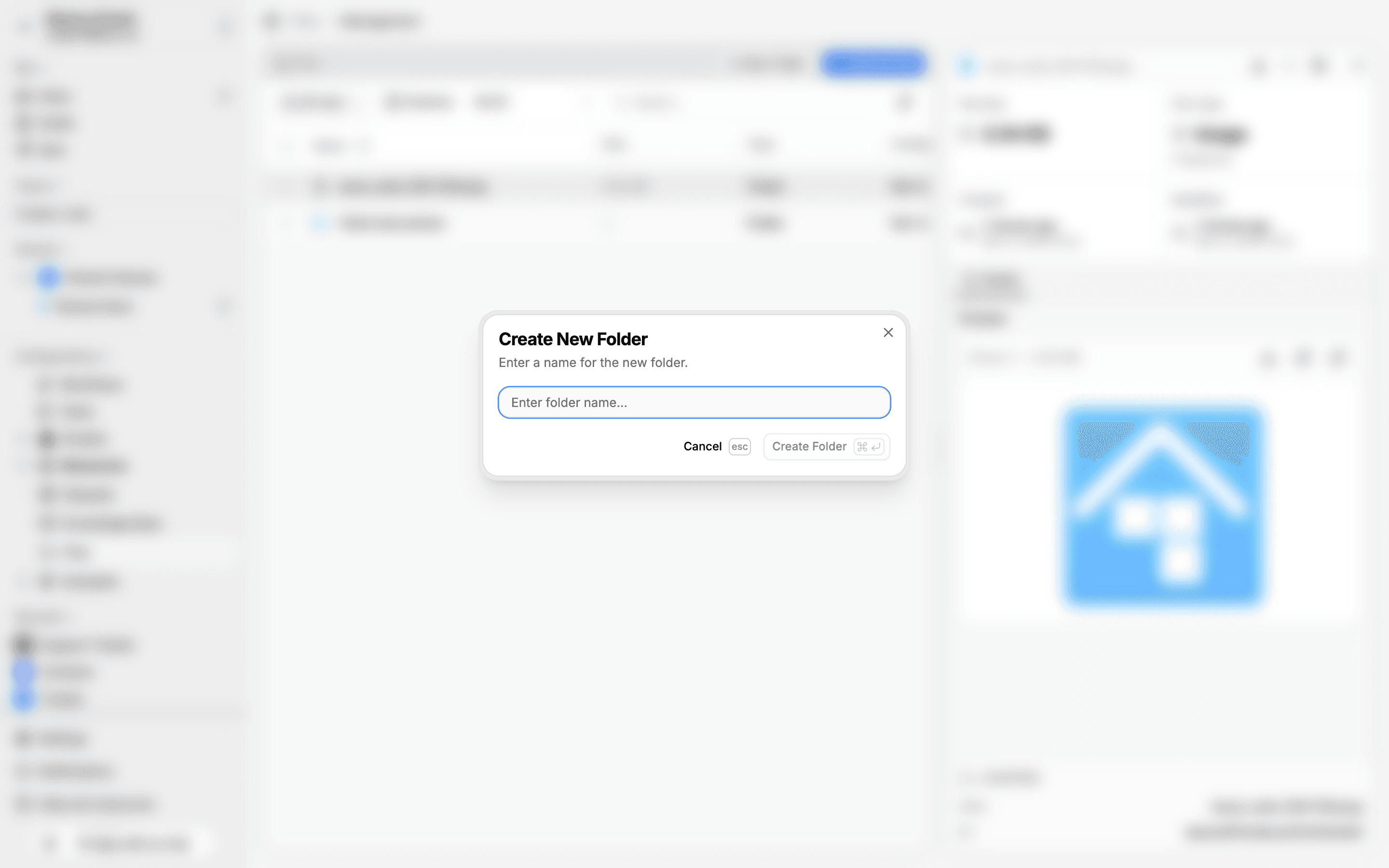
The folder appears in the file table. To create a subfolder, navigate into the target folder first, then click New Folder again.
Navigate folders
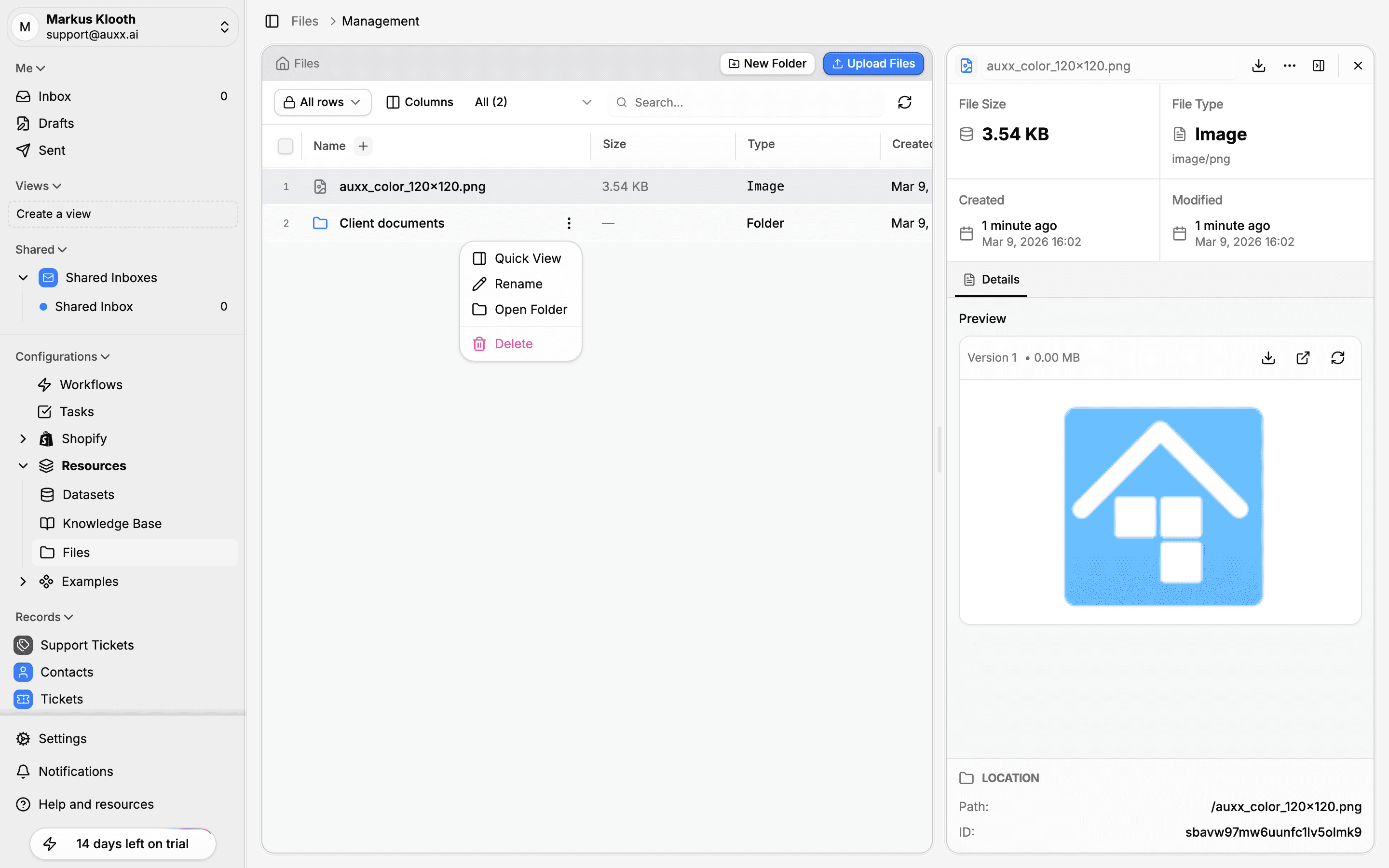
- Open a folder — Double-click it in the file table, or right-click and select Open Folder
- Go back — Use the breadcrumbs at the top of the page to jump to any parent folder
- Root — Click Files in the breadcrumb to return to the top level
The Path column in the file table shows where each item lives in the folder hierarchy.
Rename a folder
- Right-click the folder (or click the three-dot menu on the row)
- Select Rename
- Type the new name
- Press Enter to save
Move files and folders
Drag and drop files or folders in the table to move them. You can drag items onto a folder row to move them inside it.
Delete a folder
- Right-click the folder (or click the three-dot menu)
- Select Delete
- Confirm the deletion
Deleting a folder removes it and all files inside it. A confirmation dialog appears before the action is carried out.