Creating a dataset
Create a dataset, upload documents, and track the processing pipeline in Auxx.ai.
Datasets hold the documents that power AI search and knowledge retrieval. Create a dataset, upload files, and Auxx.ai handles extraction, chunking, and indexing automatically.
Create a dataset
- Go to Resources > Datasets in the sidebar
- Click Create Dataset in the top-right
- Enter a Dataset Name (must be unique within your organization)
- Optionally add a Description
- Select an Embedding Model (e.g.,
openai:text-embedding-3-large) - Click Create Dataset
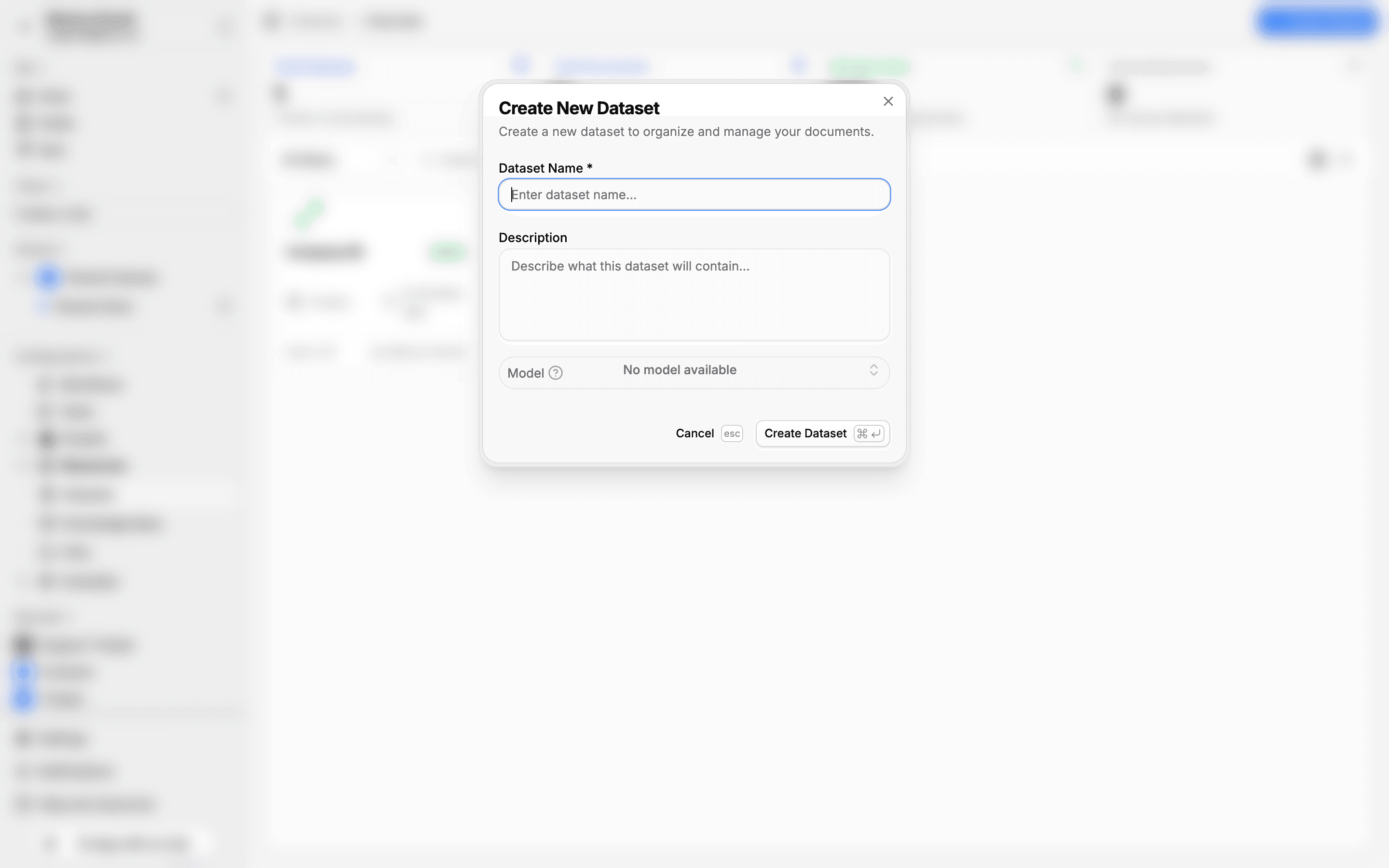
The embedding model determines how your documents are converted into vector representations for semantic search. Once set, the model cannot be changed without reindexing all documents.
Upload documents
From the dataset detail page:
- Click the Upload button in the top-right
- Select one or more files from your computer
- Documents appear in the Documents tab with an Uploaded status
You can upload multiple files at once. Auxx.ai detects duplicate files by checksum and prevents re-uploading the same document.
Supported file types
| Type | Extensions |
|---|---|
.pdf | |
| Word | .docx |
| Plain text | .txt |
| HTML | .html |
| Markdown | .md |
| CSV | .csv |
| JSON | .json |
| XML | .xml |
Document processing pipeline
After upload, each document goes through an automated pipeline:
1. Extraction
Auxx.ai reads the file and extracts raw text content. PDFs are parsed for text and metadata. Word documents preserve paragraph structure. Plain text and markdown files are read directly.
2. Chunking
The extracted text is split into smaller segments based on the dataset's chunking settings. By default, text is split into fixed-size chunks of 1,000 characters with 200 characters of overlap between segments.
3. Embedding
Each segment is sent to the configured embedding model (e.g., OpenAI's text-embedding-3-large) to generate a vector representation. These vectors enable semantic search — finding content by meaning rather than exact keywords.
4. Indexing
Segments and their embeddings are stored in PostgreSQL with vector indexes for fast similarity search. A full-text search index is also created for keyword-based queries.
Document statuses
The Documents tab shows each document's current state:
| Status | Description |
|---|---|
| Uploaded | File received, processing has not started |
| Processing | Currently extracting, chunking, or embedding |
| Indexed | Successfully processed and searchable |
| Failed | An error occurred during processing |
| Archived | Removed from active searches but retained |
Managing documents
The Documents tab provides a sortable table with columns for document name, status, availability, segment count, file size, type, and upload date.
- Enable/Disable — Toggle a document's availability to include or exclude it from search results without deleting it
- Reindex — Reprocess a document if you've changed chunking or embedding settings
- Delete — Permanently remove a document and all its segments
Use the status filter dropdown and search bar to find specific documents.