Shopify integration
Connect your Shopify store to Auxx.ai to sync customers, orders, and products for richer support context.
The Shopify integration connects your store to Auxx.ai, giving your team instant access to customer profiles, order history, and product details when handling support tickets. Data syncs in real time via webhooks so your workspace always has the latest information.
Admin required
Only organization admins and owners can connect a Shopify store.
What gets synced
| Data | What's included |
|---|---|
| Customers | Name, email, phone, order history, amount spent, tags |
| Orders | Order details, pricing, fulfillment status, shipping and billing addresses |
| Products | Title, description, vendor, status, tags, variants, inventory levels, media |
Connect your store
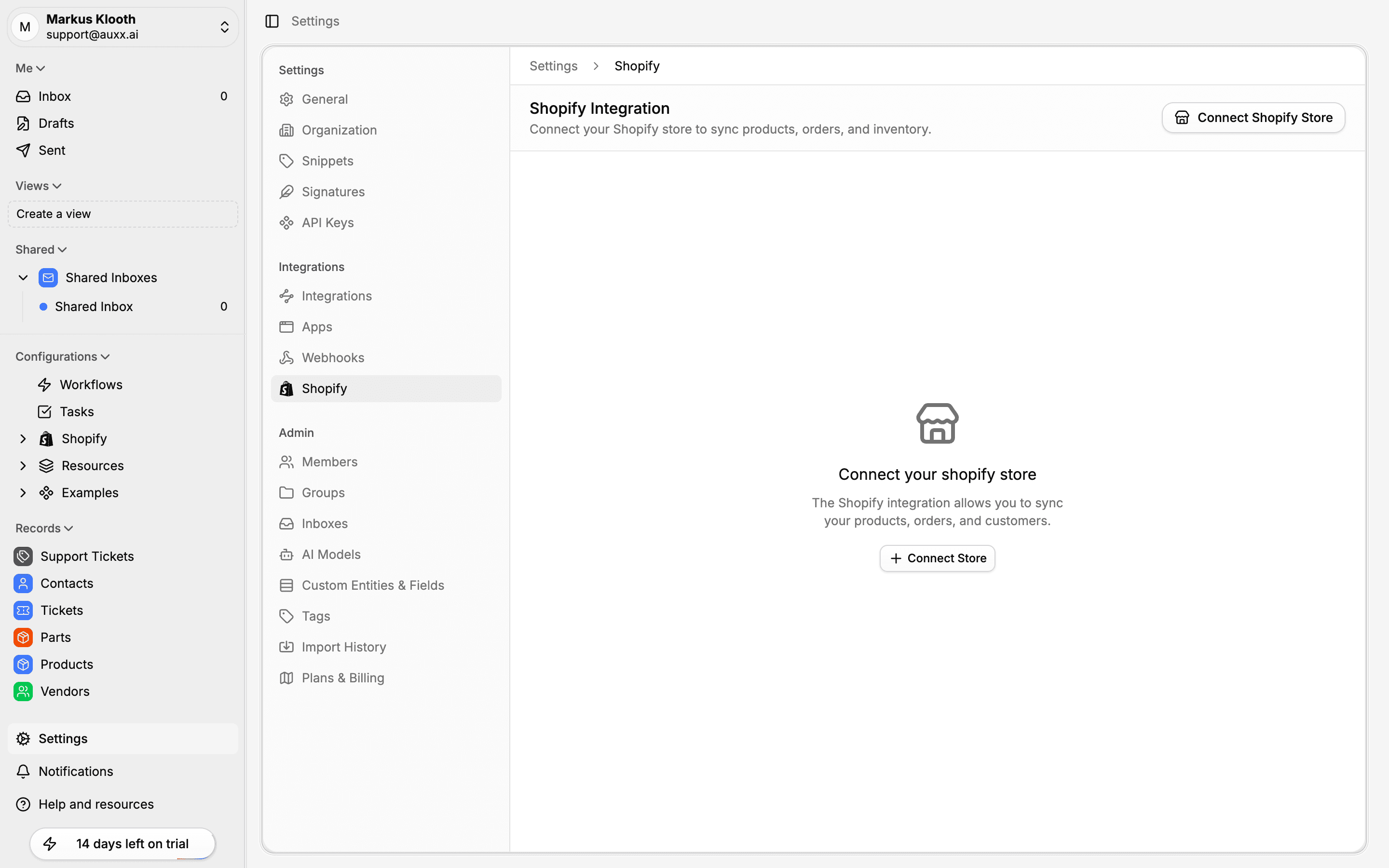
- Go to Settings > Shopify
- Click Connect Shopify Store
- Enter your Shopify store domain (e.g.,
your-store.myshopify.com)
Domain format
Enter your full .myshopify.com domain. If you just type the store name (e.g., your-store), Auxx.ai adds the .myshopify.com suffix automatically.
- Click Connect Shopify Store
- You'll be redirected to Shopify — log in if prompted
- Review the permissions and click Install app
- After authorizing, you're redirected back to Settings > Shopify with your store listed as Active
Permissions requested
| Permission | Why it's needed |
|---|---|
| Read products | Sync your product catalog for support context |
| Read orders | Access order details when handling customer inquiries |
| Read customers | Match email conversations to Shopify customer profiles |
| Read/write inventory | View and update inventory levels |
Syncing data
Manual sync
From Settings > Shopify, use the action buttons next to your connected store:
- Sync Products — Pull in your full product catalog
- Sync Orders — Import order history
- Sync Customers — Import customer records
Each sync runs as a background job. You can track progress in the sync job history.
Automatic sync
Once connected, Auxx.ai registers webhooks with your Shopify store. When data changes in Shopify, it syncs to Auxx.ai automatically:
| Event | Triggers |
|---|---|
| Customers | Created, updated |
| Orders | Created, updated |
| Products | Created, updated, deleted |
Browsing synced data
After syncing, you can browse your Shopify data directly in Auxx.ai:
- Orders — View order list and details at the Shopify section in the sidebar
- Customers — Browse customer profiles with linked order history
- Products — See your full product catalog with variants and inventory
This data is also available as context when your team or AI responds to support tickets.
Managing your connection
Enable or disable
You can temporarily disable a Shopify integration without removing it. From Settings > Shopify, toggle the store between Active and Inactive. Disabling pauses syncing and webhook processing but preserves your synced data.
Multiple stores
You can connect more than one Shopify store to a single Auxx.ai organization. Each store appears as a separate entry on the Shopify settings page with its own sync controls.
Remove a store
- Go to Settings > Shopify
- Click Remove next to the store you want to disconnect
- Confirm the removal
Removing a store deletes the connection and associated synced data from Auxx.ai.