Managing installed apps
Configure app connections, update settings, and uninstall apps from your Auxx.ai workspace.
After installing an app, you can manage its connections, configure settings, and remove it from your workspace.
View installed apps
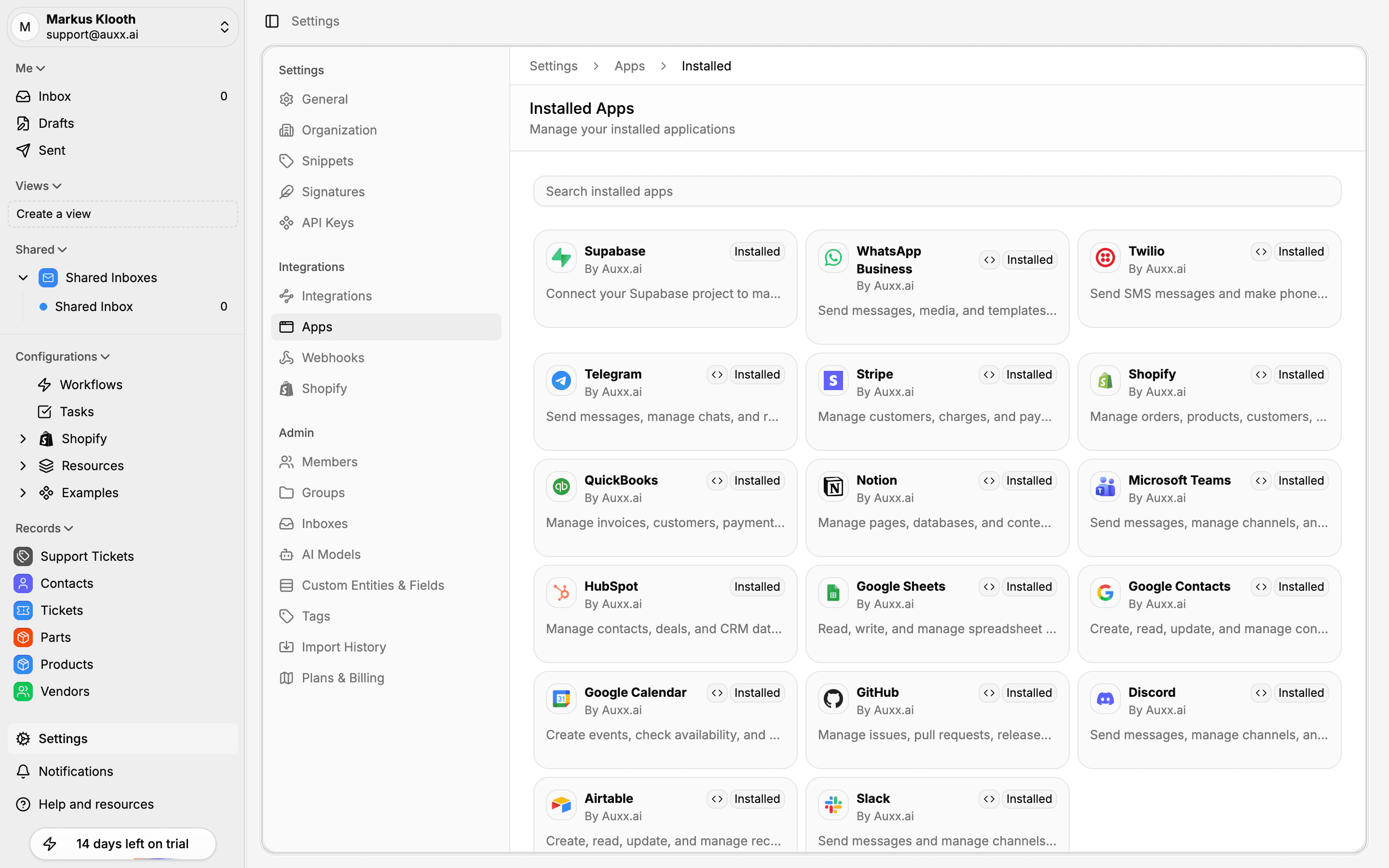
Go to Settings > Apps > Installed to see all apps currently installed in your organization. Click any app to open its detail page with three tabs: Connections, Settings, and About.
Connections
Connections are the credentials (OAuth tokens or API keys) that allow an app to communicate with external services.
View connections
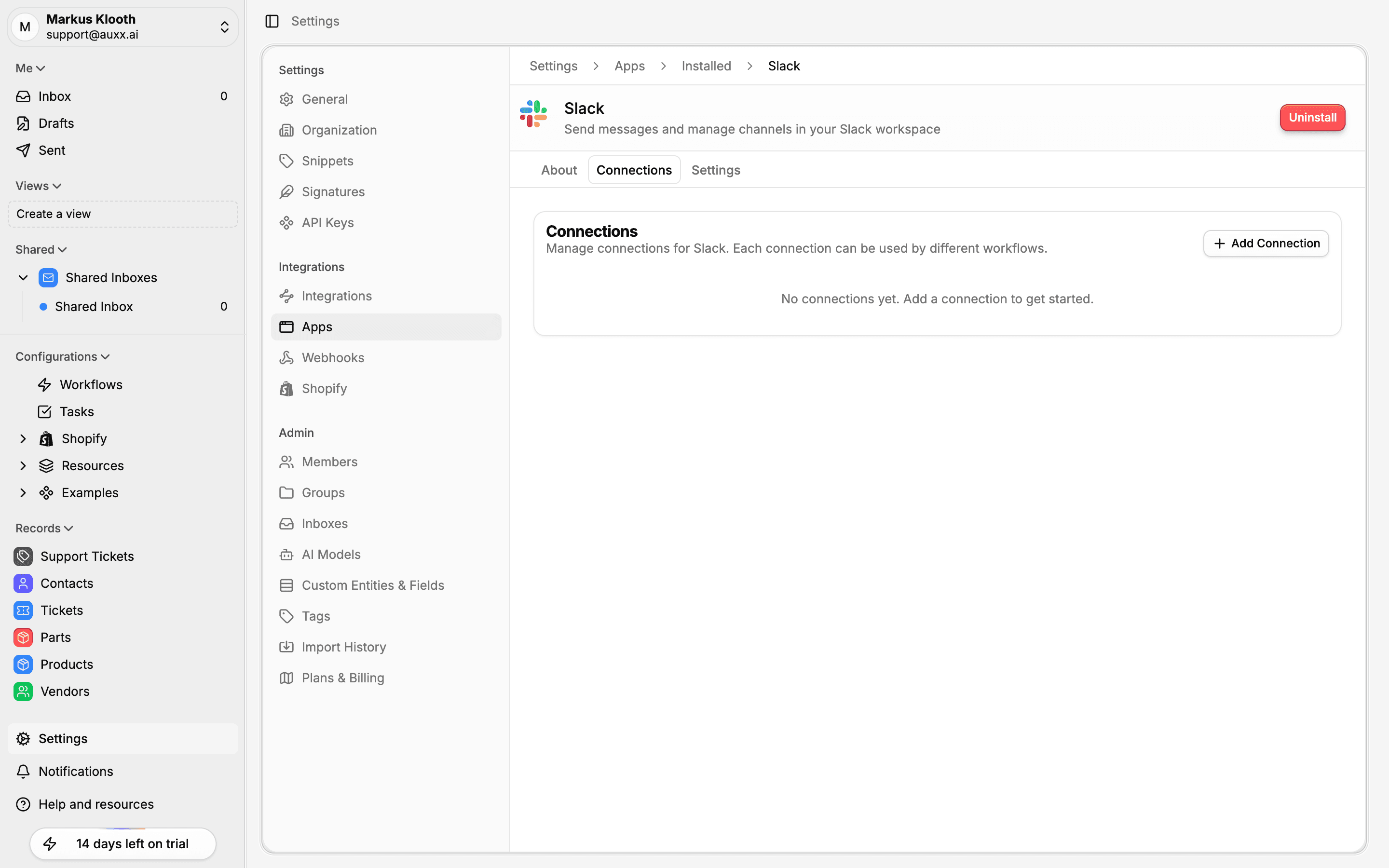
The Connections tab lists all active connections for the app, showing the connection label and status.
Add a connection
Click Add Connection to set up a new credential:
- OAuth apps — You'll be redirected to the external service to authorize access. After granting permission, you're returned to Auxx.ai with the connection active.
- Secret-based apps — Enter your API key or credentials directly, then click Save.
Rename a connection
Click on a connection's label to rename it. This is useful when you have multiple connections to distinguish between them (e.g., "Production API" vs "Staging API").
Delete a connection
Click the delete button on a connection to remove it. The app will no longer be able to use that credential for API calls.
Settings
The Settings tab shows app-specific configuration options. These settings are defined by the app developer and vary per app. Changes apply at the organization level — all members share the same app settings.
Update any fields and click Save to apply changes.
About
The About tab displays the app's description, documentation links, developer information, and the permissions the app was granted during installation.
Uninstall an app
Admin required
Only organization admins and owners can uninstall apps.
To uninstall an app:
- Go to Settings > Apps > Installed
- Click the app you want to remove
- Click Uninstall
- Confirm the removal
Uninstalling removes the app installation, all its connections, and any app-specific settings from your organization.