Workflows overview
Automate support tasks with workflows — triggered sequences of actions that route, tag, and respond to messages.
Workflows are automation rules that run when specific events occur. They let you automate repetitive tasks like routing messages, tagging conversations, sending replies, and processing data — without writing code.
What is a workflow?
A workflow is a sequence of steps:
- Trigger — The event that starts the workflow (e.g., a new message arrives)
- Conditions — Optional rules that filter which events qualify (e.g., only messages from a specific inbox)
- Actions — What happens when the workflow runs (e.g., tag the conversation, send a reply, create a ticket)
Workflows are visual — you build them by connecting nodes in a drag-and-drop editor.
The workflows page
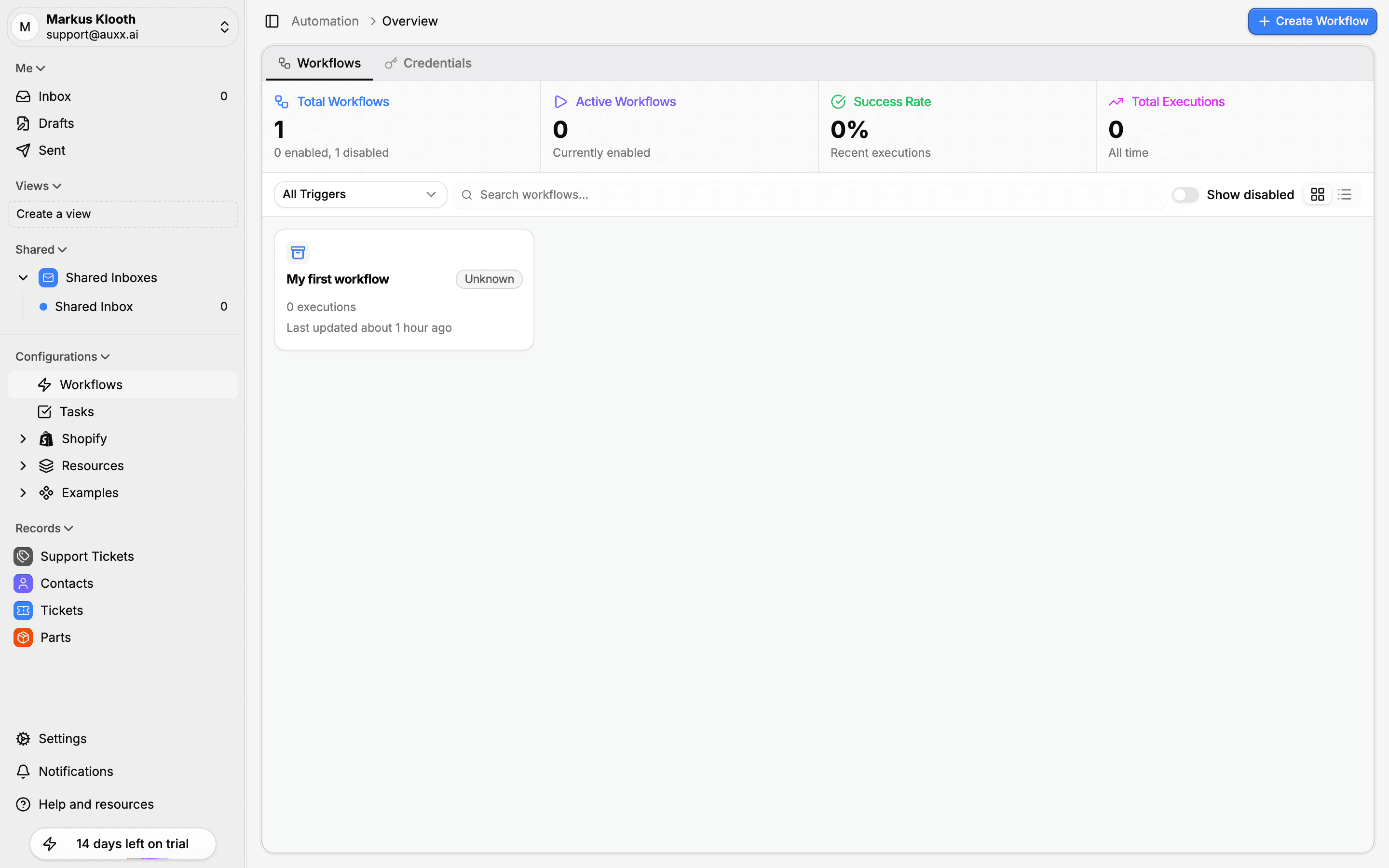
Access workflows from Workflows in the sidebar. The list view shows:
- Stats cards at the top — Total workflows, enabled count, and average success rate
- Workflow cards — Each workflow shows its name, trigger type, status (enabled/disabled), last run time, and success rate
- Search and filter — Find workflows by name or filter by trigger type
- Grid or table view — Toggle between card and list layouts
Workflow statuses
| Status | Meaning |
|---|---|
| Enabled (green) | Actively running when triggered |
| Disabled (gray) | Paused — won't run even if triggered |
Enable or disable a workflow
Toggle a workflow on or off without deleting it. Disabling a workflow stops it from responding to triggers but preserves its configuration and execution history.
Workflow executions
Each time a workflow runs, it creates an execution record. Click on a workflow to see:
- Execution history — List of recent runs with status and timing
- Execution details — Step-by-step breakdown of what happened, including timing and outputs
- Run statuses:
| Status | Meaning |
|---|---|
| Succeeded | All steps completed successfully |
| Failed | An error occurred during execution |
| Running | Currently in progress |
| Waiting | Paused for human approval |
| Paused | Temporarily paused by the system |
Version history
Workflows are version-controlled. When you publish changes, a new version is created. You can:
- View all published versions
- See which version is currently active
- Activate a previous version if needed
Common workflow patterns
| Pattern | Trigger | Actions |
|---|---|---|
| Auto-tag by keyword | Message received | Check subject/body for keywords → apply tag |
| Route to team | Message received | Check sender domain → assign to specific inbox/group |
| AI auto-reply | Message received | Generate AI reply → human approval → send |
| Escalation | Ticket status change | If ticket open > 24h → notify manager |
| Welcome message | New contact created | Send onboarding email to new customer |