AI models & providers
Configure AI providers and models in Auxx.ai, including OpenAI and Anthropic.
Auxx.ai supports multiple AI providers. By default, your workspace uses system-provided credits. You can also bring your own API keys for more control over models and usage.
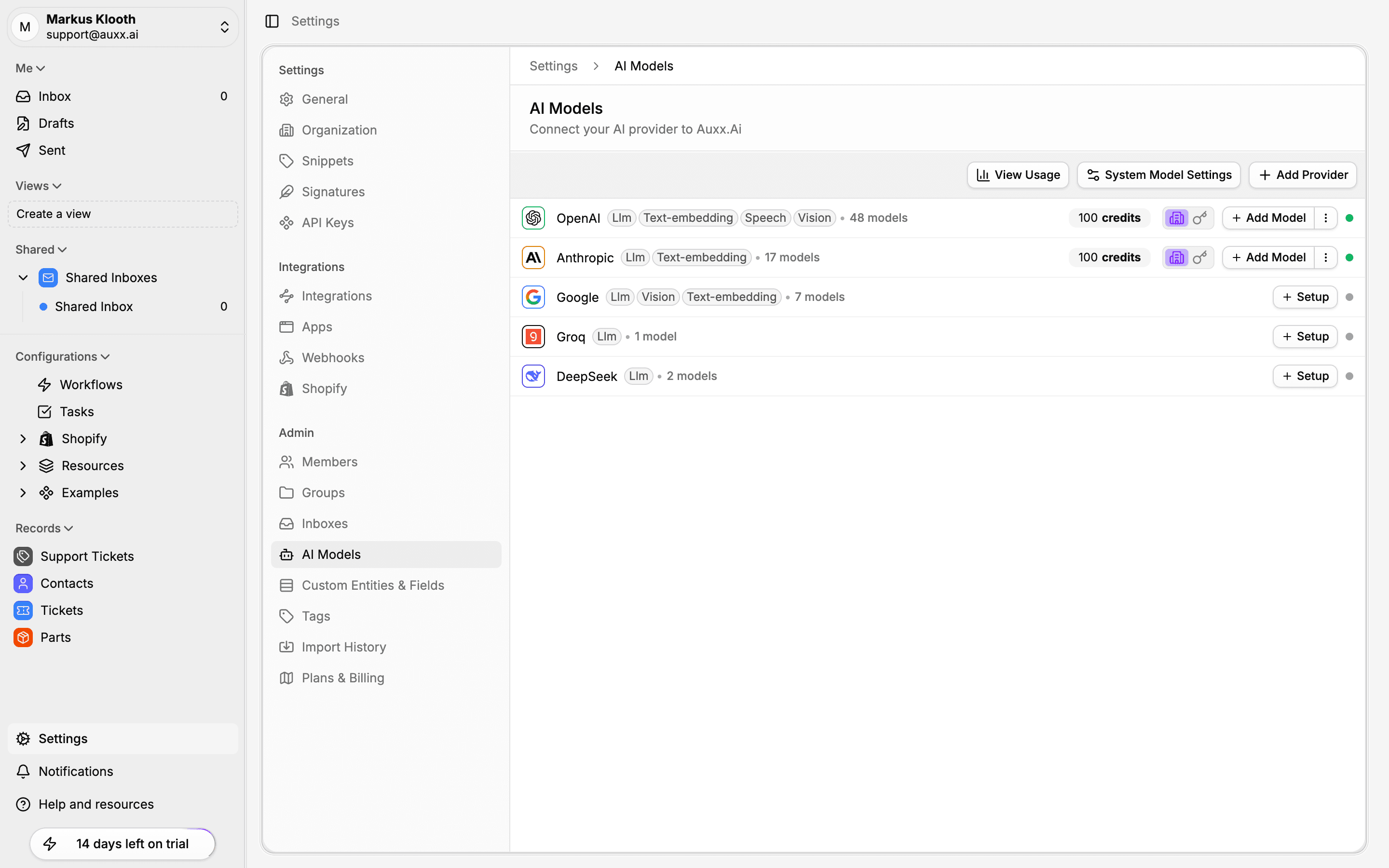
Supported providers
| Provider | Models | Use case |
|---|---|---|
| OpenAI | GPT-4o, GPT-4o-mini, and more | General-purpose text generation, composing replies |
| Anthropic | Claude models | Alternative LLM for text generation |
System credits vs. own keys
| Mode | How it works |
|---|---|
| System credits | Auxx.ai provides a monthly quota of AI tokens based on your plan tier. No setup needed. |
| Own API keys | You provide your provider's API key. Usage counts against your provider account with no Auxx.ai quota limits. |
Configure a provider
- Go to Settings > AI Models.
- Click on the provider you want to configure (e.g., OpenAI).
- Enter your API key in the credentials dialog.
- Click Test Connection to verify the key works.
- Save the configuration.
Once configured, your workspace uses your API key instead of system credits for that provider.
Edit credentials
- Go to Settings > AI Models.
- Click Edit on the configured provider.
- Update the API key.
- Test and save.
Remove credentials
To switch back to system credits, delete your custom credentials from the provider settings. No data is lost — only the API key is removed.
Model settings
Each model can be configured with parameters that control how AI generates text:
| Setting | Description | Range |
|---|---|---|
| Temperature | Controls creativity. Lower = more focused, higher = more varied. | 0–1 |
| Max tokens | Maximum length of generated responses | Varies by model |
| Top P | Nucleus sampling — controls diversity of word choices | 0–1 |
| Frequency penalty | Discourages repeating the same phrases | 0–2 |
| Presence penalty | Encourages introducing new topics | 0–2 |
Default model
Set a default model for your workspace in Settings > AI Models. This model is used for all AI operations unless overridden in a specific workflow.
The default model applies to:
- AI compose in the inbox
- AI rewrite operations
- Workflow AI nodes (unless the node specifies a different model)
Usage tracking
Your AI usage is tracked and visible in Settings > AI Models:
- Daily and monthly consumption — See how many tokens your team is using
- Quota status — How much of your plan's allocation you've used
- Per-operation tracking — Tokens used, model, and processing time for each AI call
When you approach your quota limit, Auxx.ai shows a warning. Switching to your own API keys removes quota restrictions.